After an emergency at my previous webhost, I've switched to a new webhost. If you see any missing content, let me know!
Dude, Where's my Command?
The Dilemma
This post was inspired by a recent occurrence at work. I have built a framework which constructs documents based on a lists of functions in a module specific to that kind of document.
I found myself running into an issue where even though I knew there was a command named a certain thing, and that the function was correctly exported from the module, PowerShell wasn't finding the command.
My code looked something like this:
$module='Module1'
Git - The 5 Percent that I Always Use
 One of the reasons I got into IT was that I really enjoy learning new things. Unfortunately, there are so many things to learn that it's easy to get overwhelmed. Does it make sense to do a deep-dive into each technology that you use, or does it sometimes make sense to skim the cream off the top and move on to the next technology?
In this post, I'm talking about git, the distributed source control system that is used in GitHub, Azure DevOps Repos, GitLab, and countless other places. Git can be really complicated, and intimidating, so I'm going to try to convey the tiny fragment of git which allows me to get my work done.
Just Eight Commands
Here are the commands I regularly use:
- git clone
- git checkout
- git add
- git commit
- git push
- git pull
- git branch
- (occasionally) git stash
That's it. Eight commands.
Here's how I do things. If you're a git guru and see ways to improve this simple workflow, let me know. Also, know that I'm usually working on projects by myself, but I try to work like I would on a team.
Starting Off
To start, I clone the repository that I'm going to be working on. For instance, if I wanted to work on WPFBot, I'd go to the github repo for it and get the URL:
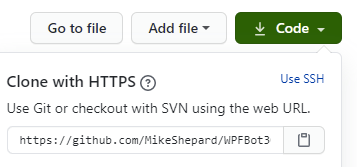
With that, I can issue the command:
git clone https://github.com/MikeShepard/WPFBot3000
and git will copy the remote repository into a local directory called WPFBot3000 ready for me to edit.
If I'm starting a new project, I would create a repo (Github, AzureDevops, etc.) and clone it locally.
I could create it locally and push it up, but this way I only have one method to remember.
Preparing for changes
Before I make any changes, I need to make sure I'm on a branch dedicated to my changes.
If this is a new set of changes I'm working on, I can create the branch and switch to it with the command:
git checkout -b BranchName
(where BranchName is a descriptive label for the changes I'm making.
If the branch already exists,
git checkout BranchName
will switch me to the existing branch.
Making Changes
Making changes is easy. I just make the changes. I can edit files, move things around, delete files, create folders, etc.
As long as the changes are in the repo (the WPFBot3000 folder, in this case), git will find them.
There are no git commands necessary for this to happen.
Staging the Changes
I tell git that I've made changes that I like using the command
git add .
This says to "stage" any changes that I've made anywhere in the repo.
Staging changes isn't "final" in any way. It just says that these changes are ones I'm interested in.
As before, I could use sophisticated wildcards and parameters to pick what to stage, but by working on short-lived branches I almost always want to stage everything I've changed.
Committing the Changes
Committing the changes is like setting a milestone. This is a point-in-time where the state of these files is "interesting".
I do this using the command: git commit -m 'A descriptive message about what changes I made'
A few things to note about commits:
- Interesting doesn't always mean finished. I can commit several times without pushing the code anywhere.
- "descriptive" is subjective. There has been a lot written about good commit messages. Mine probably are bad.
Repeat the Cycle
If I'm not done with the changes, I can continue the last 3 steps:
- Making Changes
- Staging the Changes
- Committing the Changes
All of these steps are happening locally, but by committing often I have chances to roll-back to different places in time if I feel like it (I rarely do).
Completing the Changes
The next step is a bit of a cheat.
I hate remembering long git commands, so rather than remembering how to link my local branch with the remote repo, I simply say
git push
Git will reply with an error message because it doesn't know what remote branch to push it to.
In the error message, though, it tells me how to do what I want:

In this case, it's
git push --set upstream origin TEst (and yes, branch names are case-sensitive)
Pull Request
At this point, I go to Azure DevOps or GitHub (I don't use GitLab much) and browse to the repo.
It will usually have a notice that a branch was just changed and will give me the opportunity to create a pull request.
A pull request is a request to merge (or pull) changes from one branch into another.
Typically, you're merging (or pulling) changes from your branch into master.
Once you've created the pull request, this is the time for your team members to review the changes, make suggestions, and approve or deny the request.
If you're working alone, you can approve the request yourself.
I also select the "delete the branch after merge" option so I don't have a bunch of old branches hanging around.
If the merge is successful, then the changes are now part of the master branch on the remote repo.
They are only in my feature branch locally, though.
Pulling Changes Down
To get the updated master branch, I have to first switch to it:
git checkout master
Once I'm on the branch, I can
git pull
to pull the changes down.
Cleaning up and Starting over
Now that our changes are in master, I can remove the local branch with:
git branch -d BranchName
At this point, I don't usually know what I'm going to work on next.
I have a bad habit of accidentally making changes in master locally, though so my next step helps me avoid that.
I simply check out a new branch called Next like this:
git checkout -b Next
Note: This is exactly what we did at the beginning, just with a temporary branch name of Next.
When I'm ready to work on a real set of changes, I can rename the branch with
git branch -m NewBranchName
Summary
That probably seemed like a lot, but here are all of the commands (with some obvious placeholders)
- git clone <url>
- git checkout -b BranchName
- git add .
- git commit -m 'Fantastic commit message'
- <repeat add/commit until ready to push>
- git push (followed by copy/paste from the error message)
- <proceed to create and complete the pull request>
- git checkout master
- git pull
- git branch -d BranchName
- git checkout -b Next
Bonus command - git stash
If I find I've made changes in master, git stash will shelve the changes. I can then get on the right branch and do a git stash pop to get the changes back.
With the adoption of the git checkout -b Next protocol, though, I don't find myself needing this very often.
What do you think? Does this help you get your head around using git?
Very Verbose PowerShell Output
Have you ever been writing a PowerShell script and wanted verbose output to show up no matter what?
You may have thought of doing something like this:
#Save the preference variable so you can put it back later
A PowerShell Parameter Puzzler

I ran across an interesting PowerShell behavior today thanks to a coworker (hi Matt!).
It involved a function with just a few arguments. When I looked at the syntax something looked off.
I am not going to recreate the exact scenario I found (because it involved a cmdlet written in C#), but I was able to recreate a similar issue using advanced functions.
So consider that you are entering a command and you see an intellisense prompt like this one:
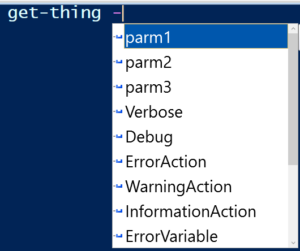
You would rightfully assume that it had 3 parameters.
If you looked at the syntax using Get-Help (or the -? switch) you would see something strange:
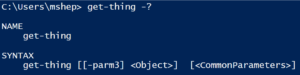
Wait...where did the other 2 parameters go?
Using Get-Command get-Thing -syntax shows essentially the same result:

This was the kind of problem I ran into. I was given a cmdlet, and when I looked at the syntax to see the parameters, I didn't find the parameters I expected. They were there, but they weren't shown by Get-Command.
The "puzzle" is a bit less confusing when you see the code of the function:
function get-thing {
The PowerShell Conference Book

Back in May, Mike Robbins (@mikefrobbins) asked if I wanted to contribute a chapter to a book he was putting together. The book would include chapters from different scripters in the PowerShell community and each would provide material that would be similar to a session at a conference.
In addition, the proceeds from the sale of the book would support the DevOpsCollective OnRamp scholarship for new IT pros going to the PowerShell and DevOps Conference in 2019.
Sounded like fun, so I signed on. We did the writing in markdown in a private GitHub repo. Not at all what I'm used to for writing but it was a really good experience. Mike was joined by Mike Lombardi (@barbariankb, from the STLPSUG) and Jeff Hicks (@jeffhicks). They did a great job corralling over 30 writers and at this point, the book is at 90% complete.
If you haven't heard about this, go over to leanpub and take a look. The table of contents alone should convince you that this book is worth your time.
My chapter, Rethinking PowerShell GUIs, went live last friday (8/3) and talks about the beginnings of WPFBot3000 and a "companion" module called ContextSensitiveMenus which I haven't blogged about yet.
I would enjoy hearing feedback on my chapter and the book in general.
--Mike
PowerShell DSL Module Considerations
Just a quick note to mention a couple of things I've come across with PowerShell modules that encapsulate DSLs (Domain Specific Languages, specifically WPFBot3000).
PowerShell Command Name Warnings
PowerShell modules have always issued warnings if they contain commands that don't use approved verbs. What's fun with modules for DSLs is that the commands in general don't use verbs at all. Since these commands aren't "proper", you might expect a warning. You won't get one, though.
PowerShell Module Autoloading
PowerShell modules have had autoloading since v3.0. Simply put, if you use a cmdlet that isn't present in your session PowerShell will look in all of the modules in the PSModulePath and try to find the cmdlet somewhere. If it finds it, PowerShell imports the module quietly behind the scenes.
This doesn't work out of the box with DSLs. The reason is simple.
DSLs generally have commands that aren't in the verb-noun form that PowerShell is expecting for a cmdlet, so it doesn't try to look for the command at all.
The fix for this is simple (for WPFBot3000, at least). All I've done is replace the two top-level commands (Window and Dialog) with well-formed cmdlet names (New-WPFBotWindow and Invoke-WPFBotDialog). Then, I create aliases (Window and Dialog) pointing to these commands.
Now that I think of it, I'm not sure why that works. If PowerShell is looking for the aliases, why wasn't it finding the commands? Nevertheless, it works.
That's all for today, just a couple of oddities.
--Mike
WPFBot3000 - Approaching 1.0
I just pushed version 0.9.18 of WPFBot3000 to the PowerShell Gallery and would love to get feedback. I've been poking and prodding, refactoring and shuffling for the last month or so.
In that time I've added the following:
- Attached Properties (like Grid.Row or Dockpanel.Top)
- DockPanels
- A separate "DataEntryGrid" to help with complex layout
- A ton of other controls (DataGrid and ListView are examples)
- A really exciting BYOC (bring your own controls) set of functions
Mostly, though, I've tried to focus on one thing: reducing the code needed to build a UI.
To that end, here are a few more additions:
- Variables for all named controls (no more need to GetControlByName()
- -ShowForValue switch on Window which makes it work similarly to Dialog
In case you haven't looked at this before, here's the easy demo:
$output=Dialog {
Introducing WPFBot3000
Preamble
After 2 "intro" posts about writing a DSL for WPF, I decided to just bit the bullet and publish the project. It has been bubbling around in my head (and in github) for over 6 months and rather than give it out in installments I decided that I would rather just have it in front of a bunch of people. You can find WPFBot3000 here.

Before the code, a few remarks
A few things I need to say before I get to showing example code. First, naming is hard. The repo for this has been called "WPF_DSL" until about 2 hours ago. I decided on the way home from work that it needed a better name. Since it was similar in form to my other DSL project (VisioBot3000), the name should have been obvious to me a long time ago.
Second, the main reasons I wrote this are:
- As an example of a DSL in PowerShell
- To allow for easier creation of WPF windows
- Because I'm really not that good at WPF
In light of that last point, if you're looking at the code in the repo and you see something particularly horrible, please enter an issue (or even better a pull request with a fix). As far as the first two go, you can be the judge after you've seen some examples.
Installing WPFBot3000
WPFBot3000 can be found in the PowerShell Gallery, so if you want to install it for all users you can do this:
#in an elevated session
A PowerShell WPF DSL (Part 2) - Getting Control Values
Some Background
Before I start, I should probably take a minute to explain what a DSL is and why you would want to use one.
A DSL (domain-specific language) is a (usually small) language where the vocabulary comes from a specific problem domain (or subject). Note that this has nothing to do with Active Directory domains, so that might have been confusing.
By using words that are naturally used in describing problems in this subject, it is possible to write using the DSL in ways that look less like programming and more like describing the solution.
For instance, in Pester, you might write part of a unit test like this (3.0 syntax):
It "Has a non-negative result" {
Starting a PowerShell DSL for WPF Apps
The problems
There is always a problem. In my case, I had two problems.
First, when I teach PowerShell, I mention that it's a nice language for writing DSLs (domain-specific languages). If you want an in-depth look, Kevin Marquette has a great series on writing DSLs. I highly recommend reading it (and everything else he's written). I'm going to cover some of the same material he did, but differently.
Anyway, back to the story. When I mention DSLs, I generally get a lot of blank stares. Then, I get to try to explain them, but I don't have a great example (Pester, Psake, and DSC are a bit advanced). So I was looking for a DSL I could write that would be easy to explain, with the code and output straight-forward. That's the first problem.
The second problem, again from teaching, is when I talk about writing GUIs. This is always a popular topic, and it's a lot of fun to discuss the different options. I get asked about when it is a good idea to write a UI in PowerShell vs. when it would make more sense to do it in a managed language. My answer is something along the lines of "If it's something simple like a data-entry form, then PowerShell is a great fit. If it has much complexity you are probably going to want to use C#." I got thinking after teaching last November that writing a data-entry form in PowerShell really isn't that easy.
PowerShell to the rescue!
I decided that I needed to remedy the situation. Writing a data-entry form (where we're not super concerned about the look-and-feel) should be trivial.
My first thought was that I should be able to write something like this:
Window {
Celebrating 1 Year of Southwest Missouri PowerShell User Group (SWMOPSUG)
So...we've been meeting in Springfield, MO for a year now.
Our first meeting was in June 2017 and had our "anniversary" meeting earlier this month. Thanks to Scott for presenting a talk about PowerShell jobs!
We haven't had big crowds, but we have had good consistent attendance. Looking forward to another year and reaching out to more people in the community.
If you're in the southwest Missouri area (or close by), let me know and I'll be happy to see where we can get you scheduled to speak.
If you're interested, you can find details about upcoming events on our meetup page.
--Mike
A Modest Proposal about PowerShell Strings

If you've used the PowerShell Script Analyzer before you are probably aware that you shouldn't be using double-quoted strings if there aren't any escape characters, variables, or subexpressions in them. The analyzer will flag unnecessary double-quotes as problems. That is because double-quoted strings are essentially expressions that PowerShell needs to evaluate.
Let me repeat that...
Double-quoted strings are expressions that PowerShell needs to evaluate.
Single-quoted strings, on the other hand, are just strings. There's nothing (aside from doubled single-quotes being replaced by a single single-quote) that needs to be done with them.
When I teach about PowerShell, I usually say something along the lines of "double quotes are an indication to PowerShell that there's some work to do here". I was thinking about this the other day and I think a shift in terminology will be helpful. Calling them double- and single-quoted strings is descriptive, but not very helpful.
My proposal is simply this:
Single-quoted strings will henceforth be called "strings".
Double-quoted strings will henceforth be called "string expressions".
"String expression" gives me the idea that it is going to be evaluated. Which fits double-quoted strings perfectly. It's also shorter than saying "double-quoted string", which is a bonus.
"String" sounds (to me, at least), like something static. Matches the situation again.
For those that think "why not just use double-quoted strings all the time?", I would counter: Would you use Resolve-Path against C:\? Probably not, because it would be a waste of time. There's nothing to do. Resolve-Path expands wildcards and there are no wildcards there. I guess you could use Resolve-Path with every path just to be safe...but you get the point.
What do you think of this proposal? Do "string" and "string expression" convey enough that they should be used? Let me know in the comments.
FWIW, I'm going to be using them whether you agree. :-)
--Mike
Get-Learning - Launching Powershell
I thought I'd take a few minutes and show several ways to launch PowerShell. I'll start with the basics and maybe by the end there will be something you haven't seen

before.
The Start Menu
One of the first places to look for PowerShell is in the Start Menu. Opening the start menu and typing "PowerShell" will get you something like this:
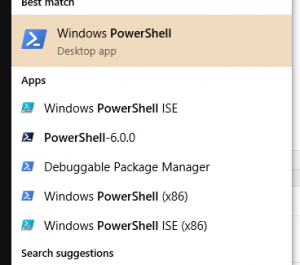
Note that there are several options
- Windows PowerShell (64-bit console)
- Windows PowerShell ISE (64-bit ISE)
- PowerShell-6.0.0 (PowerShell Core...you might not have this)
- Windows PowerShell (x86) (32-bit console)
- Windows PowerShell ISE (x86) (32-bit ISE)
There's also a "debuggable package manager", which is a Visual Studio 2017 tool (and essentially the 32-bit console).
For each of these, you can click on it to launch, but there are other options as well:
- Click to run a standard PowerShell session
- Right-Click and choose "Run As Administrator" to run an elevated session (if you are a local administrator)
You'll also notice that the right-click menu has options to run the other versions (ISE/Console, 32/64-bit).
The Run dialog
From the Run dialog (Windows-R), you can type PowerShell or PowerShell_ISE to launch the 64-bit versions of these tools.
What you may not know (and I just learned this recently, thanks Scott) is that if you hit ctrl-shift-enter, instead of just hitting enter, it will run them elevated (as administrator).
Windows Explorer
The final place I'm going to mention is Windows Explorer. If you have it open, you can launch PowerShell or the ISE in the current directory by typing PowerShell or PowerShell_ISE in the address bar like this:

Can you think of other ways to launch PowerShell (other than from PowerShell...that would be cheating)? Let me know in the comments.
--Mike
Old School PowerShell Expressions vs New
In a recent StackOverflow answer, I wrote the following PowerShell to find parameters that were in a given parameter set (edited somewhat for purposes of this post):
$commandName='Get-ChildItem'
Getting Data From the Middle of a PowerShell Pipeline
Pipeline Output

If you've used PowerShell for very long, you know how to get values of of a pipeline.
$values= a | b | c
Nothing too difficult there.
Where things get interesting is if you want to get data from the middle of the pipeline. In this post I'll give you some options (some better than others) and we'll look briefly at the performance of each.
Method #1
First, there's the lovely and often overlooked Tee-Object cmdlet. You can pass the name of a variable (i.e. without the $) to the -Variable parameter and the valu
es coming into the cmdlet will be written to the variable.
For instance:
Get-ChildItem c:\ -Recurse |
PowerShell Reflection-Lite
 N.B. This is just a quick note to relate something I ran into in the last couple of weeks. Not an in-depth discussion of reflection.
Reflection
Reflection is an interesting meta-programming tool. Using it, we can find (among other things) a constructor or method that matches whatever criteria we want including name, # of parameters, types of parameters, public/private, etc. As you can imagine, using reflection can be a chore.
I have never had to use reflection in PowerShell. Usually, `Get-Member` is enough to get me what I need.
Dynamic Commands in PowerShell
I have also talked before about how PowerShell lets you by dynamic in ways that are remarkably easy.
For instance, you can invoke an arbitrary command with arbitrary arguments with a command object (from `Get-Command`), and a hashtable of parameter/argument mappings simply using `& $cmd @params`.
That's crazy easy. Maybe I've missed that kind of functionality in other languages and it's been there, but I don't think so. At least not often.
I had also seen that the following work fine:
$hash=@{A=1;B=1}
No PowerShell Goals for 2018
After three years (2015, 2016, 2017) of publishing yearly goals, I've decided to not do that this year.
One reason is that I've not done a great job of keeping these goals in the forefront of my mind, so they haven't (for the most part) been achieved.
I definitely fell off the wagon a few times in terms of keeping up with regular posting here. 27 posts last year, so about one every 2 weeks. I'd like to get to where I'm posting twice per week.
I did not work on any new projects (writing, video course, etc.) throughout the year.
In 2017 I've been working on:
- VisioBot3000 - now in the PSGallery
- Southwest Missouri PowerShell User Group (SWMOPSUG) - meeting since June
- Speaking at other regional groups (STL and NWA)
Recently (mostly in 2018), I've also been working on:
- PowerShell Hosting
- WPF in PowerShell (without XAML)
I'm going to try to get back on the ball and post twice a week. Weekly goals rather than yearly...that way if I mess up a week, I can still succeed the next one. :-)
Mike
Visio Constants in VisioBot3000
One of the great things about doing Office automation (that is, COM automation of Office apps) is that all of the examples are filled with tons of references to constants. A goal of VisioBot3000 was to make using those constants as easy as possible.
I mentioned the issue of having so many constants to deal with in a post over 18 months ago, but haven't ever gotten around to showing how VisioBot3000 gives you access to some (most?) of the Visio constants.
First, here's a snippet of code from that post:
$connector.CellsSRC(1,23,10) = 16
Get-Learning : Why PowerShell?
As the first installment in this series, I want to go back to the topic I wrote on in my very first blog post back in 2009. In that post, I talked about why PowerShell (1.0) was something that I was interested enough in to start blogging.
Many of the points I mentioned there are still relevant, so I'll repeat them now. Here are some of the things that made PowerShell awesome to me in 2009:
- Ability to work with multiple technologies in a seamless fashion (.NET, WMI, AD, COM)
- Dynamic code for quick scripting, strongly-typed code for production code (what Bruce Payette calls “type-promiscuous”)
- High-level language constructs (functions, objects)
- Consistent syntax
- Interactive environment (REPL loop)
- Discoverable properties/functions/etc.
- Great variety of delivered cmdlets, even greater variety of community cmdlets and scripts
- On a similar note, a fantastic community that shares results and research
- Extensible type system
- Everything is an object
- Powerful (free) tools like PowerGUI, PSCX, PowerShell WMI Explorer, PowerTab, PrimalForms Community Edition, and many, many more. (ok...I don't use any of these anymore)
- Easy embedding in .NET apps including custom hosts.
- The most stable, well-thought out version 1.0 product I’ve ever seen MicroSoft produce.
- An extremely involved, encouraging community..
Of those things, the only ones that aren't very relevant are the "free tools" (those tools aren't relevant, but there are a lot of other new, free ones), and the 1.0 comment.
Since it's been almost 11 years now, instead of talking about 1.0, let's talk about now.
Microsoft, has placed PowerShell at the focus of its automation strategy. Instead of being an powerful tool which has a passionate community, it now is a central tool behind nearly everything that is managed on the Windows platform. And given the imminent release of PowerShell core, it will soon be (officially) available on OSX and Linux to provide some cross-platform functionality for those who want it. In 2009 you could leverage PowerShell to get more stuff done. Now, in 2017 you can't get much done without touching PowerShell.
Finally, PowerShell is a part of so many solutions now, including most (all?) of the management UIs and APIs coming out of Microsoft in the last several years. Microsoft is relying on PowerShell to be a significant part of their products. Other companies are doing the same, delivering PowerShell modules along with their products. They do this because it is a proven system for powerful automation.
Why PowerShell? Because it's awesome.
Why PowerShell? Because it's everywhere.
Why PowerShell? Because it's proven.
And my final point, which hasn't changed since I talked about it in 2009 is that PowerShell is fun!
Are you looking to start your PowerShell learning journey? Maybe you have already started and are looking for pointers. Perhaps you've got quite a bit of experience and you just want to fill in some gaps.
Follow along with me and get-learning!
--Mike
Get-Learning - Introducing a new series of PowerShell Posts
I've been blogging here since 2009. In that time, I've tried to focus on surprising topics, or at least topics that were things I had recently learned or encountered.
One big problem with that approach is that it makes it much more difficult to produce content.
I really enjoy writing, and I'm teaching PowerShell very frequently (a bit less than 10% of my time at work) so I'm in contact with basic PowerShell topics all the time.
With that in mind, I'm going to start writing PowerShell posts that are more geared towards beginning scripters.
The series, for which I'll be creating an "index page", will be called Get-Learning. I hope to write at least 2 or 3 posts in this series each week for the next several months.
If you have any suggestions for topics, drop me a line.
For now, though, watch this space.
--Mike
Calling Extension Methods in PowerShell
A quick one because it's Friday night.
I recently found myself translating some C# code into PowerShell. If you've done this, you know that most of it is really routine. Change the order of some things, change the operators, drop the semicolons.
In a few places you have to do some adjusting, like changing using scopes into try/finally with .Dispose() in the finally.
But all of that is pretty straightforward.
Then I ran into a method that wasn't showing up in the tab-completion. I hit the dot, and it wasn't in the list.
I had found....and extension method!
Extension Methods
In C# (and other managed languages, I guess), an extension method is a static method of a class whose first parameter is declared with the keyword this.
For instance,
[csharp]
public static class MyExtClass {
public static int NumberOfEs (thisstring TheString)
{
return TheString.Length-TheString.Replace ("e", "").Length;
}
}
[/csharp]
Calling this method in C# goes like this: "hello".NumberOfEs().
It looks like this method (which is in the class MyExtClass is actually a string method with no parameters.
Extension Methods in PowerShell
Unfortunately, PowerShell doesn't do that magic for you. In PowerShell, you call it just like it's written, a static method of a different class.
So, in PowerShell, we would do the following:
$code=@'

[MyExtClass]::NumberOfEs('hello')Deciphering PowerShell Syntax Help Expressions
In my last post I showed several instances of the syntax help that you get when you use get-help or -? with a cmdlet.
For instance:

This help is showing how the different parameters can be used when calling the cmdlet.
If you've never paid any attention to these, the notation can be difficult to work out. Fortunately, it's not that hard. There are only NNN different possibilities. In the following, I will be referring to a parameter called Foo, of type [BAR].
- An optional parameter that can be used by position or name:
[[-Foo] <Bar>]
- An optional parameter that can only be used by name:
[-Foo <bar>]
- A required parameter that can be used by position or name:
[-Foo] <Bar>
- An optional parameter that can be used only by name:
-Foo <Bar>
- A switch parameter (switches are always optional and can only be used by name)
[-Foo]
[-Foo <Switchparameter>]  #odd, but you may see this in the help sometimes
So, in the example above we see that we have
- parm1, which is a parameter of type Object (i.e. no type specified), is optional and can be used by name or position
- parm2, which is a parameter of type Object, is optional and can only be used by name
- parm3, which is a parameter of type Object, is optional and can only be used by name
- parm4, which is a parameter of type Object, is optional and can only be used by name
With some practice, you will be reading more complex syntax examples like a pro.
Let me know if this helps!
--Mike
Specifying PowerShell Parameter Position
Positional Parameters
Whether you know it or not, if you've used PowerShell, you've used positional parameters. In the following command the argument (c:\temp) is passed to the -Path parameter by position.
cd c:\temp
The other option for passing a parameter would be to pass it by name like this:
cd -path c:\temp
It makes sense for some commands to allow you to pass things by position rather than by name, especially in cases where there would be little confusion if the names of the parameters are left out (as in this example).
What confuses me, however, is code that looks like this:
function Test-Position{
Missing the Point with PowerShell Error Handling

I've been using PowerShell for about 10 years now. Some might think that 10 years makes me an expert. I know that it really means I have more opportunities to learn. One thing that has occurred to me in the last 4 or 5 months is that I've been missing the point with PowerShell error handling.
PowerShell Error Handling 101
First, PowerShell has try/catch/finally, like most imperative languages have in the last 15 years or so. At first glance, there's not much to see. I usually give an example that looks something like this:
try {
Lots of Recent User Group Activity!
There has been a lot of PowerShell activity in Missouri lately.
I started the Southwest Missouri PSUG in June and have had 4 successful meetings covering the following topics:
- June - organizational
- July - Error Handling
- August - Pester
- September - DSC
I also spoke at the St. Louis PSUG in August (on Error Handling). Ken Maglio spoke in September on accessing Web services (especially RESTful services)
I was privileged to speak at the Springfield .NET UG last week and gave a "developer's overview of PowerShell". BTW, it's hard for me to try to sum up PowerShell and only talk for an hour. Had a great time, though.
Coming in December, I will be speaking at the Northwest Arkansas Developers Group (PowerShell-related topic TBD).
And, as an exciting addition, the Kansas City PSUG had their first meeting in September! I hope to be able to get up that way for a meeting or two before the year is out.
I really enjoy the energy and enthusiasm that I see in all of these groups and love to speak or listen to talented speakers in the community.
--Mike
Celebrating Fake Internet Points in the PowerShell Community
This week, I (finally) hit 10,000 points on StackOverflow. On some level, I know it's just fake internet points, but it's a nice milestone.
Like everyone I know in IT, I often find useful answers to questions I have on StackOverflow. Since there are so many answered questions on that site, I generally don't even need to ask the question, just search for it instead.
When I talk to people about StackOverflow, I always mention the awesome PowerShell presence there. Usually, if you ask a "good" question, you will have lots of people competing to quickly provide answers that are not only correct, but are also informative and helpful. I'm constantly amazed by the character of the PowerShell community. We're all about getting things done and sharing what we use to succeed with others. I'm proud to be a part of this wonderful community.
And that brings me to the part of this "celebration" that isn't fake.
In addition to this number:

You will also see this statistic:

That means (by StackOverflow's calculations, at least), that almost a million people have viewed my answers (and questions). That's a bit overwhelming. I can't tell you how many times I talk to people about PowerShell and they tell me that they've used one of my answers. A million people, though is more than I can fathom.
For what it's worth, I'm going to keep on writing, teaching, answering, and speaking about PowerShell. Maybe I'll hit 2 million.
--Mike
P.S. When I speak about StackOverflow, I also mean to include ServerFault, which is the sysadmin-oriented site in the same family. PowerShell questions pop up on both, but more often on the significantly more popular StackOverflow.
SWMO PSUG August Meetup - 8/1/2017 at the eFactory
We're meeting at 6:00 at the eFactory in Springfield,MO.
This will be our third meeting!
I will be talking about Pester, primarily, but I will undoubtedly stray into poshspec, OVF, Watchman and maybe something else I find between now and then.
If you're in the area, we'd love to see you.
--Mike
Voodoo PowerShell - VisioBot3000 Lives Again!
Back in January I wrote a post about how VisioBot3000 had been broken for a while, and my attempts to debug and/or diagnose the problem.
I wrote a post about how VisioBot3000 had been broken for a while, and my attempts to debug and/or diagnose the problem.
In the process of developing a minimal example that illustrated the "breakage", I noticed that accessing certain Visio object properties caused the code to work, even if the values of those properties were not used at all.
It's been almost six months now, and I have no idea why that code makes any difference. So instead of letting VisioBot3000 die, I decided to take the easy route, and incorporate the "nonsense" code in the VisioBot3000 module.
If you look at the latest commit (as of this writing), the New-VisioContainer function (in VisioContainer.ps1) starts with the following single line of nonsense:
[void]$script:Visio.ActiveDocument.Pages[1]
In that code, I'm using a module-level reference to the Visio application, getting the active document from it, and retrieving the first page. And then I'm throwing away the reference that I just retrieved. The only thing that I can imagine is doing anything is the Pages[1] call. It's possible that the COM object is doing something internally in addition to pulling back the first page, but that's grasping at straws.
And that's why I call this Voodoo PowerShell. I'm using code that I don't understand because I get what I want from it. It's a meaningless ritual. I hate including it, but I hate that the module has been largely unchanged for a year even worse.
I will be trying to make more regular updates to VisioBot3000 in the near future, and will be presenting on it at the second SWMO PSUG meeting scheduled for next week.
Let me know what your thoughts are.
--Mike
Get-Command, Aliases, and a Bug
I stumbled across some interesting behavior the other day as I was demonstrating something that I understand pretty well.
[Side note...this is a great way to find out things that you don't know...confidently explain how something works, and demo it.]
I was asked to give an overview of how modules work in PowerShell. I've been writing and using modules since PowerShell 2.0 came out (2009?) so I didn't think there was anything (at least anything basic) that I wasn't comfortable with. Not to say that there aren't module concepts I'm not super-clear on, but the basics should have been all worked out.
After explaining the concepts of modules (encapsulating functions, variables, aliases) and showing how PowerShell knows where to look for modules, I turned to an example module I had written.
I won't replicate that module here, because the contents don't really matter. I've boiled the "weirdness" into a simple example and it looks like this:
function Get-Thing{
2 PowerShell Features I was Surprised to Love
After talking about features I don't want to talk about anymore I thought I would turn my attention to a couple of things in PowerShell that I initially felt were mistakes but have had a change of heart about.
For the most part, I think the PowerShell team does a fantastic job in terms of language design. They have made some bold choices in a few places, but time and time again their choices seem to me like the correct choices.
The two features I'm talking about today were things that, when I first heard about then, I thought "I'll never use that". Time has shown me that my reactions were in haste.
Module Auto-loading
I really like to be explicit about what I'm doing when I write a script. I like explicitly importing modules into a script. Knowing where the cmdlets used in a script come from is a big part of the learning process. As you read scripts (you do read scripts, don't you?), you can slowly expand your knowledge base as you start looking into functionality implemented in different modules. Another big advantage to explicitly importing modules into a script is that you're helping to define the set of dependencies of the script. "Oh, I need to have the SQLServer module installed to run this script...I thought it looked like a SQLPS script!". Since cmdlets can have similar names, explicitly loading the module can make it clear what's going on.
When I saw that PowerShell 3.0 introduced module auto-loading the first thing I thought was "I wonder how I can turn that off", followed closely by "I'm always going to turn that off on every system I use".
I hadn't met PowerShell 3.0 yet, though. The number of cmdlets jumped from several hundred to over two thousand. Knowing what cmdlets came from which modules became a much harder problem. There were so many more cmdlets (aided by cdxml modules) that keeping track was difficult.
Module auto-loading was a logical solution to the "too many modules and cmdlets" problem. I find myself depending on it almost every time I write a script.
I do like to explicitly import modules (either with import-module or via the module manifest) if I'm using something unusual, though.
Collection Properties
I don't know if there's an official name for this feature. Bruce Payette in PowerShell in Action calls this a "fallback dot operator". The idea is that you can use dot-notation against a collection to retrieve a collection of properties of the objects in the collection. Since that was probably as hard to read as it was to write, here's an example:
$filenames = (dir C:\temp).FullName
Clearly, an Array doesn't have a FullName property, right? And we already had 2 ways (the "old" way and the "aha" way) to do this:
$filenames = dir c:\temp | foreach-object {$_.FullName}
Generating All Case Combinations in PowerShell
At work, a software package that I'm dealing with requires that lists of file extensions for whitelisting or blacklisting be case-sensitive. I'm not sure why this is the case (no pun intended), but it is not the only piece of software that I've used with this issue.
What that means is that if you want to block .EXE files, you need to include 8 different variations of EXE (exe, exE, eXe, eXE, Exe, ExE, EXe, EXE). It wasn't too hard to come up with those, but what about ps1xml? 64 variations.
For fun, I wrote a small PowerShell function to generate a list of the different possibilities. It does this by looking at all of the binary numbers with the same number of bits as the extension, interpreting a 0 as lower-case and 1 as upper case.
Here it is:
function Get-ExtensionCases{
Hyper-V HomeLab Intro
So I've been playing with Hyper-V for a while now. If you recall it was one of my 2016 goals to build a virtualization lab.
I've done that, building out the base Microsoft Test Lab Guide several times:
- Manually (clicking in the GUI)
- Using PowerShell commands (contained in the guides)
- Using Lability and PS-AutoLab-Env
I was also fortunate enough to be a technical development editor for Learn Hyper-V in a Month of Lunches, which should be released this fall.
One thing that I've found is that being able to spin up a VM quickly is really nice. With the Hyper-V cmdlets, that's pretty easy.
Spinning up a machine from scratch and building a bootable image is not as easy. Fortunately there are some tools to help.
In this post, I'm going to share a simple function I've written to help me get things built faster.
The goal of the function is to take the following information:
- Which ISO to use
- Which edition from the ISO to select
- The Name of the VM (and VHDX)
- How much memory
- How many CPUs
With that information, it converts the windows image from the ISO to a VHDX, creates a VM with the right specs and using the VHDX, sets up the networking (or starts to, anyway), and starts the VM.
The bulk of the interesting work is done by Convert-WindowsImage, a function that pulls the correct image from an ISO and creates a virtual disk.
There are some problems with that script (read the Q&A on the Technet site and you'll see what I mean). The main one is when it tries to find the edition you ask for (by number or name). The code is in lines 4087-4095, and should look like this:
$Edition | ForEach-Object -Process {
                    $Edtn = $PSItem
                    if ([Int32]::TryParse($Edtn, [ref]$null)) {
PowerShell Topics I'm Ready to Stop Talking About
Part of me wants to know every bit of PowerShell there is. I know that's true about me, so I don't have much of an input filter. If the content is PowerShell-related, I'm interested.
When it comes to sharing, however, there's clearly got to be a point at which I shouldn't be talking about something. Here are a few items that I've spoken or taught about that I think are going to get pulled from my routine.
- The TRAP statement
- Obscure Operators
- Filters
- Tee-Object
- (bonus) Workflows
Let's go through them one by one and see why. And yes, I know that I'm talking about them, but this should be the last time (and this time I mean it).
The TRAP statement
The trap statement is the error handling statement that made the cut for v1.0 of PowerShell. If you weren't a PowerShell user at that time you probably haven't ever used it, favoring TRY/CATCH/FINALLY.
Instead of being a block-structured statement like TRY, TRAP worked in a scope, and functioned like a VB ON ERROR GOTO. The rules for program flow after a TRAP statement (which I've long forgotten) made understanding code that used TRAP into....a trap.
The advice I have given students in the past is, "If you stumble upon some code that uses TRAP, look for other code."
Obscure Operators
PowerShell has a lot of operators, and that's a good thing. On the other hand, I'm not sure why I need to tell people about every single operator. Some of the operators, though, are obscure enough that I haven't used them in any language more than a handful of times in the last thirty years. Candidates for expulsion (from discussion, not from the language) include:
- -SHL, -SHR (I guess someone does bitwise shifting, but I haven't ever needed this except in machine language)
- *=, /=, %= (I can see what these do, but I don't ever do much arithmetic so don't find the need for these "shorthand" operators)
Filters
Filters are another PowerShell 1.0 topic. They are one of the ways to use the pipeline for input without using advanced functions and parameter attributes. They're pretty slick, but are easily replaced with an advanced function with a process block. In the last 5 years, I've only seen filters used once (by Rob Campbell at a user group meeting).
Tee-Object
I generally consider the -Object cmdlets to be the backbone of PowerShell. They allow you to deal with pipeline objects "once-and-for-all" and not write a bunch of plumbing code in every function. For that reason, I like to talk about all of them. Tee-Object, however, might get sent to an appendix, because I don't see anyone using it and don't use it myself. This one might be changing as we see (being optimistic) people with more Linux backgrounds submitting PowerShell code. They use tee, right? I find that the -outvariable common parameter serves most of the need I would have for Tee-Object, so, it makes this list.
And finally,
Workflows
Workflows sound awesome. When you talk about workflows you get to use adjectives like "robust", and "resilient". And don't get me wrong Foreach-Object -Parallel is pretty sweet.
On the other hand, writing PowerShell in the workflow-subset of PowerShell is tricky. Remembering what needs to be an inlinescript and how to use/access variables in each kind of block is not fun.
I haven't ever used workflows for anything interesting, and have only heard a few examples of them being used by coworkers. Those examples could mostly be summed up by "I needed parallel".
It won't be hard for me to stop talking about workflows, as I've never really talked about them.
Before I get flamed because I included/excluded your favorite topic, these are just for me. If you like one of these, sell it! You might convince me to change my mind. Is there something that you think should fade away? Let me know what it is. I might be able to change your mind.
--Mike
An Unexpected Parameter Alias
I've always said that if you want to learn something really well, teach it to someone. I've been doing internal PowerShell training for several years at my company. I'm very grateful for the opportunity for a number of reasons, but in this post I'm going to call out how something I learned in a recent trip to our San Diego office.
When I'm starting to talk about cmdlets, I usually use get-childitem for the simple reason that almost everyone knows what the DOS DIR command does. It gives us a point of reference to compare and contrast cmdlets with.
I mentioned the -Recurse switch and explained that it was analogous to the /S switch in DIR, but one person in the class didn't quite get the context switch. When he did one of the examples, he tried get-childitem -s. I told him that he needed to use -Recurse, to which he replied "But it works!".
I always keep a pad of paper when I'm teaching so I can write down anything puzzling (it happens in almost every class). When the class took a break, I opened a fresh PowerShell session and tried it.
Of course, it worked.
Now, to determine why it worked.
First of all, I thought that parameter disambiguation would have been a problem. because of the -System parameter. That wasn't a problem.
Then, I realized that the PowerShell team must have included a "legacy alias" for the -Recurse parameter, similar to how they include cmdlet aliases to ease the transition from DOS or *NIX (dir, ls, ps, cat, etc.). I don't think I've ever heard anyone mention legacy aliases for parameters, though.
PowerShell easily verifies that this is the case:
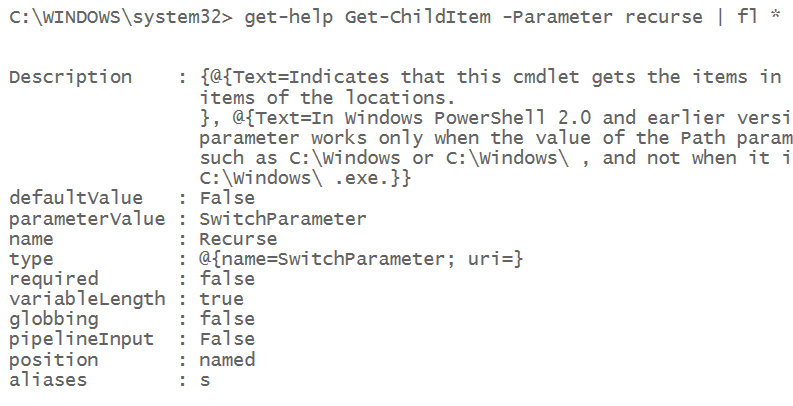
Of course, I verified this on my work computer. As I sit here writing on my home laptop, it didn't list any aliases until I updated help. Blogging is a lot like teaching in that you're bound to find surprises whenever you try to explain something.
Anyway, this was a fun discovery for me.
Can you think of any other parameter aliases that are there for legacy reasons? I might have to try to work up a script to find candidates.
Let me know what you think in the comments.
-Mike
PowerShell Parameter Disambiguation and a Surprise
When you're learning PowerShell one of the first things you will notice is that you don't have to use the full parameter name. This is because of something called parameter disambiguation.
When it works
For instance, instead of saying Get-ChildItem -Recurse, you can say Get-ChildItem -R. Get-ChildItem only has one (non-dynamic) parameter that started with the letter 'R'.. Since only one parameter matches, PowerShell figures you must mean that one. As a side note, dynamic parameters like -ReadOnly are created at run-time and are treated a bit differently.
Here's the error message. Notice that it included a couple of other parameters as possibilities:

AmbiguousParameter error
When it doesn't work
This doesn't always work, though. An easy example is with Get-Service. You can't say Get-Service -In because you haven't specified enough of the parameter name for PowerShell to work out what parameter you meant. With Get-Service, both -Include and -InputObject start with -In, so PowerShell can't tell which of these you meant.
Trying it ourselves
Let's write a quick function to make sure we understand what's going on.
function test-param{
When the PowerShell pipeline doesn't line up
The PowerShell Pipeline
One of the defining features of PowerShell is the object-oriented pipeline. The ability to "wire-up" parameters to the pipeline and allow objects (or properties) to be automatically assigned to them allows us to write code that is often variable-free.
By "variable-free", I mean that instead of doing something like this:
$services=Get-Service *SQL*
Great Books for PowerShell Ideas
I get asked a lot about what PowerShell books people should be reading. The easy answer is, "It depends".
If you're looking for a tutorial book (or two) to get you started with PowerShell, the only answer I give is "Learn PowerShell in a Month of Lunches", followed by "Learn PowerShell Toolmaking in a Month of Lunches". There are other good books in this space (including one I wrote), but these are by far the best I've found.
If you're looking for a reference book, I generally recommend Bruce Payette's "PowerShell in Action". It has a new version coming out soon (april?) and I can hardly wait. Besides that book, "PowerShell in Depth" (by Jones, Hicks, and Siddaway) is also a safe bet.
If you've got the basics of PowerShell down, and are looking for ideas for how to do something, here are some books that aren't mentioned as often, but are indispensible:
- PowerShell Cookbook (Lee Holmes)
- PowerShell Deep Dives (several)
- PowerShell for Developers (Doug Finke)
What are your book recommendations? Did I miss something essential?
-Mike
Some small PowerShell bugs I've found lately
I love PowerShell. Everyone who knows me knows that. Recently, though, I seem to be running into more bugs. I'm not complaining, because PowerShell does tons of amazing things and the problems I'm encountering don't have a huge impact. With that said, here they are.
Pathological properties in Out-GridView
PowerShell has always allowed us to use properties with names that aren't kosher. For instance, we can create an object that has properties with spaces and symbols in the name like this:
$obj=[pscustomobject]@{'test property #1'='hello'}
This capability is essential, since we often find ourselves importing a CSV file that we don't have any control over. (As an exercise, look at the expanded CSV output from schtasks.exe). To access those properties we can use quotes where most languages doesn't like them.
$obj.'test property #1'
Or we can use variables (again, something most languages won't let you do this easily):
$prop='test property #1'; $obj.$prop
A friend called me last week with an interesting issue which turned out to be related to this kind of behavior. He had a SQL query which renamed output columns in "pathological" ways. When he piped the output of the SQL to Out-GridView, the ugly columns showed up in the output, but the columns were empty.
Here's a minimal case to reproduce the issue:
[pscustomobject]@{'test property.'='hello'} | out-gridview
The problem here is that the property name ends with a dot. Here's a UserVoice entry that explains that Out-GridView doesn't like property names that end in whitespace, either. I added a comment about dots for completeness' sake.
Formatting remote Select-String output
Another minor issue I've run into is that deserialized select-string output doesn't format nicely. The issue looks to be that the format.ps1xml for MatchInfo objects uses a custom ToString() method that doesn't survive the serialization. What happens is that you just get blank lines instead of any helpful output. The objects are intact, though, all of the properties are there. So using the output is fine, just that the formatting is broken. Here's a minimal example:
"hello`r`n"*6 | Out-File c:\temp\testFile.txt
February STLPSUG Meeting
I had the privilege of sharing again at the STLPSUG. February's meeting was at Model Technologies, and Jason Rutherford was a great host.
I spoke on being a good citizen on the pipeline, both for output and input. Basically, best practices for pipeline output (which is fairly straight-forward), and techniques for accepting pipeline input (including $input, filters, and parameter attributes).
The group was a bit more advanced than usual, which was cool. There was a lot of fun heckling (I'll give you $5 if you put $input in the process block, for instance) and a lot of participation from everyone.
As usual, after the presentation the talk turned into a giant DevOps discussion.
If you live anywhere near St. Louis and haven't attended one of these meetings, I highly recommend them. Mike Lombardi has done a great job keeping the group moving and focused.
You can find out about upcoming meetings on meetup.com.
P.S. My friend and co-worker Ian was able to come with me this time. Made the drive a lot more fun, and he had a good time, too.
January St. Louis PSUG meeting was a blast!
A couple of weeks ago I had the pleasure to attend another STL PSUG meeting. Mike Lombardi presented on "Getting Started with a Real Problem" and did a great job.
His scenario was someone who didn't really know PowerShell at all and needed to troubleshoot a 3-server web farm where the nodes had different problems.
There were some technical difficulties with his lab setup (he used Lability, which was cool), but he stuck with it and we did all of the fixing in the scenario using a workstation rather than RDP'ing into the nodes.
The recording of the event (which was live-streamed) can be found here.
I will be presenting next month on writing functions that work with the pipeline.
--Mike
Debugging VisioBot3000
 The Setup

Sometime around late August of 2016, VisioBot3000 stopped working. It was sometime after the Windows 10 anniversary update, and I noticed that when I ran any of the examples in the repo, PowerShell hung whenever it tried to place a container on the page.
I had not made any recent changes to the code. It failed on every box I had.
First attempts at debugging
So...I really get fed up with people who want to blame "external forces" for problems in their code. When I found that none of the examples worked (though they obviously did when I wrote them), I figured that I must have done something stupid.
Hey! I'm using Git! Since I've got a history of 93 commits going back to march, I figured I could isolate the problem.
So...I reverted to a commit a few weeks earlier. And it failed exactly the same way.
Back a few weeks before that. No change.
Back to the first talk I gave at a user group....no change.
I gave up.
For several months.
Reaching out for help
After Thanksgiving, I posted a question on /r/Powershell explaining the situation. I got one reply, suggesting that I watch things in ProcMon while debugging. Seemed like a great thing to do, When I got around to trying it, however, it didn't show anything useful (at least to me...digging through the thousands of lines of output is somewhat difficult).
Making it Simple
Late last year, I thought, I should come up with a minimal verifiable example. Rather than say "all of my code breaks", I should be able to come up with the smallest possible example that breaks. To that end, I wanted to include as little VisioBot3000 code as I could, and show that something's up with Visio's COM interface (or something like that). To that end, I went back to the slides I used when demonstrating Visio automation to the St. Louis PSUG back in March of 2016 and cobbled together an example:
$Visio = New-Object –ComObject Visio.Application
Where I've been for the last few months
As I mentioned in my previous posts, I  kind of fell off the planet (blog-wise, at least) at the end of August. I had good intentions for finishing the year out strong. There were three different items that contributed to my downfall.
First, I've been battling lots of different illnesses (none of them anything major) pretty much continually since early June. For three entire months, I coughed all the time. Right now, I can't hear in one ear because of the fluid backed up there. That ear has only been a problem for a few days, but the other one (which cleared out yesterday) had been full for three weeks. Like I said, nothing major, no life-threatening conditions, but over time it wears you down.
Second, I broke down and bought a server. I have been putting off this purchase, but some book royalty money came through and I pulled the trigger. Buying it didn't take long. What has been interesting is learning to do all of the things that most of you sysadmins take for granted. I've never really been a sysadmin, more of a developer/DBA/toolsmith who happens to really, really like a language which is designed for sysadmins. So, I've been building hyper-v hosts, lots of guests, building domains, joining domains, and trying to script as much as possible. I've learned a lot and there's still a lot to learn. Most of it, though, is not stuff that I'll probably blog about, because it's really basic. There might be a post or 2 coming, but it's hard to say.
Third, and this one is the most "fun", is that VisioBot3000 stopped working. If you haven't read my posts on automating Visio with PowerShell, VisioBot3000 is a module I wrote which allows you (among other things) to define your own PowerShell-based DSL to express diagrams in Visio. By "stopped working" I mean that sometime around the end of August, trying to use Visio containers always caused the code to hang.
I am pretty good at debugging, so I tried the usual tricks. I stepped through the code in the debugger. The line of code that was hanging was pretty innocent-looking. All of the variables had appropriate values. But it caused a hang. On my work laptop and my home laptop...two different OSes. I tried reverting to an old commit...No luck. I even tried copying code out of presentations I had done on VisioBot3000 and the results were the same. I even posted on the PowerShell subreddit asking for ideas on how to debug. The only suggestion was to use SysInternals process monitor to follow the two processes and see if I could find what was causing the issue. I tried that a week or two ago (sometime during the holidays) and guess what? It started working on my work laptop. Still doesn't work on my home laptop, though, or the VM I built and didn't allow to patch to see if a patch was the culprit.
Conclusion: I'm mostly better health-wise, am getting comfortable with the server, and VisioBot3000 is working somewhere, so I should be back on track with rambling about PowerShell.
--Mike
PowerShellStation 2017 Goals
Following up on yesterday's post reviewing my progress on goals from 2016, I thought I'd try to set out some goals for the new year. I'm going to group them into 3 groups: Technology, Community, and Content.
Content Goals
- Write 100 posts. I didn't do so well with this last year, but this year will be different. I'm not sure why I don't write more often. I enjoy writing and feel good about myself when I do it. I'm going to try to be consistent with it as well, not having several months with no posts.
- Write a book. I've written a couple of books with a publisher (here and here) and I think that was valuable experience. I'm going to try to do it on my own. That should enable me to keep the cost down. I'm also going to try to do it a lot quicker (and maybe shorter) than the other books. BTW...I've already started.
- Write a course. I love to teach PowerShell, and I've got a lot of practice doing it at work. I'm considering recording "lectures" for a course (like on Udemy).
- Edit/Contribute 50 topics on StackOverflow.com's Documentation project for PowerShell. It seems like a reasonable platform for information about PowerShell, and there are already a bunch of topics there ready to be filled in.
Community Goals
- Start a regional PSUG in Southwest Missouri. I live there, so it's silly for me to have to drive 3 hours to go to a user group meeting. I don't intend to stop going to those long-distance meetings altogether, but there are a lot of people in SWMO who don't have a group.
- Continue Speaking. If they'll have me, I plan to continue speaking at local or regional user groups. I'm also looking for "nearby" SQL Saturdays, PowerShell Saturdays, or other settings.
- Continue the UG and teaching at work. This one is pretty easy, but I don't want to get distracted and let these fall apart.
Technology Goals
- Get handy with DSC and/or Chef. I'm still scripting virtualization/provisioning "manually" (i.e. scripting the steps I'd do manually) rather than using a system to do that for me. I wanted to do it that way so I would understand what goes on, but now that I know, I want to be out of that business. DSC is almost certain to be part of the equation. Chef might be, but that's an open question (also, Packer, Vagrant, Ansible, etc.)
- Deploy operational tests with Pester/PoshSpec/OVF. I see a lot of promise with these, but everything is single-machine focused. Something like this looks like a good start, but needs some flexibility.
- Nano, Containers, (flavor of the month). This one is kind of a wildcard. These two (nano and containers) are new technology solutions that I understand at a surface level, but don't have a good idea why or where I would use them. I'm not sure if I'll dig into one of these two or something else that pops up in the year, but there will be an in-depth project.
Bonus Goal
If I can get good with DSC, I really want to be able to spin up an entire environment from scratch. By that, I mean from scripts (and downloaded ISOs) I want to be able to create a DC (with certificate services) and a DSC pull server, and then deploy the servers for a lab and have them configure themselves via the pull server. For more of a bonus, use the newly created certificate services server to handle the passwords properly in the DSC configs. By the way, I'm aware of Lability and PS-AutoLab-Env. They're both awesome but not quite what I'm looking for here.
Those ought to keep me busy for the year. What are you planning to do/share/learn this year? Write about it and post a link in the comments!
--Mike
PowerShellStation 2016 Goals Review
I did a goal review back on August 22, reporting some good progress on my yearly goals and some plans for the remainder of the year. Somehow, I seemed to have fallen off the earth since then. I only posted twice since 
then, and both of those were in the week following the review. I'll be posting this week about what happened (spoiler alert...not much).
In the meantime, here's how I did on my goals for 2016
- 100 posts. I only got to 35. That's kind of embarassing. On the plus side, I had some of my best months in the last year (January - 10 posts, April - 8 posts, August - 7 posts). If I could keep that kind of momentum it would make a lot of difference. On the down side, if you exclude those 3 months I only has 10 posts in the remaining 9 months. That's abysmal.
- Virtualization Lab. In my review I mentioned that the box I bought to do virtualization on was only at 16GB of RAM and I needed to bump it up. Didn't do that. I also mentioned the possibility of buying an R710 off of eBay. Did that. Dual, quad-core cpus, 36GB of RAM, 8TB of storage (so far). I've done more virtualization since I bought it (in October) than I had ever done before. I can definitely say I got this goal accomplished!
- Configure Servers with DSC. Other than the talk I did at MidMo, I haven't really done much DSC this year. Now that I've got a solid lab machine, this is high on the list for 2017.
- PowerShell User Group. I've started a PSUG at work (I work for a sofware company, so there are hundreds of people using PowerShell) and we've had 3 meetings so far. They've mostly been sharing news and what we're working on, but it's a good start. Beginning to form a community there. Also, I attended several (more than a dozen, less than 20) meetings of local-ish PSUGs in Missouri. The two I know of are each a 3-hour drive one way to get to so that's a challenge but they've been great. They both started this year, and I've tried to lend my support as much as I can. I've spoken 6 or 7 times (I didn't keep track) and had a great time at all of the meetings.
- Continue Teaching at Work. Did lots of teaching. I'd have to check the calendar to get a real total, but it was at least 10 days of teaching.
- Share more on GitHub. Really got into Github this year. VisioBot3000, SQLPSX, POSH_Ado, etc. Next step: PowerShellGallery!
- Write more professional scripts. I think this will always be a goal of mine. I've published a couple of checklists and try to be thoughtful about how to write better code as I'm writing it, but I often find myself writing "throwaway" code and cleaning it up later. Need to eliminate as much of that first step as possible.
- Speak. I've spoken at 6 user group meetings this year and at 2 or 3 others in the past. If you've got a UG within driving distance of SW Missouri (KS, NW Arkansas, Oklahoma), let me know...I really enjoy sharing what I'm doing as well as speaking on "general" PowerShell topics. Also, it doesn't need to be a PSUG...I've spoken at .NET and SQL groups as well.
- Encourage. Another perennial task. I haven't been as active in this as I have in the past.
- Digest. (from the goal review)
I get about 10 different paper.li daily digests either in email or on twitter. I don't find a lot of value in them...they don't seem to be curated for the most part, but I think adding another into the fray at this point would probably be lost. I'm going to skip this one this year...but keep it on the back burner.
I've been thinking about maybe doing something slightly different here. Maybe a "module of the month" or "meet a PowerShell person" regular post. Any suggestions?
Well...by my count I accomplished 6 (maybe 7) of the 10 goals from last year. If you haven't thought about what you're going to try to accomplish this year I highly recommend you do. Remember, if you don't know where you're going, you might not like where you end up! A concrete list of goals, shared with friends (or with the public) makes it easy to know if you're achieving your goals or have lost sight of your goals.
--Mike
Module Structure Preferences (and my module history)
Modules in the Olden Days
Back in PowerShell 1.0 days, there were no modules. Uphill both ways. In 1.0, we only had script files. That means you had a couple of choices when it came to deploying functions. Either you put a bunch of functions in a .ps1 file and dot-sourced it, or you used parameterized scripts in place of functions. I guess you could have put a function in a .ps1 file, but you'd still need to dot-source it, right? Personally (at work), I had a bunch of .ps1 files, each devoted to a single "subject". I had one that dealt with db access (db_utils), one that interfaced with PeopleSoft (ps_utils), a module for scheduled tasks (schtasks_utils), and so on. You get the idea.
PowerShell 2.0 - The Dawn of Modules
One of the easiest features to love in PowerShell 2.0 was support for modules (although remoting and advanced functions are cool, they're not quite as easy). There's a $PSModulePath pointing to places to put modules in named folders, and in the folders you have .psm1 or .psd1 files. There are other options (like .dll), but for scripts, these are what you run into.
Transitioning into modules for me started easy: I just changed the extensions of the .ps1 files to .psm1. I had written functions (require and reload) which knew where the files were stored, and handled dot-sourcing them. You had to dot-source require and reload, but it was clear what was going on. When modules were introduced, I changed the functions to look for psm1 files and import with Import-Module if they existed, and just carry on as before otherwise.
That's Kind of Gross
Yep. No module manifests, and dozens of .psm1 files in the same folder. To make it worse, I wasn't even using the PSModulePath, because the .psm1 files weren't in proper named folders. The benefit for me was that I didn't have to change any code. I let that go for several years. Finally I broke down and put the files in proper folders and changed the code to stop using the obsolete require/reload functions and use Import-Module directly. I still haven't written module manifests for them. I'm so bad.
What about new modules?
Good question! For new stuff (written after 2.0 was introduced), I started with the same module structure: single .psm1 file with a bunch of functions in it. Probably put an Export-ModuleMember *-* in there to make sure that any helper functions don't "leak", but that was about it. To be fair, I didn't do a lot of module writing for quite a while, so this wasn't a real hindrance.
Is there a problem with that?
No...there's no problem with having a simple .psm1 script module containing functions. At least from a technical standpoint. Adding a module manifest is nice because you can document dependencies and speed up intellisense by listing public functions, but that's extra.
The problem came when I wrote a module with a bunch of functions. VisioBot3000 isn't huge, but it has 38 functions so far. At one point, the .psm1 file was over 1300 lines long. That's too much scrolling and searching in the file to be useful in my opinion.
What's the recommended solution?
I've seen several posts recommending that each function should be broken out into a single .ps1 file and the .psm1 file should dot-source them all. That definitely gets past the problem of having a big file. But in my mind it creates a different problem. The module directory (or sub-folder where the .ps1 files live) gets really big and it takes some work to find things. Lots of opening and closing of files. And the dot-sourcing operation isn't free...it takes time to dot-source a large set of files. Not a showstopper, but noticeable.
My tentative approach
How I've started organizing my modules is similar to how I organized "modules" in the 1.0 era. Back then, each file was subject-specific. In VisioBot3000, I split the functions out based on noun.
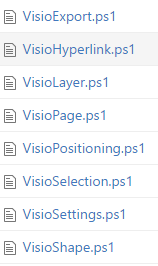
I still have relatively short source files, but now each file generally has a get/set pair, and if other functions use the same noun they're there too.
I've found that I often end up editing several functions in the same file to address issues, enhancements, etc. I think it makes sense from a discoverability standpoint as well. If I was looking at the source, I'd find functions which were related in the same file, rather than having to look through the directory for files with similar filenames.
Anyway, it's what I'm doing. You might be writing all scripts (no functions) and liking that. More power to you.
Let me know what you think.
--Mike
VisioBot3000 Settings Import
It's been a while since I last spoke about VisioBot3000. I've got the project to a reasonably stable point...not quite feature complete but I don't see a lot of big changes.
One of the things I found even as I wrote sample diagram scripts was that quite a bit of the script was taken up by things that wold probably be done exactly the same way in most diagrams. For instance, if you're doing a lot of server diagrams, you will probably be using the exact same stencils and the same shapes on those stencils, with the same nicknames. Doing so makes it a lot easier to write your diagram scripts because you're developing a "diagram language" which you're familiar with.
For reference, here's an example script from the project (without some "clean up" at the beginning):
Diagram C:\temp\TestVisio3.vsdx
August 2016 Goal Review
Thought I'd take a minute and review the progress on my goals for the year.
- 100 posts. I'm at 32 (33 if you count this) so it's going to take some dedication to make it. It's already 10 more than last year, so that's progress, but with 19 weeks left and 68 posts left, I'm going to have to beat 3 per week. I'm going to try. Might have to set a schedule (which would really help, but I'm not really wired that way).
- Virtualization Lab. I've got a couple of boxes running Hyper-V (client Hyper-V, but with nested virtualization I can get a lot closer). I've been playing with building servers, sysprep, differencing disks, etc. I feel like I've pretty much got this one covered. Need to jump the big box up to 32GB though. Thinking about getting a R710 off of eBay for a "next step" on this...maybe next year.
- Configure Servers with DSC. I've done some work with DSC both at home and at work, and gave a talk on DSC at the MidMO PSUG this month. Feel good about this, too.
- PowerShell User Group. First meeting at work is two days from now! I've also been to about a dozen meetings in Missouri (and posting about some of them). I've been honored to speak at 6 meetings so far as well, so this one is good. Bonus: I've started paperwork for reserving meeting space in the town I work (rather than 3 hours away), but haven't scheduled anything yet.
- Continue Teaching at Work. I might not get 10 sessions in, but I think I'm already to 7. Good on this one.
- Share more on GitHub. VisioBot3000, SQLPSX, POSH_Ado, etc. Next step: PowerShellGallery!
- Write more professional scripts. I haven't really checked, but I think this one is getting better.
- Speak. As I mentioned in #4, I've spoken at 6 user groups this year, so more than covered. If you've got a PSUG within driving distance of SW Missouri (KS, NW Arkansas, Oklahoma), let me know...I really enjoy sharing what I'm doing as well as speaking on "general" PowerShell topics.
- Encourage. I've probably let this one slide a bit. Note to self to comment more on other people's posts.
- Digest. I get about 10 different paper.li daily digests either in email or on twitter. I don't find a lot of value in them...they don't seem to be curated for the most part, but I think adding another into the fray at this point would probably be lost. I'm going to skip this one this year...but keep it on the back burner.
Re-Thinking Positional Parameters
I mentioned in a previous post that I've recently changed my mind a bit about the Position parameter attribute. I guess technically it is the position parameter of the Parameter parameter attribute (i.e. there's a parameter attribute called "Parameter" and it has a parameter called position). I don't think you could come up with something much more difficult to correctly name.
Anyway, I've always had a low opinion of this particular parameter. Before I explain why, let's review how it works.
If you have an advanced function, say Get-Stuff, you might see something like this:
Function Get-Stuff{
Hyper-V issues with Windows 10 Anniversary Update
My main home computer is running Windows 10 and Hyper-V, and I was really looking forward to the anniversary update. PowerShell Direct, nested virtualization, and containers all sound awesome. I've played with them in a test box, but not on my main box.
So...I got home after work the day of the update, installed it (took an hour or so) and rebooted.
First problem...Hyper-V management services wouldn't start. This was a problem with a driver...took a bit to find it, but got it solved that night.
Second problem....none of my VMs would start. Had to re-create the virtual switch and re-assign to the VMs. Not a huge deal.
Third problem...new 2016 TP5 VMs wouldn't boot. This one took a bit longer, and I found the actual workaround in a github issue comment. I knew there was a reason I got a hundred or so of those a day. :-)
The ingredients for this third problem are:
- 2016 TP5
- Gen 2 VM
- Secure Boot
- Version 8.0 firmware
If you have a VM (let's say it's called TheBadVM) you can get it to boot with the following command (with the VM stopped of course):
Get-VM -Name TheBadVM | Set-VMFirmware -EnableSecureBoot Off -SecureBootTemplate MicrosoftUEFICertificateAuthority
Then, the VM will start.
I hope this helps you. I figured this might be easier to find than the original (thanks to Ryan Yates!).
--Mike
August Missouri User Group Update
It's been a while since I last sent an update on Missouri user groups. I missed the June meetings in St. Louis (Michael Greene talking about the release pipeline) and in Columbia (Josh Rickard talking about his anti-phishing toolkit).
In July, Mike Lombardi shared about setting up a private PowerShell Gallery at the STLPSUG meeting. At the July MidMo meeting in Columbia I spoke about validating connectivity in a firewalled environment and Josh Rickard talked briefly about DSC.
I followed up in Columbia a couple of weeks ago with a more in-depth DSC discussion and had a great time.
In a couple of days I'll be in St. Louis talking about proxy functions and Michael Greene will be sharing as well.
I'm also starting a user group at work and in the initial steps of starting one closer to home.
It's exciting to see all of this activity and enthusiasm in the Missouri PowerShell community. We just need someone in the Kansas City area to get things going up north.
--Mike
Re-Learning
The Importance of Learning What You Already Know
A couple of months ago I went to a PowerShell user group meeting on a subject that I already knew really well. Since it involved a 3-hour drive (one-way) I almost decided not to go. I had a great time, though, and I thought I'd share some observations I made about the experience.
Starting with the conclusion: don't skip out on something (a book, a blog post, a meeting, a video, etc.) just because you're familiar with the subject.
Now for the reasons:
You might not know it as well as you thought!
First, you might not understand the material as well as you thought. You probably haven't used every feature of everything that the speaker is talking about. Reading an overview in a book (how I've learned a lot of stuff) is not nearly as useful as seeing someone demonstrate in front of you. The user group meeting I referred to earlier was about functions, which I've used extensively, written about, and taught dozens of times. I had read about the HelpMessage parameter attribute. I don't use it, though, and somehow I had gotten the wrong impression about how it worked. Interestingly enough, someone else at the meeting thought it worked the same way I did. We were both wrong.
You might have different opinions than the presenter!
A presentation will usually include some material that is opinion-based. The simple matter of selecting topics to include conveys an opinion of what is important and what isn't, for instance. Trying to determine the opinion of the presenter can provide an opportunity for rich discussion. If your opinion is different, politely asking why they think that way instead of the way you think can lead to some really good learning opportunities. Again, in the case of this meeting, it was the Position parameter attribute. I see it used all the time, and I generally think it's overused. The presenter had a different opinion and the ensuing discussion changed my mind. I'm planning on writing the topic up as a post, so I won't expand on it more here. The point is that there's more to the talk than the bullet points, and the "space between" can often be as educational as the explicit material.
Fine-tuning your understanding
Even if you do understand the "big picture" of the subject, there's bound to be an angle you hadn't thought of. Listening to material that you generally understand gives you the freedom to pay attention to the details that you might miss if you're trying to get a general understanding. So, since I wasn't worried about not grokking the material, I could pay attention to how the speaker was using functions, his naming conventions, etc. Nuances that I might have missed as a first-time learner were readily available to me.
Encouraging sharing
The previous points were selfish, that is, they were direct benefits for you. This point is more about being beneficial to the speaker and the community in general. It's not nearly as much fun or rewarding to speak to a really small crowd, especially if you've spent a lot of time developing and organizing the material. By just showing up, you've encouraged someone who might be making the decision if it's worthwhile to share or not.
--Mike
SQLPSX Update
Ok. I finally pulled the trigger on a major update (structurally, at least) to SQLSPX. This is the first big change in about 5 years. If you missed the post from a couple of weeks ago warning about this you might want to go back and read it.
In short, SQLPSX hadn't been updated in a long time. The main downfall (besides not incorporating new SQLServer features) of that delay was that SQLPSX was still trying to load very old SMO DLLs. In the meantime, the SQL Client tools team released an updated PowerShell module for SQL Server as part of the SSMS July 2016 update named SQLServer, which was the name of one of the modules in SQLPSX. So, it was time to do something.
I could have simply renamed the module (and the two functions in it) that collided with the official MS module. I've done that, but I also made some other changes which I'll explain now.
Some new content
As I mentioned before, Patrick Keisler contributed some code for dealing with mirroring, Central Management Servers, and updated the code to try to load updated SMO assemblies.
The SQLServer module is now called SQLPSXServer
I didn't want to change the name much. I also renamed Get-SQLDatabase and Get-SQLErrorLog to Get-SQLPSXDatabase and Get-SQLPSXErrorLog to avoid name collisions with the MS SQLServer module. I do check to see if the original functions exist, and if they don't I create aliases so you can use the old names if you don't load the SQLServer module.
The SQLPSX installer is gone.
In the early days of PowerShell, an installer made a lot more sense. People didn't exactly know where to put things, what needed to be run, should we modify the profile...lots of questions. The community is a lot more comfortable with modules now, so I don't think an installer is a benefit to the project. It also slows the project down because we need to create a "build" of the installer with new code. Since modules are xcopy installable, there's little benefit in my opinion to having to do a bunch of work every time we make a small change to the code.
The SQLPSX "super-module" is gone.
If you've used SQLPSX before, you might remember that there was a "parent" module which loaded all of the other modules, whether you wanted them loaded or not. Particularly gross (to me, though I see the idea) is that it looked to see if you had Oracle DAC installed, and imported the Oracle tools as well. And the ISE toools if you were in the ISE. In my opinion, the community is comfortable enough with modules that simply having a set of modules that you load when you want makes more sense to me. There's very little overlap between the modules, so it's likely that you will use them one at a time anyway.
The Oracle, MySQL and ISE Tools are gone.
This one might make people mad, though I hope not. First of all, the ISE tools worked fine in 2.0, but not so much after that. I haven't had time (or interest, to be honest) to look at them, but I also didn't find using the ISE as a SQL Editor to be a great experience. If you want to grab the module(s) for ISE and update them, more power to you!
The Oracle and MySQL tools were always kind of fun to me. They started out as cut/paste from adolib (the ADO.NET wrapper in SQLPSX), replacing the SQLServer data provider with the Oracle and MySQL provider. Some extra work was done in them, and I don't want to disparage that work. But at the outset, SQLPSX is a SQLServer-based set of modules. If you want to take OracleClient and run with it, that's awesome and I hope it helps you. Let me know, because I'll probably end up using it myself at some point.
Some of the "odd" modules are gone
There were a few modules that didn't really fit the SQLServer theme (WPK...copy of a WPF toolkit distributed by Microsoft, PerfCounters). I've removed them from the main modules list as well.
TestScripts, Libraries, and Documentation are gone
The TestScripts were very out of date, I'm not sure how the libraries were used, and the documentation was old documentation for a single module.
Gone doesn't really mean gone.
There's a Deprecated folder with all of this stuff in it, so when we find something that I broke by removing it, we can put it back.
This isn't quite a release yet.
So first of all, I haven't changed code in most of the modules, so if they don't work, they probably didn't to start with. If you find something that's broken (or you think might be broken), please add an issue to the project on GitHub or if you feel comfortable with the code, send a pull request with a fix. I have done some simple testing with adolib (which really is my only code contribution to the project) and SQLPSXServer (which I renamed). Other than that, it's open season. I'll probably let this bake for a few weeks before I start updating version numbers in module manifests.
If you have questions about what's going on or why I made the changes I did, feel free to reach out to me. If you want to help with the project in any capacity, I'd love to hear from you.
Hopefully I didn't step on too many toes. If yours were stepped on, I apologize. Let me know what I did and I'll try to make it right. The community works better if it communicates.
--Mike
You don't need semicolons in multi-line hashtable literals.
This is not a world-changing topic, but I thought it was worth sharing.
If you have written hashtable literals on a single line, you've seen this before:
$hash=@{Name='Mike';Blog='powershellstation-a07ac6.ingress-erytho.easywp.com'}
Sometimes, it makes more sense to write the hashtable over several lines, especially if it has several items. I've always written them like this:
$hash=@{Name='Mike';
The future of SQLPSX
With the recent seismic shift in the SQL PowerShell tools landscape, I thought it would be a good idea to address the state and future of the SQLPSX project.
First of all, SQLPSX is not going away. There will always be some functions or scripts that don't make it into the official modules installed with SQL Server. I'm very excited to see the first sets of changes to the official SQL client tools and the energy in both the community and the MS Team is very exciting. On the other hand, SQLPSX has been around for a long time and some people have grown accustomed to using it.
My plans for SQLPSX are the following:
- Rename the SQLServer module to SQLPSXServer to avoid a conflict with the official SQLServer module
- Remove the "main" SQLPSX module which loads the sub-modules
- Move several modules to a "Deprecated" folder (SQLISE, OracleISE, WPK, ISECreamBasic
- Remove the installer...most people do xcopy installs anymore
- Edit the codeplex page to point here
There has been some activity on Github lately from a new contributor (Patrick Keisler) who has updated the SMO assembly loading as well as other places assemblies are loaded. He also contributed a module for dealing with mirroring and with a Central Management Server (CMS). I've been talking with people on the SQL Server community slack channel about getting some testing done (I don't have a lot of different SQL Servers sitting around) and hope to have a new release this month. That will be the first real release in about 5 years!
If you want to know how you can get involved in SQLPSX, let me know.
--Mike
Custom objects and PSTypeName
A couple of weeks ago, Adam Bertram wrote a post which got me really excited. As an aside, if you're not following Adam you're missing out. He posts ridiculously often and writes high quality posts about all kinds of cool stuff. I'm writing about one such post.
Anyway, his post was about using the PSTypeName property of PSCustomObjects and the PSTypeName() parameter attribute to restrict function parameters based on a "fake" type. By "fake", I mean that there isn't necessarily a .NET type with a matching name, and even if there was, these objects aren't those types. An example might help:
First, by including a special property called PSTypeName in the PSCustomObject, the object "becomes" that type.
$obj=[pscustomobject]@{PSTypeName='Mike';
Translating Visio VBA to PowerShell
In working on VisioBot3000, I've spent a lot of time looking at VBA in Visio's macro editor. It's one of the easiest ways to find out how things work. I thought it would be fun to take some VBA and convert it to PowerShell to demonstrate the process.
We'll start with a basic diagram using flowchart shapes and normal connectors. It doesn't really matter what is on the diagram, though, because we're just using it to make Visio tell us how to do things.
Here's my diagram:
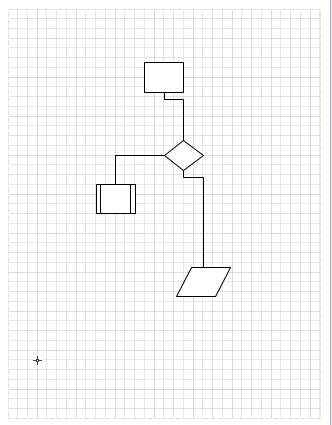
As our first "translation" exercise, let's try setting the page layout to "circular". To do that in the app, we'll go to the Design tab, select the Re-Layout Page dropdown, and select Circular.
Before we do that, though, let's turn on macro recording. The easiest way to do that is to click the icon on the status bar:

When we do that, a dialog will pop up asking you what to name the new macro. It doesn't matter, just remember what name you use, or leave it alone, because we're going to look at the macro to see what's going on. I named mine circular after I took this screenshot:
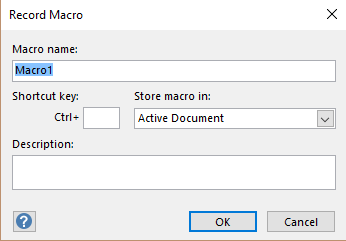
After you click ok, select the menu item you wanted, Design/Re-Layout Page/Circular.
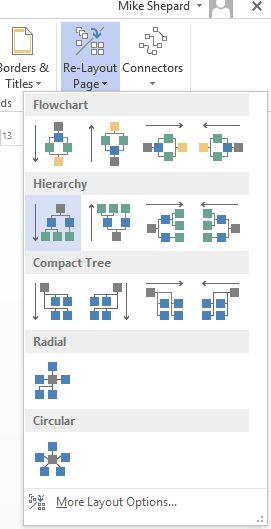
When you did that, it applied the new layout to the page, just as expected. Now, click the "stop" button on the status bar, which replaced the "record a macro" button on the status bar, to stop recording.

Now, you want to look at the macro, and to do that you need to go to the developer tab on the ribbon. If you don't have a developer tab, you need to go to the file tab, select Options, Advanced, and under General, select "Run in Developer Mode".

Whew...that's a lot of work just to get a macro recorded. Next time it will be easier since you know how to do it.
Let's look at the macro. On the developer tab, click the macros button, bringing up the list of macros that have been recorded in this document, and select the macro you just recorded. Click the Edit button to see the source.
Here's what Visio recorded when we made that single formatting change:
Sub Circular()
More PowerShell User Group Fun
Been neglecting writing up my Missouri user group adventures.
Last month (4/21) we had a several-hour talk session at the STL PSUG. Met @migreene and had a great time.
Last week (5/5...probably not the best day to meet) I presented a talk on Advanced Functions to a small but fun group at the MidMo PowerShell.
Tuesday I sat in on the @MSPSUG meeting with Steven Murawski.
I've started the ball rolling on a Southwest Missouri PSUG...probably have a meeting in June.
I really love the PowerShell community and enjoy all of the interaction.
--Mike
Assignments in PowerShell If Statements
You probably learned early on in your PowerShell experience that -eq and = were very different things.
I still occasionally write
if($x=5)
when I mean to write
if($x -eq 5)
The first will always evaluate to $true, which is generally not what you want.
One trick I've seen before is to put the constant (if there is one) on the left-hand side, which causes the assignment to fail with an error, alerting you to the fact that you did something wrong:
if(5 -eq $x)
Introducing VisioBot3000 – Part 2 (Superman?)
In the last post I showed you how VisioBot3000 makes drawing simple Visio diagrams simpler by wrapping the Visio COM API and providing more straight-forward cmdlets do refer to stencils and masters, and to draw shapes, containers, and connectors on the page.
To be honest, that's where I was expecting to end up when I started messing with Visio. And I was ok with that. Anything which simplifies drawing Visio diagrams is a win in my book. I learned quite a bit getting that far, and it works pretty well.
I decided that I wanted more, though. I'll explain the "improvements" in steps. Because I want to you to see the improvements, I'll start with the sample code from the last post:
Import-Module VisioBot3000 -Force
Introducing VisioBot3000 - Part 1 (Clark Kent)
For a while now, I've been demonstrating Visio automation in PowerShell. For the most part, the posts have included a bunch of short code snippets designed to illustrate simple concepts.
Unfortunately, the code has been filled with "magic" constants, and lots of method calls on the various Visio COM objects. Both of those make code hard to read and write, the exact opposite of what you want as a PowerShell scripter. What's the solution? PowerShell makes it easy to wrap complex code in cmdlets (or advanced functions, if you prefer) and expose a much simpler interface.
Background
When I started looking at driving Visio from PowerShell, I ran across the VisioAutomation project (originally here) by Saveen Reddy. Contained in that project (which is much broader in scope than my interests) was a module called VisioPS that exposed several Visio concepts as PowerShell cmdlets. I played with it some, and it worked. That was exciting. A major downside for me was that the module was a binary module, which meant writing cmdlets in C#. That's a great approach for the project, which is geared towards .NET languages in general, but it limits the attractiveness for PowerShell developers (or at least for me). I ended up re-writing parts of the module in PowerShell and decided eventually to write my own module. There are probably some naming artifacts left over from its origin as a "re-implementation" of VisioPS. I wanted to make sure to give credit for getting me started down this road.
What is VisioBot3000?
To start with, VisioBot3000 implements cmdlets to help you draw Visio diagrams using the things that I've introduced over the last several posts:
- Documents
- Pages
- Stencils
- Masters
- Shapes
- Containers
- Connectors
It also has some support (barely) for Layers.
Here's a simple (annotated) example of using VisioBot3000. It uses a custom stencil that I have on my system (and a stock stencil that I copied to c:\temp), but that's not terribly important:
Import-Module VisioBot3000 -Force
PowerShell and Visio Part 6 - Containers
Ok...I think this is the last of the "how to perform primitive operations in Visio" articles that I'm going to do. Hope you've been enjoying them. If you haven't been keeping up, you can find them all here.
In this installment, I'm going to show you how to create a container in Visio. Containers are really useful, because when you move them, you move the contents as well. Along with connections, containers are probably the most important feature of Visio (at least for me).
Container Basics
The first thing to know is that containers are special kinds of shapes, just like the ones we used when we were dropping shapes on the page. So if you have containers in a stencil you're using, then you can use those. If you don't have any special containers you can use the built-in container stencil that you see in Visio when you go to insert a container from the ribbon:

To use the built-in stencil, though, you have to know where to find it. Fortunately, you can ask Visio where to find it. If you have a reference to Visio in a variable (we've been using $Visio), you do it something like this:
$stencilPath=$Visio.GetBuiltInStencilFile(2,0)
The 2 represents the constant visBuiltinStencilContainers, and 0 is visMSDefault, meaning to use the default measurement units. If you've been reading along, you have already seen a bunch of constants. There are tons more, and I'll let you in on how I'm making them a bit easier to deal with in the next post.
Once we have that stencil path, we can use the OpenEx method on the Documents collection to open the stencil (hidden, of course):
$stencil=$Visio.Documents.OpenEx($stencilPath,64)
That stencil has a bunch of masters on it:
There are a couple of approaches to adding a container to a document:
- Drop the container as a shape, and then add shapes to it.
- Drop the container as a container, listing the shapes that are in it.
Dropping containers as shapes
For the first option, you already know how to add a shape to a page using the Drop() method.
$page=$Visio.ActivePage
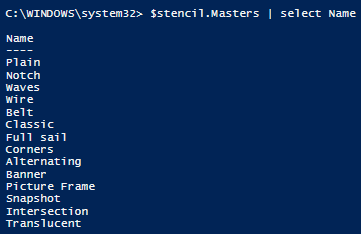
Thoughts on PowerShell Performance
Last night Rob Campbell (@mjolinor) and I were talking after his presentation on performance when using Get-Content with -ReadCount and different string matching techniques and I realized it's time to verbalize my thoughts on performance in PowerShell.
Part 1 - It doesn't matter
When people ask me if PowerShell is fast, my first response is usually either "It doesn't matter" or "I don't care". It's not so much that I don't care about it being fast (I kind of do) or that it isn't fast (it is), but that when writing PowerShell solutions the primary goal in my mind should always be operator efficiency. That is, does this make my life as a PowerShell user easier. The main points for me are:
- Consistency (does it always do the same thing)
- Repeatability (is this something I can use over and over)
- Accountability (does this log, audit, warn, etc.)
- Maintainability (will I be able to change the code easily if I need to)
Part 2 - It sometimes does matter
With the understanding that the main thing (part 1) is covered, the truth is that sometimes performance does matter. If you're processing a single file with a dozen lines in it, it would be hard to have a solution that wasn't acceptable performance-wise. Dealing with a directory full of multi-gigabyte files presents a different challenge.
When you're dealing with a huge volume of data, or operating under time constraints (near real-time alerts, for instance) it's possible that you might want to think about optimizing your code. In these instances, considerations like what @mjolinor was talking about (e.g. using read-count to speed things up, using -replace on arrays rather than single strings) make perfect sense.
Part 3 - the problem might not be what you think it is
When dealing with performance, it's easy to try to squeeze a few milliseconds out of an operation. If the operation is happening millions (billions?) of times, that will definitely have a measurable effect. Often though, even more substantial gains can be found by changing to a more efficient agorithm.
As a (trivial) example, you could spend a lot of time trying to optimize the statements in a bubble-sort routine. (sidebar...does anyone actually write sort routines anymore?) You could conceivably double or triple the speed of the routine, but when dealing with a large dataset, you'd still be better off with a better sorting algorithm.
Part 4 - The moral of the story
Don't stop investigating different approaches to see what's faster.
Don't just use "technique X" because it's the fastest performing. Consider code readability, and maintainability along with things like how often the code is run. No point in optimizing a process that only runs once and takes 10 minutes. Who cares if it ran in 3 minutes instead? You probably spent more than 7 minutes "optimizing" the code.
PowerShell optimizes the user, not the code. Make sure when you spend time making the code fast, you haven't made the user slow.
Feel free to disagree in the comments!
--Mike
Fun at MidMo PowerShell User Group
Had a blast at the MidMo PowerShell user group meeting last night in Columbia,MO. It was just the second meeting for this group and there were over a dozen people present.
I started with a presentation on using PowerShell and Visio together (some of which you've seen here) and Rob Campbell (@Mjolinor) finished the meeting up with a discussion of performance using Get-Content with -ReadCount and also comparing different techniques to match lines in a huge file.
The group was really relaxed and engaged throughout both presentations.
Looking forward to more and more Missouri PowerShell user groups!
STL PSUG meeting coming up on 4/21!
--Mike
PowerShell User Group Fun!
I love local user groups.
I've been an off-and-on attender of the SQL Server user group and the .NET user group in my area. Neither of these really are about what I do, but it's been fun to connect with local people about technology. I did speak about PowerShell (embedding in C# apps) once, too. Until recently there hasn't been a PowerShell-specific user group anywhere close,though.
That all changed at the beginning of the year. First, the St. Louis PowerShell User Group started meeting. I missed the first meeting (in January) but was able to attend in February and March.
I was honored to be a speaker at the March 17th meeting, presenting some of my recent work (which you may have been reading about here) on automating Visio with PowerShell.
Josh Castillo (@DoesItScript) also spoke that night about using Git with PowerShell. His talk, combined with the very positive feedback I received from my talk spurred me on to getting my Visio work up on GitHub and also to using Git at the command-line to manage updating it. It's been fun so far, and I've learned a lot. I'm thinking that Josh might have had a big impact on how I work from now on.
Interestingly, though, another user group started up in Missouri on March 17 as well. This one, the MidMo PowerShell User Group met for the first time in Columbia, MO. The two groups are communicating so that they don't schedule on top of each other in the future.
I'm super-excited about these groups and plan to attend them as often as I can. Both of these are around a three-hour drive for me, however, so I'm thinking seriously about starting a Southwest Missouri PowerShell User Group (SWMOPUG) in Springfield sometime soon. If you're close by, let me know and we can talk about what I'm planning.
Here's the picture from Josh's tweet about my session:

He called me a "PowerShell guru" so that's fun. :-)
How are you sharing your PowerShell? Blogging? Teaching? Contributing to projects?
Get involved. You'll have a lot of fun and help others at the same time.
Just my thoughts.
--Mike
PowerShell Code Review Guidelines
I get asked to look at other people's PowerShell code a lot at work, and I really enjoy it. I also find myself looking at my "old" code from several years ago (back to 2007!) and think...there's a lot of work to be done.
To that end, I've compiled a list of "PowerShell code review guidelines" to help keep the ideas flowing.
Before I show them, though, I have some ground rules to share. BTW...I use function, script, and code somewhat interchangably, so please don't get confused by that.
- The most important thing is whether the script solves the problem at hand. In my book, if it does that, the rest is extra.
- Remember that everyone is at a different place in the "path to true PowerShell enlightenment". Don't beat people over the head because they're not using DSC, or Remoting, or Workflows, or whatever your favorite thing is. That doesn't mean you don't mention those options, but the focus should be on the code in front of you.
- You can't and shouldn't try to solve all of the problems at once. This goes right along with #2 above. If the script is full of Write-Host output, and uses Read-Host in loops to validate parameters, you probably should deal with those and not worry so much that they haven't used a lot of pipelines.
In my mind, a code review is an opportunity to help a scripter use best practices more consistently. It is an opportunity to help them write more flexible, more maintainable, and more reliable code.
Most importantly, it's not a humiliation session in how much better you are at PowerShell. If you use them in this way, don't be surprised if you don't get a lot of return customers.
General
- Does the function or script accomplish the intended task?
- Is there any comment-based help including examples?
- Is the function or script “advanced” using [CmdletBinding()]?
- Are risk mitigation parameters supported if appropriate?
- Does the code use aliases for cmdlets?
- Does the script or function follow the Verb-Noun Convention?
- Is the verb in the approved list?
- Is it the correct verb?
- Are the noun(s) consistent?
- Is the function or script in a module with a discoverable name?
- Do the Parameters have specified types?
- Are the parameters named appropriately?
- Are parameters set as mandatory when appropriate?
- Is any declarative parameter validation used?
- Are arrays allowed when appropriate?
- Is pipeline input allowed and implemented properly?
- Are switch parameters used to flag options?
- Do parameters have appropriate default values?
- Are “use cases” divided into ParameterSets?
- Are named parameters used instead of positional parameters?
- Is the output in the form of objects?
- Is output produced in the PROCESS block if possible?
- Are format cmdlets used?
- Is write-verbose used to supply user-directed output messages?
- Is write-warning or write-error used for problem messages?
- Is write-debug used for developer-directed output messages?
- Are filtering operations as far to the left in pipelines as possible?
- Are pipelines used appropriately in place of sequential logic?
- Are pipelines overly used (extremely long pipelines?)
- Are comments used to explain logic (and not statements)?
- Is commented-out code present?
- Are try/catch/finally used for terminating errors?
- Are errors signaled with write-error?
- Are terminating errors forced with –ErrorAction STOP?
- Are console apps checked using $LastExitCode
- Do write-error calls use the -TargetObject parameter?
Parameters
Output
Flow
Comments
Error Handling
Let me know what you think.
Should have it posted to github for revisions tomorrow sometime.
--Mike
PowerShell And Visio Part 5 - Connections (updated)
It's been a while since the last post. I decided that if I had to chose between writing PowerShell and writing about PowerShell, I should favor the former.
In this episode, I'll talk about how to create connections between objects in a Visio diagram. Turns out it's not really that hard (just like most things with Visio so far), but there some interesting things we can do with the connections once they exist.
So, to start with, let's get a some shapes on a page. If this doesn't look familiar, refer back to the earlier posts in this series here:
$visio=New-Object -ComObject Visio.Application
PowerShell and Visio - Part 4 (Interlude)
Why mess with Visio from PowerShell?
I've got a couple of posts with some really basic code to access things in PowerShell and it occurred to me...I probably haven't made it clear why you might want to do this (other than that you can).
So, instead of moving on to connections (which will be next, followed by containers), I thought I'd take a break and show you a really quick and practical script.
The Scenario
Imagine that you just got handed a network diagram of a bunch (dozens?) of servers that you manage. The only problem is, the diagram only includes the server name. Your boss needs it to include the IP Addresses for each item. You have a choice. You can either manually look up each name with Resolve-DNSName and copy-and-paste the IP Address into the diagram, or you can use PowerShell to solve the problem.
Here's the script. The funny part (to me, at least) is that the complexity is trying to get the IPV4 address out of Resolve-DNSName, the Visio part is simple.
$Visio = New-Object -ComObject Visio.Application
PowerShell and Visio Part 3 - Drawing Shapes
This is part 3...if you haven't read part 1 or part 2 you probably want to go back and read those.
Now that we're all up to speed, I promised I'd talk about drawing shapes in Visio.
We'll start with an easy one.
Drawing Circles and Rectangles
Remember that you have to open Visio with PowerShell in order to access it from a script.
$Visio= New-Object -ComObject Visio.Application
We can open a new (blank) document using the same technique we saw last time to open a document, except we will pass an empty string:

$Doc=$Visio.Documents.Add('')
Now, we can get a reference to the active (only) page in the document by accessing the ActivePage property of $Visio.  We could also have looked at the Pages collection on $Doc and referenced it either by ID (1) or name (Page-1)

$Page=$Visio.ActivePage
PowerShell and Visio Part 2 – First Steps
Last time I talked about Visio and PowerShell and told you, in broad strokes, what I wanted to get done. Now we’ll actually get started.
PowerShell and Visio Part 1 - Introduction
I've been playing around with Visio and PowerShell for quite a while now and the experience is something of a mixed bag. My first thought was to use PowerShell to build integration diagrams, reading server names, domains, VLANs, and datacenter locations from a database, and adding color-coded connections to show the network connection requirements (e.g. these boxes talk to SQL on these other boxes on port 1433). While much of the effort was successful, Visio doesn't have the same idea of "arranging" items on the page. I figured it would make things not overlap. It seems to only care if things overlap if they are connected.
I ended up half-automating Visio. I wrote some functions that did the database lookups and inserted objects (mostly one at a time, but sometimes in sequences), but used it more as an assistant. I could tell it, for instance, add-server SERVER01-05 and have the script spot the dash, create a range, look up the names of the servers (Server01, for example) and figure out each server's type (web server, SQL Server, etc.) and IP address. It would then add an appropriate shape (web server) and label it with the name and IP.
I would share this code, but it's really tied into the environment I work in and not terribly portable. Instead, I thought I'd try to build a more general-purpose Visio module and share it as I write it.
My goal is to be able to write a diagram in a PowerShell-based domain specific language (DSL) so that building diagrams will be easier. They might still need a bit of hand editing, but I'm OK with that.
But what about (insert reference to other PowerShell Visio module here)? I know there are several well-developed modules out there, but for the most part they didn't seem to focus on the things that I wanted to or were written in C# (which is fine, but harder to tinker with), and even more so, I wanted to learn how to get PowerShell and Visio to work together.
To give you an idea of what I'm thinking of, here's some code I just got to work:
Import-Module myvisio -Force
Copying Properties to another Object
I had a thought today that it would be interesting to write a function to copy properties from one object to another. Specifically I was thinking about doing a join operation on two arrays and that it would be good to be able to say "copy these properties from the object on the right to the object on the left". Since I couldn't think immediately about how that function would look, I wrote it. Here's the code I came up with:
function Copy-Property{
PowerShell Code Smells: Boolean Parameters
This is a real quick one. In PowerShell, the "native" way to express a two-state variable is with Switch parameters.
For instance:
function Test-Thing{
7 Ingredients of Professional PowerShell Code
If you've been using PowerShell for any amount of time you've probably written a lot of code. Here are some guidelines I've come up with for what I consider "Professional" code. I should note that I'm assuming some basic things like correct verb-noun naming, commented code, reasonable variable names, etc. Also, the code should work! Once you've got that going, try to make sure you've got these as well.
- Output objects
This should go without saying, but it's vitally important. Write objects to the output stream. Each object should be a self-contained a "record" of output. If you're creating custom objects, consider including some of the parameter values that led to the object being output. If possible, It should contain enough information to let you know why it was output. For instance, if your parameters filter the output based on properties, including those properties will be very helpful in validating that the output is correct.
- Advanced functions (or script)
Changing a function into an advanced function can be as simple as adding [CmdletBinding()] before the Param() statement. It does take a bit more if you need to support -WhatIf and -Confirm, but even then it's not much effort. In return you get:
- Common Parameter Support (Verbose, ErrorAction, etc.)
- Parameter Name and Position Checking
- Access to $PSCmdlet methods and properties
- Ability to use pipeline input (in a nice way)
If you need help getting started with writing advanced functions (or scripts), see about_Functions_CmdletBindingAttribute
- Comment-based help
This one takes a bit more work, but is a key to getting other people to use your function or script effectively. It's simple to write up a code snippet for ISE (or your editor of choice) to include the help elements you like. Most people will start by skipping to the examples, so always include multiple examples! Examples which show different use-cases (parameter sets, if you use them, for instance) are especially helpful so that users understand the full range of how your code can be used. Refer to get-help about_Comment_Based_Help to get you started.
- Pipeline input
Pipeline input isn't always necessary, but it really makes using a function easier. You've got to have an advanced function to do this, but you did that already, right? I'd much rather have this:
Get-Thing | Stop-ThingThan this:
Get-Thing | foreach-object {Stop-Thing $_}If you've used cmdlets that didn't allow pipeline input you've undoubtedly written some code like this.
- Error Handling
This is pretty basic. You need to use try/catch/finally in your code to deal with exceptions that you can predict. You should use Write-Error and Throw to emit errors and exceptions that arise. If you use Write-Error, supply a -TargetObject if possible, it makes the error record much more useful. While we're talking about errors, Write-Warning, Write-Verbose, and Write-Debug should be used to help provide useful output
- Parameter Attributes for validation
Here's a good rule of thumb:
Code that you don't write is code that you don't have to debug!
If you use parameter attributes to validate argument values, you don't have to write code to do it. Ensuring that arguments are valid will make users happier (because they don't have unexpected results when they pass in bad values) and makes your code simpler because you don't have to write a bunch of if/then statements to check values. Finally, and this benefit is not as obvious, error messages for parameter attribute-based validation will be localized, so users around the world can benefit even more from your code as they see validation messages in their own language..
- Publish it!
If you've put this much time into polishing your code, you should take the extra step of sharing it with the community. This might take a bit of extra effort to make sure it doesn't contain anything proprietary. Sharing on your blog (you do have one, right?), GitHub, Technet, PoshCode, or the PowerShell Gallery
are all options, so there's very little stopping you.
How does your code fare against this list? I know most of mine has some room for improvements.
What do you think of this list? Did I miss something important? Let me know in the comments!
--Mike
Write-Error and -TargetObject
Sometimes I feel like I know a lot about PowerShell. I've taught dozens of classes on PowerShell, written two books, and used it for 8 years now.
And then I stumble upon this post from Jeffery Snover in 2006.xI'm not even sure now why I was looking at it at the end of 2015. The post is about -ErrorAction and -ErrorVariable. I'm very comfortable with those two common parameters. Nothing to see there. But in scanning down the page, my eye stopped in the middle of a screenshot.

There in the "forced" output of the $Error variable I see something I hadn't ever seen before. TargetObject.
One of the keys of non-terminating errors is that hypothetically you can address the errors that happen while allowing the rest of the "payload" to continue. For example, you stopped 50 processes but one failed. You wouldn't want to give up when that process failed. You'd rather finish the list and then do something about that one process. It's pretty clear to see in the screenshot that the TargetObject in this case was "13". You can do something with that.
Non-terminating errors are a basic part of PowerShell, but I don't remember hearing or reading about this ever before.
Sure enough, though, there's a -TargetObject parameter in Write-Error:
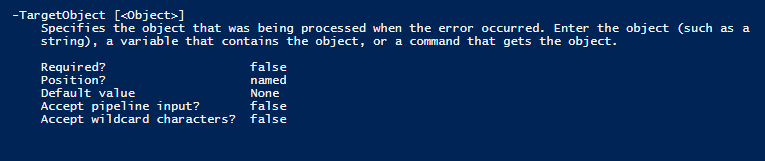
And the example in the post showed that the parameter is used when Stop-Process has an error. Why hadn't I ever seen it before?
Ah, I know. My standard example when explaining non-terminating errors looks like this:
gwmi Win32_OperatingSystem -computername NOSUCHCOMPUTER,localhost
The $Error object written by Get-WMIObject looks like this:
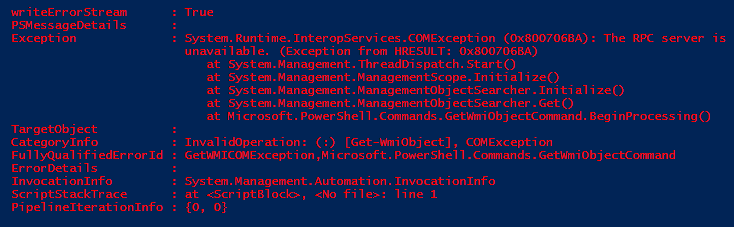
Unfortunately the TargetObject property is empty. Since Get-WMIObject implicitly loops through the ComputerNames, it would be super useful to know the name of a computer where the operation failed.
It will be fun to look through cmdlets to see which ones correctly use this parameter.
My new "best practice":
Always populate -TargetObject when calling Write-Error
As always, let me know what you think in the comments.
--Mike
P.S. I've filed a bug for Get-WMIObject on uservoice here. Please take a minute to upvote it.
Get off my lawn!
About five years ago I gave a presentation to a boys group about the rate of change in computer hardware. I compared my first computer (a Commodore 64) and a laptop which I had just bought (a decent Asus laptop). The comparison was humorous. The almost thirty year old computer was several orders of magnitude inferior in almost every criterion. The price of the laptop (about $500) was similar to what the C64 cost when it was first released.
A few months ago, I got a new Fire tablet from Amazon. It is not a top-of-the-line device in terms of specs, but it does have a decent CPU, a reasonable amount of memory, expandable storage (sd card!), 2 cameras, and WIFI. I've heard several people complain about the device because the dpi rating isn't as good as the latest Samsung/Apple gizmo, and there are faster tablets around. That's fine, people complain.
But here's the thing. That tablet cost me $50. When I picked up one for my wife on Black Friday, it was $35. At those prices the devices are nearly disposable. I'm kind of kidding, because I don't throw away $50, but in terms of computer devices, $50 is just about the same as zero.
The specs aren't as good as the best things around, but think about it this way. A few years ago those specs would look pretty good, and the price is hard to beat. Thirty years from now the specs of the iPhone 5 won't look so great.
The new Fire works great for me as an intro tablet, and the specs don't bother me because I'm evaluating it on its own merits rather than comparing. I'm finding all kinds of ways that it's useful and adds value for me and at $50, it is a steal.
Just a quick rant. I'm old and get off my lawn.
Let me know what you think in the comments.
--Mike
My 2016 PowerShell Goals
Since I didn't do a great job realizing my goals from last year, I thought putting a little more "effort" into defining them this year might make a difference.
- 100 Posts. I know I didn't even get close to 50 last year, but I think I might have just not set a "stretch" goal. I plan to start doing some more "getting started" posts, perhaps update the "writing a host" series, and plan to spend more time writing PowerShell code which should spur my writing here. 100 is only two per week (with two weeks off, even) so this should be achievable.
- Virtualization Lab. I had this on the list last year, but I wasn't specific at all. I did do some virtualization, but it was mostly one-off, and not scripted much at all. Also, I used VirtualBox because it was so super easy. This year I will build (with scripts) a Hyper-V virtual lab including (at least) a domain controller, a web server, a SQL Server, and a file server. Not sure how much DSC will be involved, but that's the next goal.
- Configure Servers with DSC. I've played around with simple push configurations, but have really just scratched the surface of DSC. I will configure with both push and pull, use file share and IIS. I don't know if I'm up to spinning up a SharePoint farm with DSC, but I think that would be a good "capstone" project to make sure I understand DSC. Maybe if I can think of a good resource that hasn't been written by the community I'll go that direction, too.
- PowerShell User Group. There has been some interest in starting a user group in my state (Missouri), but nothing has materialized. I will definitely get something going at work (~6000 employees, maybe 1000 potential PowerShell users). Depending on my schedule, I'm considering starting a SW Missouri PowerShell group. Let me know if you're interested.
- Continue Teaching at work. I mentioned in my 2015 review that I recruited another instructor, but I'd like to aim for 10 in-person sessions this year like last year. I think the classes we do have become repeatable enough that I might even record them for distribution to some of the smaller offices that I won't be able to travel to.
- Share more on Github. I've got some connectivity-testing scripts (for a server farm) and some really fun Visio stuff already written. Just need to package it up and put it out there.
- Write more professional scripts. I'm going to have a post on this in the coming week. There are certain things that I think should be standard ingredients in a "professional script". I don't often polish things to this level, but that's more laziness than anything else. It's time I started practicing what I preach and writing things that are on a different level.
- Speak. Being involved in user groups will give me lots of opportunities to speak. I've done this in the past and enjoyed it, but need to make this something I do regularly.
- Encourage. I make it a point to comment on blog posts that I enjoy. I need to make this more of a priority, especially with newer bloggers.
- Digest. I've been enjoying some daily blog digests (Morning Brew and Morning Dew) as well as a couple of weekly ones (John Sansom's Something for the Weekend and Brent Ozar's weekly roundup) for quite a while, and I think there's enough PowerShell content for a weekly PowerShell digest. I've been bouncing this idea around in my head for a while now and I think the time is right.
What do you think? This ought to keep me plenty busy.
--Mike
Invoke-SQLCmd considered harmful
I mentioned here that Invoke-SQLCmd (included in the SQLPS module for SQL Server) was susceptible to SQL-Injection attacks, but I haven't demonstrated that or ever seen anyone show it.
To do so, I'll start with code out of the help for Invoke-SQLCmd. Here's the code (taken from here)
$MyArray = "MyVar1 = 'String1'", "MyVar2 = 'String2'"
A confusing PowerShell script
I recently stumbled upon a bit of code (not important where) that had a line that looked like this:
$Something.SomethingElse -Contains 'Foo'
When I saw it, I immediately thought "they're using the -Contains operator instead of the -Like operator or the .Contains() method." This is a common mistake, so my radar picks it up without me even thinking about it.
I was wrong, however. The $Something variable was (probably) a list, so the dot-operator got a list of SomethingElse property values from the items in the list. Then, -Contains made sense.
I don't think I like the dot-operator being used this way in published code. I feel like it's less clear than something more explicit like this:
($Something | Select-Object -ExpandProperty SomethingElse) -Contains 'Foo'
or even (for this specific example at least):
[bool]($Something | Where-Object SomethingElse -eq 'Foo')
Both of these are a bit longer than the original but I think it's a lot clearer that we're working with a collection of objects with a SomethingElse property and that we're actually looking for an item in the collection, rather than accidentally using the wrong operator.
There aren't a lot of features of PowerShell that I don't like, but this is one that I don't tend to use.
What about you? Do you use the dot this way?
Let me know what you think in the comments.
--Mike
Sharing PowerShell (Updated)
One thing I've always been impressed about with PowerShell is the vibrant community. In this post, I will outline several ways to get involved in the PowerShell community, starting with some really easy ones.
Starting Small
You don't have to be an expert to be part of the community, in fact if you're reading this, you are part of the community. I imagine that a majority of the people who use PowerShell are consumers only, that is that they read the content that is produced and use it for their benefit. There's nothing wrong with that, but if you find yourself at this place, there are some easy ways to give back.
Comment on blog posts that you like or find useful
This one is pretty easy. You are googling solutions and invariably find a post that you find useful. It doesn't take a lot of effort to comment something like "this really helped me" or "I like how you set up the parameters for this". As a blogger I can tell you that these kind of comments are worth a lot to me. Little words of encouragement help keep the content coming. Similarly, if you find an answer on stackoverflow that is useful, vote it up. No exertion required.
Comment on blog posts that you don't understand
This one takes a little more guts, but it's important for you and for the community. First, if you don't understand a post (and are trying to), it's possible that there was a mistake in the post. Or, it could be that there was an assumption on your part (or the blogger's) that needs to be cleared up. Either way, getting the discussion out in the open addresses your immediate need as well as making it easier for those who come after you and read the content later.
Comment on blog posts that you disagree with
If you disagree with a post, and have a strong opinion, comments are a good place to let the author know that there might be a better way or that the solution given isn't correct. It could be that there's a slight difference in expectations or that priorities are different, but again getting a discussion going will help clarify the issues and make it smoother for someone else who finds the content later.
Share your code
This one is a little scarier, but there are levels to how you share things. First, it's drop-dead simple to put things out on github. Even if you don't announce that you put something there, you can still put in issues and use git to keep your code safe. You are using source control, right?
If you've put code out on github and feel like it's useful, blog about it. Blogging is cheap. I use nosupportlinuxhosting for $1 per month, and cloudflare for free SSL. Wordpress is pretty easy, so what's holding you back?
Announce your code
If you have a code repository or blog post you want to share, announce it. I've used Twitter, Google+, and Reddit and have gotten good responses from all three. Again, it doesn't take much effort and announcing the code exists isn't the same as saying it's bug-free. Maybe you announce that you have a beta and you're looking for people to test? What about that you're thinking about starting a (specific) project and wonder if anyone has ideas about how to structure the API?
Publish your code
Once you have your code the way you like it, publish it on the PowerShell Gallery. The instructions and requirements can be found here. By publishing in this gallery, others can find your code from within PowerShell (5.0) using Find-Module and Install-Module.
No matter what level of PowerShell mastery you're at, you can take your game to the next level.
What are you waiting for?
Let me know what you think in the comments!
--Mike
P.S. I realized after posting this that I didn't mention an obvious way to get involved. There are tons of open source projects involving PowerShell that can always use help. Even if you don't think you're ready to contribute code, you might consider working on documentation.
2015 Year in Review
So back in January I set out a list of PowerShell goals for the year. It's not over yet, but I thought I'd see how well I did on those goals.
1. 50 blog posts
- I knew this one was ambitious, but I figured one post per week should be manageable. I've been close to that pace lately and should be able to hit this goal in 2016. Maybe I can get 25 in before the end of the year. :-)
2. New release of SQLPSX
3. Separate release of ADOLIB
- Didn't exactly release these, but moved them to github, added POSH_ADO, and wrote about them.
4. Second book (maybe in a different format, like Pluralsight?)
(if you missed it, my first book was released late last year here).
- Getting Started with PowerShell was published in August.
5. Teach 10 PowerShell classes at work
- Taught 8, and recruited a second person to do beginning training
6. Work through the IIS and AD month of lunches books
- I read part of the IIS book and have been able to use some of it at work. Didn't get to AD
7. Build a virtualization lab at home and practice Hyper-V and VMWare
- Built out virtual machines to do POSH_ADO testing and had a lot of fun. This will be on the list for next year as well
8. Do something cloudy (no idea what)
- Wrote a small module to work with Keepass. Haven't written about it yet.
Since there's still some time left in the year (and I'm off work part of it), I may update this post or follow up with an update.
I appreciate everyone who reads my ramblings, and especially enjoy comments.
If you have any great ideas for PowerShell projects or topics you'd like me to write about, let me know in the comments.
--Mike
PowerShell Code Smell: Invoke-Expression (and some suggestions)
Code Smells
I've mentioned code smells in this blog before, but to recap, a code smell is a warning sign that you might be looking at bad code (for some value of bad). Code smells are more like red flags than errors. Some classic example of code smells are very long functions, lots of global variables, and goto statements. There are places where all of these make sense, but in general if you see them you wonder if the code could use some work.
In most languages there is a way to take a string of characters and execute it as if it were code. Those functions (or keywords, or methods) are generally considered to be risky, because you are giving up some control over what code is run. If the input is somehow compromised, your program will have become an attack vector. Not a good place to be.
SQL Injection
A classic example of this is building SQL statements from input and including parameters in the string. If you don't use SQL-language parameters, you are open to a SQL-injection attack where a malicious user puts characters in the input which cause the SQL statement you're building to include instructions you didn't intend to execute. SQL-injection is a well-understood attack and the mitigation is also well-known. Using real parameters instead of string building is the answer.
Back to PowerShell
The cmdlet which PowerShell includes to allow you to execute a string as code is Invoke-Expression. It's pretty simple to show that it's vulnerable to an injection attack. Consider the following code, where the intent is to write "hello " followed by the value of a variable.
$prm1="world';get-date #"
ISE Helpers module on Github
After reading the post here, I thought I should share the (considerably less complictated) functions I've written to help with the ISE.
I just posted a couple of functions to a new repo on Github called ISEHelpers. Neither function particularly exciting, but I've found them useful.
The first is called Edit-Module, and is used to open the .psm1 file of a module which you have imported in a new ISE tab.
For instance,
Edit-Module adolib
The second function is called Set-ISELocation, and it changes the current directory to the folder containing the file in the current tab. It takes no parameters.
Have you written any "ISE Helper" functions? Let me know about them in the comments.
--Mike
The Two Faces of the ISE Run Button (and a bit of bonus evil)
I love the ISE. I've used other "environments", but always end up using the good old ISE. I do use the awesome ISESteroids module by Tobias Weltner (powertheshell.com), but most of the time you can find me in the unadorned, vanilla ISE.
With that bit of disclaimer out of the way, there is something that came to my attention recently. The Run button on the toolbar does two different things, although it doesn't make a big deal about it. The two things are similar enough that it's easy to miss, and subtle enough that the difference isn't important most of the time.
The two things are, unsurprisingly, both concerned with running what's in the current tab. Since it's the Run button, you'd expect that to be the case.
Face Number 1
The first thing that the Run button does, is that it runs the code that's in the current editor tab. It does this by copying the text as input down in the console area. An example is seen in the image below:
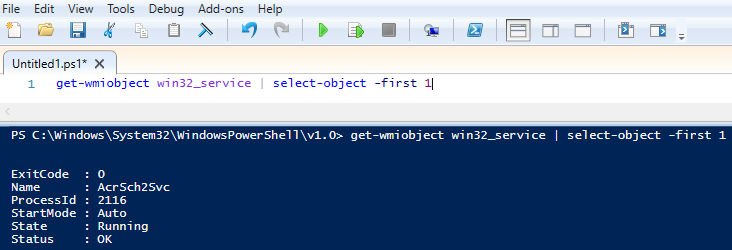
You can clearly see that the text in the editor has been copied to the command-line.
Face Number 2
The second thing it does it it runs the script that's loaded in the current tab. It doesn't just run the script either, it actually dot-sources it (i.e. runs the script in the global scope).
The behavior of the Run button depends entirely on whether the tab has been saved as a script file (.ps1) before. If so, it runs (dot-sources) the script. If not, it executes the text that's in the tab. Note in the first screenshot that the tab in the ISE says "Untitled.ps1", which means it has not been saved. In the second, it says "RunButton.ps1", so it obviously has been saved at that point.
The great thing about this behavior is that you can run stuff without saving it. Once you decide to save it, though (perhaps because you want to debug it), the same button and hotkeys run the script in almost exactly the same way.
If you remember in my last post Blogging and Rubber Duck Debugging, I discussed how sometimes writing a blog post makes things more clear. Fortunately I usually realize where my thinking has gone wrong before I hit "publish", but not always. This post, for instance, has sat in my drafts folder since October of 2014 because I wasn't sure about it.
I was certain that I had a script which worked differently in the two "modes" of the Run button. I remember vividly typing the (not very complex) script in my ISE and running it successfully. I saved the file and gave it to someone else to run "for real", and it failed. I tracked the failure down to the fact that I was using scope modifiers (script: or global:) and they acted differently in an unsaved editor versus in a file. I am unable to reproduce the result now, though, so I am doubting my sanity. It does seem possible, though, that the script: scope in an actual script and in the global scope
NEWSBREAK!
Typing the above confession paragraph was enough to dislodge the bad thinking! Rubber duck debugging to the rescue.
Here's the simplified code that I started to blog about 13 months ago:
$values =
Blogging and Rubber Duck Debugging
Have you ever heard of Rubber Duck Debugging? The idea is simple. If you're having trouble debugging code, just put a rubber duck on your desk and explain what's happening in your code to the duck. Seems absurd, but the act of verbalizing the code situation is usually enough to break the log-jam in your mind and allow you to see the issue.
Another similar technique is "another set of eyes". I can't count the number of times I've asked someone to look at my code (or had someone ask me to look at theirs) only to find a really simple bug. "I've been looking at this for an hour!!!!" A different perspective is all it takes sometimes to spot the problem.
I've noticed more than a few times that I start to write a post about something that I think I understand. The more I write, however, the more I feel uncertain. By the three-quarter mark on the post, I save a draft and break out the ISE (or spin up a new virtual machine, or something) and find out that what I thought I knew well enough to share with the world I had completely wrong.
In that way, blogging is like using the entire world as a rubber duck or another set of eyes.
Just a thought I had (almost exactly a year ago) and finally got around to sharing.
Has this ever happened to you? I'd love to hear your stories in the comments.
--Mike
Why Adolib (and POSH_Ado)?
I've realized that in my explanations of Adolib and POSH_Ado, I left something important out. Why in the world am I spending all of this time and effort writing database access modules when there are already tools out there (SQLPS, for instance) which work.
The simple answer is SQLPS is not good enough for several reasons.
First, SQLPS is part of the SQL Server install, which is a big download. That's quite a burden to place on a user just to get access to Invoke-SQLCmd.
Second, when I started writing Adolib (and the predecessor which is used at my company), SQLPS was still a snap-in rather than a module. This was in PowerShell 1.0 days, so it was the normal distribution method, but snap-ins were not fun to work with and that made SQLPS even more of a burden.
Third, although Invoke-SQLCmd has a lot of flexibility, it does not allow you to re-use the same connection for multiple commands. You connect (and authenticate) each time you want to run a SQL command. This seems wasteful to me.
Fourth, Invoke-SQLCmd uses strings for variable substitution rather than real parameters, so it's vulnerable to SQL injection. While the other problems in this list can be overlooked, I have a harder time with this one. I realize that Invoke-SQLCmd is modeled to work like the command-line SQL tools, and that explains the string subsitution, there's no good reason not to also support T-SQL parameters in statements.
Finally, the code in Adolib (and to some extent POSH_Ado) is pretty simple. It's a good, easy to understand example of using .NET classes in PowerShell code. A friend at work who saw Adolib for the first time (reading this post) said that it seemed too easy. Adolib is very easy to use and easy enough to understand that you might find yourself adding features.
I work with SQL Server a lot, and most of the modules I use at work involve reading and or writing values to SQL. Adolib doesn't have all of the flexibility that SQLPS gives, but it does use parameters and allows connection re-use. It's been with me for a long time (8 years?) and the more I use it the more I can't imagine using anything else.
POSH_Ado is a natural progression from Adolib. If you need to work with multiple database platforms, it's really nice to have a consistent interface to work with them all. The times I've needed this kind of functionality POSH_Ado has been very handy and saved a lot of time.
Have you used Adolib or POSH_Ado? Anything you think needs to be added or changed with either?
I look forward to hearing your opinions.
--Mike
PowerShell and MySQL : POSH_Ado_MySQL
Using PowerShell and MySQL together with POSH_Ado is just as easy as SQL Server. You'll need the POSH_Ado and POSH_Ado_MySQL Modules, and use this command to get started:
Import-Module POSH_Ado_MySQL
Once you've done that you'll have the following functions at your disposal:
- New-MySQLCommand
- New-MySQLConnectionString
- New-MySQLCommand
- Invoke-MySQLCommand
- Invoke-MySQLQuery
- Invoke-MySQLStoredProcedure
These functions work just like the ones for SQLServer in AdoLib or POSH_Ado_SQLServer, except that they work with MySQL.
Inside POSH_Ado_MySQL, you'll see that (just like POSH_Ado_SQLServer), it is simply importing the POSH_Ado module, specifying the MySQL ADO.NET provider name and the prefix (MySQL). Then, it calls the Set-MySQLADONetParameters function to add an option to the connection strings that are generated and to specify that there is no prefix for parameter names.
import-module POSH_Ado -args MySql.Data.MySqlClient -Prefix MySQL -force
# .NET (and PowerShell) do not like zero datetime values by default.  This option helps with that.
Breaking the rules with helper functions
One of my most popular answers on StackOverflow is also one which has a tiny bit of controversy. It involves how to "hide" helper functions in a module in order to keep them from being exported.
Export-ModuleMember Details
In case you're unfamiliar with how exporting functions from a module works, here are the basic rules:
- If there are no Export-ModuleMember statements, all function are exported
- If there are any Export-ModuleMember statements, only the functions named in an Export-ModuleMember statement are exported
In a similar question (which I answered the same way) a couple of other solutions are presented. Those solutions involve invoking the PSParser to find all of the functions and while technically correct, I think they miss the point of the question.
Why hide helper functions?
In the context of a PowerShell module, a helper function is simply a function which supports the functionality of the "public" functions in the module, but isn't appropriate for use by the end-user. A helper function may implement common logic needed by several functions or possibly interact with implementation details in the module which are abstracted away from the user's viewpoint. Exporting helper functions provides no benefit for the public, and in fact can cause confusion as these extra functions get in the way of understanding the focus of the module. Thus, it is important to be able to exclude these helper functions from the normal export from the module.
Why it's hard to hide helper functions
First, it's not actually hard to hide helper functions, it's just tedious. All you have to do is list each non-helper function in an Export-ModuleMember statement. Unfortunately, that means if you have 100 functions with only one helper function, you need to list each of the 99 functions in order to hide the single helper function. Also, if you add a function later, you need to remember to add it to the list of exported functions. Not a good prize in my book. The PSParser solutions are correct in that they work, but they are a big block of code that obscures the intent.
My easy solution and the broken rule
My solution is to name helper functions with a VerbNoun convention rather than the standard Verb-Noun convention and use Export-ModuleMember *-* to export all functions named like PowerShell cmdlets are supposed to be. Using a different naming conventions is breaking an important rule in the PowerShell community and you'll see in the comments about my original answer that someone called me out on it.
Why the rule exists (and why I don't care that I broke it)
PowerShell was designed and delivered as a very discoverable system. That is, you can use PowerShell to find out stuff about PowerShell, and once you know some PowerShell you can leverage that knowledge to use even more PowerShell. The Verb-Noun convention clearly marks PowerShell cmdlets (functions, scripts) as distictive items, and the verbs are curated to help guide you to the same functionality in different arenas. For instance, my favorite example is the verb Stop. You could easily have used End, Terminate, Kill, or any number of other verbs in place of Stop, but because Stop is the approved verb you know it's the one to use. Thus, when you start to look at services, you know it's going to be Stop-Service. When you look at jobs, you know it will be Stop-Job.
By using Verb-Noun in your functions you make them fit nicely into the PowerShell ecosystem. Running into improperly named (either not following the convention or using unapproved verbs) is uncommon, and because of this things work nicely and everyone is happy.
Helper functions are not meant to be discoverable. They exist only in the private implementation of a module, and users never need to know that they exist, let alone try to figure out how to use them. For this reason, I don't really mind breaking the rule.
I'd rather have this:
Export-ModuleMember *-*
Than this:
Add-Type -Path "${env:ProgramFiles(x86)}\Reference Assemblies\Microsoft\WindowsPowerShell\3.0\System.Management.Automation.dll"
Function Get-PSFunctionNames([string]$Path) {
POSH_Ado : Inside POSH_Ado_SQLServer
In a previous post I introduced the POSH_Ado "project" and explained that it is a way to use the same code-base to access several different database platforms. I illustrated it with some sample calls to a SQL Server database using the POSH_Ado_SQLServer module and promised to show the internals of the module later. The time has come. Here's how POSH_Ado_SQLServer works:
import-module POSH_Ado -args System.Data.SqlClient -Prefix SQLServer -force
Export-ModuleMember *-SQLServer*
That's it. The module simply imports the POSH_Ado module, telling it what ADO.NET provider to use (System.Data.SQLClient) and what prefix to use for the imported cmdlets (SQLServer). It then, in turn, exports all of the cmdlets with the SQLServer prefix.
With that tiny bit of effort you get:
- SQL and NT authenticated connections
- Parameterized queries and stored procedures
- Input and output parameters (no in/out parameters yet, though)
- Ad-hoc or stored connections
What's missing in this list? I can think of a couple of things (which I need to enter as issues on GitHub):
- In/out parameters
- SQL BulkCopy (it's there in Adolib...just need to copy it to POSH_Ado_SQLServer
Since the code for POSH_Ado is based on Adolib which targeted SQL Server, it shouldn't be surprising to see that there's not much to do to get POSH_Ado to work with SQL Server. In the next "episode", I'll connect to MySQL, and the real benefit of POSH_Ado should become apparent.
Let me know what you think in the comments!
-Mike
PowerShell List Assignment
PowerShell and lists of data go together hand-in-hand. Any time you execute a cmdlet, function, or script, the output is a list of objects which is placed in the output stream for processing.
Assigning a list to a variable is not very interesting, either. You just assign it and it's done. Like this, for instance:
$files=dir c:\temp
Nothing to see here, we do this every time we use PowerShell. Lists on the right-hand side of the assignment operator are boring.
You might have even seen a trick for swapping variables using a comma on the left-hand side like this:
$a,$b=$b,$a
That's kind of cool, but it seems like a pretty specific kind of thing to do. Fortunately for us, lists on the left-hand side can do more that this.
As an example, consider this line:
$a,$b=1,2,3
If you look at $a, you'll see that it got the 1, and $b got 2 and 3.
We can expand the example:
$a,$b,$c=1,2,3,4,5,6
Now, $a gets 1, $b gets 2, and $c gets 3,4,5 and 6.
The pattern should be clear. Each variable on the left gets a single object, until the last one which gets all remaining objects. If we have more variables than values, the "extra" variables are $null. If you specify the same variable more than once, it keeps the last corresponding value.
Why is this useful?
Well, if you want to work with a collection but treat the first item specially, now you have an easy way to do that.
$first,$rest = <however you get your collection>
Getting Started with POSH_Ado
This is kind of long-winded, if you want, skip down to the code and it should be clear (I hope).
Where the story starts
As I mentioned here, the original adolib module got copied a few times and with cut-and-paste programming got turned into modules for other database platforms. While it was cool that it worked, I felt for a long time that this wasn't the right solution. It felt like an object-oriented exercise where a parent class (abstract?) was called for to implement the ADO.NET pattern. Then, "child" modules could somehow cause the parent module functions to use the correct platform.
An awesome clue!
When I went looking for a way to build a better solution, I found Invoke-ADOCommand in the PowerShell Community Extensions project. It used ADO.NET providers as a key to implement a "generic" cmdlet for querying different platforms. If I recall correctly (it has been several years now), I think someone on StackOverflow pointed me there.
Going my own way
So I knew the key ingredient in the solution would be ADO.NET providers, but how to use those and preserve the flow of the adolib module? I wanted the new solution to work as closely as possible to the old solution for a few reasons:
- I have used a module (which I wrote) similar to adolib at work for quite some time and I really like it.
- I didn't want people who had used adolib to have to relearn anything
- I didn't want to significantly rewrite the code in adolib
Introducing POSH_Ado
The solution I came up with is a parameterized module called POSH_Ado which allows you to specify the provider that you want to use. If you compare the functions in POSH_Ado to the corresponding functions in adolib, you will see that they are very similar, with a few extra variables to help deal with variations in the syntax on different platforms, and a modified way of creating new platform-specific objects.
Using POSH_Ado
In order to use POSH_Ado, you need to install the POSH_Ado module, as well as the helper module for the specific platform(s) that you want to access. For the purposes of this article, I will be using POSH_Ado_SQLServer.
Once the modules are installed in an appropriate location, you simply import the platform-specific module. The module in turn imports the POSH_Ado module with a platform-specific prefix and sets options which are appropriate to the platform you're using.
Shut up! Let's see some code!
To illustrate, I will recreate the commands from the previous post (about adolib) using POSH_Ado_SQLServer. The only changes here are the "SQLServer" prefix in the cmdlets, and the change from Invoke-SQL to Invoke-
Getting Started with ADOLib
In the last post, I gave a quick history of my involvement with SQL and SQLPSX. A big part of that was the ADOLib module in SQLPSX, which I haven't ever really explained here. Since it has been almost 6 years now, I don't see how I have managed to skip it.
This post should correct that oversight.
First of all, SQLPSX is mainly about administering SQL. ADOLib, on the other hand is specifically geared towards using SQL as a service, executing queries and SQL commands as reasonably possible.
To that end, here are some examples of ADOLib usage:
Query a database on the local machine (.) with an windows-authenticated ad-hoc connection.
invoke-query -sql 'select top 1 * from AdventureWorks2012.Person.Person' -server .
Query a database on the local machine (.) with a windows-authenticated persistent connection
$conn=new-connection -server '.'
invoke-query -sql 'select top 1 * from AdventureWorks2012.Person.Person' -connection $conn
Note that we can include the database in the connection as well:
$conn=new-connection -server '.' -database AdventureWorks2012
invoke-query -sql 'select top 1 * from Person.Person' -connection $conn
If we need to use SQL Security, we can supply a -User and -Password (in plaintext :-()
$conn=new-connection -server '.' -User MyUser -Password P@ssword
We can run sql statements that don't return rows (like INSERT, UPDATE, DELETE) with Invoke-SQL:
invoke-sql -sql "Update Person.Person set MiddleName='F' where BusinessEntityID=@ID" -parameters @{ID=1} -connection $conn
Here I'm also using SQL parameters. It's pretty simple. You just include the parameters prefixed with @ in the SQL statement and then provide a -Parameters hashtable including values for each of the parameters you use. Here I only used a single parameter (ID), so there was only one entry in the hashtable. Invoke-SQL returns the number of rows affected by the SQL statement, by the way.
There's a cmdlet for executing Stored Procedures called Invoke-StoredProcedure (with parameters that match Invoke-Query):
invoke-storedprocedure -storedProcName sp_who2 -connection $conn
The final important piece in ADOLib is Invoke-BulkCopy which is used to move lots of data quickly between ADO providers. You will usually be moving data between different servers (because there are lots easier ways to move data on the same server), but in this example we will use the same server as source and destination.
I've created a copy of the DatabaseLog table in AdventureWorks2012 and called it DatabaseLog2. Databaselog2 is empty, but we can use the following commands to copy the data.
$cmd=new-sqlcommand -connection $conn -sql 'Select * from DatabaseLog'
Executing SQL the right way in PowerShell (revisited)
Almost 6 years ago I wrote this post about how I thought you should go about executing SQL statements and queries in PowerShell. It included a function which allowed you to pass a hashtable of parameter names and values. This post has been one of the most popular on the site.
I submitted a module to the SQLPSX project called adolib which included a greatly expanded version of this function, along with others that let you invoke commands, stored procedures, and queries, as well as use the .NET SQLBulkCopy class to do high-performance data manipulation.
The SQLPSX has seen a lot of contributors come and go, but unfortunately there hasn't been a release in several years and behind the scenes, not even very much activity. At the recommendation of members of the PowerShell community (and after discussing with Chad Miller, the founder of SQLPSX) I copied the project to GitHub. The repository can be found here. I've opened a few issues for some "low-hanging fruit", and welcome input from anyone.
One interesting facet of working in SQLPSX on adolib was that it was copied and modified to create MySQLLib and OracleClient modules. These modules were based on the same code, except instead of using the SQLClient namespace they used the Oracle.DataAccess.Client and MySql.Data.MySqlClient namespaces. Because ADO.NET works much the same no matter which provider you use, this worked fine.
I wasn't really satisfied with copy-paste programming, though, and wrote a new version of adolib which allows you to specify the provider as a parameter when importing the module. I've tested the approach with several different providers (SQL Server, MySQL, DB2, Oracle, FireBird, and even Paradox). The code sat untouched as a fork on the SQLPSX project, so when I moved SQLPSX to GitHub, I decided to remove that fork and create a separate repository for it as POSH_ADO. Watch for a post or two on using POSH_ADO in the next week or so.
-Mike
Scope delimiter in interpolated strings
I've been meaning to write about this for a while. It's a simple thing that broke some code from PowerShell 1.0. Yes, I still have some code running in production that was written back before 2.0 came out. And before I go any further let me say that PowerShell has done a remarkable job in keeping backward compatibility. I very rarely have old code break due to new PowerShell features or parsing.
Anyway, when writing messages out to the screen to show what's going on in a script, I would often use a pattern like this:
write-host "$setting1 and $setting2"
This code upgraded just fine and is not a problem.
Where I ran into a problem was when I varied the pattern slightly. The following code is not so happy:
write-host "`$setting1:$setting2"
This was valid 1.0 code, but it doesn't run in 2.0 or above.

The problem stems from the addition of scope labels for variables in 2.0. To refer to scoped variables, you prefix the name of the variable with the scope modifier (local, global, script, private) followed by a colon. So the parser is seeing $setting1:$setting2 and thinking that "setting1" is a scope modifier.
Easy workarounds for this are adding a space before the colon or escaping it with a backtick. Also, I guess you could use subexpressions $() for setting1.
Have you run into this before? What other problems have you found in old code running in newer versions of PowerShell?
--Mike
Quick Tip - Avoid abbreviating parameter names
Looking at some of the solutions to the July scripting games problems (here) I noticed that several of them used abbreviations for parameter names. For instance:
gwmi win32_operatingsystem -co @(".")
I understand that this is a competition of sorts and that part of the challenge is to get a solution with the smallest number of characters, but I realized that I really, really don't like abbreviated parameter names.
To be clear, these are fine on the command-line (as are aliases, for instance), but I really want to avoid using parameter name abbreviations in my code. For one thing, since PowerShell allows you to use as short an abbreviation as you want as long as it is unambiguous, there is not a single "short form" for a given parameter. In the code above, for example, -co could have been -co, -com, -comp, etc. That leads to inconsistent code and reduces readability in my opinion.
Second, parameter abbreviations are not necessarily stable across PowerShell versions. It's entirely possible, for instance, that a parameter starting with "co" could be added to in the next version of PowerShell which would make the parameter ambiguous. At that point, the code is invalid (as well as not very readable).
I know this isn't a huge deal, but wanted to get my thoughts out here.
Let me know what you think.
p.s. somehow this got published without the ending. I just now noticed and updated so it didn't end in the middle of a sentence.
-Mike
Cleaning the Path - A PowerShell One-liner
I'm not super crazy about writing one-liners in PowerShell, but I ran across a fun problem which was quick to write as a one-liner. I'll give that here with a little explanation, and follow up in a couple of days with a more polished advanced function solution.
Anyway, the problem was that I was working on a computer and happened to take a look at the PATH environment variable and saw a lot of directories in the path that were no longer valid. Apparently efforts to clean up the machine (e.g. removing old Visual Studio and SQL Server installs) didn't include fixing the path.
To see if you have this problem, you can easily see your PATH with the following line of PowerShell (and no, this isn't the one-liner)
$env:Path
When I saw the output (which included 48 different folders) I knew I needed to fix it.
Since Test-Path is an easy way to see if a folder exists, I quickly wrote the following to see which entries were bad:
$env:path -split ';' | where {!(Test-Path $_ )}
That listed 11 that were bad, but I also got an error because apparently there were some adjacent semicolons, meaning that $_ was set to an empty string which Test-Path didn't like.
A quick addition made it not complain:
$env:path -split ';' | where {$_ -and !(Test-Path $_ )}
This gave me the list of directories that I needed to eliminate. Reversing the logic a bit to get the directories I want to retain looked like this:
$env:path -split ';' | where {$_ -and (Test-Path $_ )}
Looking better, but now I notice that some directories are listed more than once ($PSHOME, for example is listed 6 times).
Adding a quick uniqueness check:
$env:path -split ';' | where {$_ -and (Test-Path $_ )}| select-object -unique
That gives a much better list.
I then added -Join to paste these back together.
($env:path -split ';' | where {$_ -and (Test-Path $_  )}| select-object -unique) -join ';'

[System.Environment]::SetEnvironmentVariable('Path_SAVED',($env:path),'Machine')
[System.Environment]::SetEnvironmentVariable('Path',($env:path -split ';' | where {$_ -and (Test-Path $_ )}| select-object -unique) -join ';','Machine')PowerShell Summit 2015 North America Videos!!
If you, like me, aren't fortunate enough to be able to be at the PowerShell Summit going on right now in Charlotte, NC, you can at least watch/listen to the videos of the sessions.
I've watched a couple already and even though it's not as good as being there, it's still really good.
The quality of the information in the presentations so far has been awesome.
The videos can be found on the PowerShell.org channel on youtube. They are slides and audio, so you don't get to watch the presenters, but that doesn't really diminish the value.
Here's the link:
PowerShell will not fix all of your problems
I'm definitely guilty of using PowerShell in situations where it's not the best answer. Some of that is curiosity (can I make it work) and some of it is stubbornness (I bet I can make it work). But I never want to give the impression that PowerShell is "fixing" my problems.
For instance, if you don't have defined processes or clear requirements, trying to apply automation is going to end up an exercise in frustration. You'll be asking "why did it do that?" when the answer is clearly that the script is written to do things that way.
So if you're in over your head and know that you need automation to give you some leverage to get out of your bad situation, the first step is almost never to throw PowerShell into the mix. The first step should always be to make sure that you have a well-defined process. If that means that you continue manually for a bit so you can get everyone on-board with the process that's fine. Once the process is defined, scripting it with PowerShell (or whatever is your automation tool of choice) will be much easier and the results more predictable.
Will PowerShell solve all of your problems? No.
Can PowerShell automate the solutions to problems that you have a process to handle? Definitely.
Perhaps you're so busy you can't get a handle on things enough to specify a full solution. That definitely happens and I don't want to give the impression that you have to have 100% of things under control to apply automation to the mix. What you can do, though, is find a small subset of the problems you're dealing with that are simple. Maybe that's only 10% of your work and it doesn't seem like it would be worth automating. If you automated that 10%, though, you'd get almost an hour each day back to enable you to focus on the things that are really eating up your time. And since the 10% is "simple", it shouldn't be difficult to automate, at least compared to the rest of your work.
Something else that I've found is that once you have automated the simple cases, more and more things begin to fall into that classification. Once you've got a solution that's proven, it's easy to build on that to start pulling in some of the more complex tasks. Pretty soon you will find that you some free time on your hands.
The point is that you can use automation to gain traction when it doesn't seem like you're making any headway. Once you get traction, you can accomplish a lot on your own. With PowerShell, you can accomplish a lot in a repeatable way, accurately, and in many cases without human intervention.
What do you think?
Mike
My PowerShell goals for 2015
I'm not much on New Year's resolutions but I've seen a few people post their PowerShell-related goals and thought I'd jump on that bandwagon.
Here are a few things I want to get accomplished this year:
1. 50 blog posts
2. New release of SQLPSX
3. Separate release of ADOLIB
4. Second book (maybe in a different format, like Pluralsight?)
(if you missed it, my first book was released late last year here).
5. Teach 10 PowerShell classes at work
6. Work through the IIS and AD month of lunches books
7. Build a virtualization lab at home and practice Hyper-V and VMWare
8. Do something cloudy (no idea what)
That sounds like a full plate for me. If you have any suggestions for posts (or series of posts :-) ) that would be awesome!
Mike
Packt's $5 eBook Bonanza and what I've been doing all year
Early this year I was contacted by Packt Publishing to see if I had any interest in writing a PowerShell book. After I got up off the floor and thought about it a bit, I decided that it was something I wanted to do. I have spent the majority of the year struggling with my undisciplined, procrastinating nature and finally have hardcopies of my book in hand. It has been a fun, rewarding process and I might just be hooked. More on that to come. :-)
The book is called "PowerShell TroubleShooting Guide", and its focus is on understanding the PowerShell language and engine in order to give you more "traction" when coding and allowing you to spend less time debugging.
Here's the great part. Just like last year, Packt is having their $5 eBook Bonanza, where all eBooks and videos are only $5. The sale is going until January 6, 2015, so you have some time.
I'm looking hearing your thoughts on the content I have chosen.
--Mike
PSModulePath issue with 5.0 Preview
At work, I have a library of modules stored on a network share. In order to make things work well when I'm not on the network, I include the network share in my PSModulePath, but later in the PSModulePath I point to a local copy of the library.
Since installing the 5.0 preview (which I love, btw), I've seen some really strange errors, like this one:

Obviously, I am not redefining the set-variable cmdlet in my scripts. I've had similar kinds of errors with clear-host and other "core" cmdlets. FWIW, the cmdlets that error while loading the profile seem to work fine after everything is done loading. Clearing nonexistent paths out of the PSModulePath makes the errors go away.
If you have to include network shares in your PSModulePath, I would recommend adding them in your profile, and use test-path to make sure that they are available before making the modification. T
I'll chalk this one up to it being pre-release software. It's encouraging to see the PowerShell team continue to deliver new and exciting features with the speed that they have.
-Mike
Pump up your PowerShell with ISESteroids
I've mentioned before that although there are several free PowerShell development environments, I always seem to come back to using the ISE. With each release, the ISE becomes more stable and functional. With the other tools, I always seem to bump up against bugs that keep me from enjoying the many features they provide.
I was excited when I heard that Tobias Weltner was in the process of releasing a new version of his ISESteroids product. The 1.0 product had a number of useful features, but the 2.0 version (which is still in beta) is crammed so full of features that it's hard to comprehend. And best of all, it feels like a natural extension of the ISE, so I don't have to relearn anything.
The trial package can be downloaded from here. It comes pacakaged as a zip file, and the download page has clear instructions on how to unblock the file and get it extracted to the appropriate place on your hard drive. Once it's there, you start ISESteroids by simply importing the module:
import-module ISESteroids
The first thing you will notice is that the toolbar just got fancy. Here's the initial toolbar:

Clicking the down-arrow on the left brings up another toolbar:

Clicking the settings button (the gear) brings up a drop-down panel:

At the bottom of the screen, you will see that the status bar is no longer so bare (it usually only has the line/col and zoom slider):

The menus are similarly enhanced. I'll just show you the file menu to give you some idea of the kinds of changes:
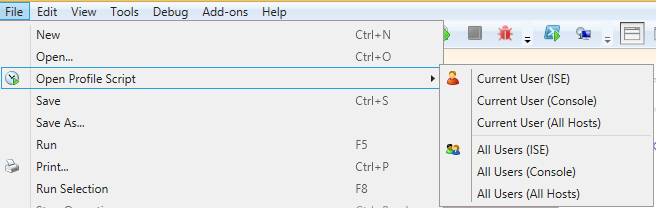
Opening profile scripts (including both console and ISE as well as allhosts) and printing are two huge pluses!
Looking through the new toolbar buttons and the menus (almost all of which have new entries), I was like a kid in a candy store. Here are some of the highlights:
- Built-in versioning and comparing (using a zip file that sits next to your script)
- A variable watch window (one of the main reasons I occasionally stray from the ISE)
- Code refactoring
- Code risk analysis
- Code signing (and cert generation)
- A Navigation bar (search for strings or functions)
- A Pop-out console (super handy on multiple monitors
- Run code in a new console (or 2.0, or 32-bit) from a button
- Brace-matching
- Show whitespace
This is barely scratching the surface. In the few days that I've used ISESteroids, the main thing that I have noticed is that it is not in my way. Even with gadgets turned on and all of it updating in realtime, I don't notice a lag or any kind of performance hit. The features feel like they were built in to the ISE. The product is still a beta, so some of the features aren't connected or don't have documentation, but even with these shortcomings the experience is still something that is hard to imagine.
Opening a script, you immediately see feedback about problems (squiggle underlining), and references (small text just above function declaration). I've zoomed in on this function definition so you can see the "3 references"

Clicking on the "3 references" brings up a "pinnable" reference window:
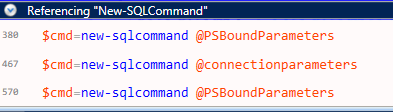
If you place the cursor on one of the underlined sections, you get instructions in the status bar about what the problem is and have an opportunity to fix it there or everywhere in your script:


The "variable monitor addon" (usually called a watch window) is one of the reasons that I occasionally stray to one of the other editors. No need to do that now!
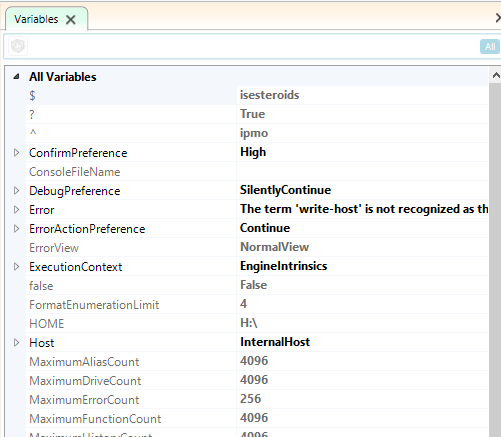
It's not so obvious in the screenshot, but there's a button in the left side just under the title (Variables) which clears all user-defined variables. I've wanted something like that for debugging a number of times. Clearing variables between troubleshooting runs can really help out.
One other "random" thing that I just found is accessed by right-clicking on the filename in the editor. In the "stock" ISE, you don't get any menu at all. Look at all of the options now:
I haven't come close to showing all of the features that are included. In fact, while preparing for this post I took over 70 screenshots of different features in action. I'll take pity on you and not go through every one of them individually . Rest assured that you'll find ISESteroids to be amazingly helpful right out of the box (so to speak) and be delighted often as you continue to encounter new features. The features seem to be well thought out and are implemented very smoothly.
Since this is a beta product it's not all sunshine and roses. I did encounter one ISE crash which I think was related to ISESteroids, and a few of the features didn't work or didn't match the documentation. That didn't stop me from showing everyone around me how cool it was. They were all suitably impressed.
I heartily recommend ISESteroids for every PowerShell scripter. The ISE with ISESteroids feels like a Version 10.0 product instead of a 2.0 product. It can be downloaded from the PowerTheShell site. A trial version is available or licenses can be purchased.
My hat is off to Tobias Weltner, who has now been featured twice in my blog (here is the previous instance). Both times I have been very happy to see what he is providing and I can't wait to see what he has coming up next.
--Mike
Why Use PowerShell?
After a presentation about PowerShell at a recent user group meeting, one of the attendees asked, in effect, why he should bother learning PowerShell. He has been in IT for a long time and has seen lots of different approaches to automation.
I was somewhat taken aback. I expected these kinds of questions 5 years ago. I wasn't surprised 3 or 4 years ago when I heard questions like this. But PowerShell has been around for 7 years now, and it is clearly Microsoft's go-forward automation technology. I'm not quite ready to seriously say "Learn PowerShell or learn to say 'Would you like fries with that'", but I definitely feel that not learning PowerShell is a serious detriment to a career in IT.
With every new product release, more and more of the Microsoft stack is wired up with PowerShell on the inside. PowerShell gives a common vocabulary for configuring, manipulating, querying, monitoring, and integrating just about anything you can think of.
PowerShell gives us a powerful platform for coding, with hooks in the environment for building reusable tools both in script, and in managed code. The language is built from the ground up to be flexible and extensible with a vision of the future of Microsoft technology that is not knee-jerk, but long-term.
Personally, I use PowerShell for all of these things, but also because I truly enjoy scripting in PowerShell. I am able to spend more of my time engaging the problems I deal with and less time dealing with scaffolding. I can create tools that I can leverage in flexible ways and share easily.
The best part is, programming is fun again.
Mike
It's 10 O'Clock. Do you know where your servers are?
Ok…that’s a strange title, but let me finish before you decide its lame. (On a side note, I’m a dad, so my humor tends to run in that direction naturally).
I see lots of examples in books and on the web about how to use pipeline input to functions. I’m not talking about how to implement pipeline input in your own advanced functions, but rather examples of using pipeline input with existing cmdlets.
The examples invariably look like this:
‘server1’,’server2’ | get-somethingInteresting –blah –blah2
This is a good thing. The object-oriented pipeline is in my opinion the most distinguishing feature of PowerShell, and we need to be using the pipeline in examples to keep scripters from falling back into their pre-PowerShell habits. There is an aspect of this that concerns me, though.
How many of you are dealing with a datacenter comprised of two servers? I’m guessing that if you only had two servers, you probably wouldn’t be all gung-ho about learning PowerShell, since it’s possible to manage two of almost anything without needing to resort to automation. Not to say that small environments are a bad fit for PowerShell, but just that in such a situation you probably wouldn’t have a desperate need for it.
How would you feel about typing that example in with five servers instead of two? You might do that (out of stubbornness), but if it were 100, you wouldn’t even consider doing such a thing. For that matter, what made you pick those specific two servers? Would you be likely to pick the same two a year from now? If your universe is anything like mine, you probably wouldn’t be looking at the same things next week, let alone next year.
My point is that while the example does show how to throw strings onto the pipeline to a cmdlet, and though the point of the example is the cmdlet rather than the details of the input, it feels like we’re giving a wrong impression about how things should work in the “real world”.
As an aside, I want to be very clear that I’m not dogging the PowerShell community. I feel that the PowerShell community is a very vibrant group of intelligent individuals who are very willing to share of their time and efforts to help get the word out about PowerShell and how we’re using it to remodel our corners of the world. We also are fortunate to have a group of people who are invested so much that they’re not only writing books about PowerShell, they’re writing good books. So to everyone who is working to make the PowerShell cosmos a better place, thanks! This is just something that has occurred to me that might help as well.
Ok..back to the soapbox.
If I’m not happy about supplying the names of servers on the pipeline like this, I must be thinking of something else. I know…we can store them in a file! The next kind of example I see is like this:
Get-content c:\servers.txt | get-somethingInteresting –blah –blah2
This is a vast improvement in terms of real-world usage. Here, we can maintain a text file with the list of our servers and use that instead of constant strings in our script. There’s some separation happening, which is generally a good thing (when done in moderation :-)). I still see some problems with this approach:
- Where is the file? Is it on every server? Every workstation? Anywhere I’m running scripts in scheduled tasks or scheduled jobs?
- What does the file look like? In this example it looks like a straight list of names. What if I decide I need more information?
- What if I don’t want all of the servers? Do I trust pattern matching and naming conventions?
- What if the file moves? I need to change every script.
I was a developer for a long time and a DBA for a while as well. The obvious answer is to store the servers in a table! There’s good and bad to this approach as well. I obviously can store more information, and any number of servers. I can also query based on different attributes, so I can be more flexible.
- Do I really want to manage database connections in every script?
- What about when the SQL Server (you are using SQL Server, right?) gets replaced. I have to adjust every script again!
- Database permissions?
- I have to remember what the database schema looks like every time I write a script?
What about querying AD to get the list? That would introduce another dependency, but with AD cmdlets I should be able to do what I need. But…
- What directory am I going to hit (probably the same one most of the time, but what about servers in disconnected domains?)
- Am I responsible for all of the computers in all of the OUs? If not, how do I know which ones to return?
- Does AD have the attributes I need in order to filter the list appropriately?
At this point you’re probably wondering what the right answer is. The problem is that I don’t have the answer. You’re going to use whatever organizational scheme makes the most sense to you. If your background is like mine, you’ll probably use a database. If you’ve just got a small datacenter, you might use a text file or a csv. If you’re in right with the AD folks, they’ve got another solution for you. They all work and they all have problems. You’ll figure out workarounds for the stuff you don’t like. You’re using PowerShell, so you’re not afraid.
Now for the payoff: Whatever solution you decide to use, hide it in a function.
You should have a function that you always turn to called something like “get-XYXComputer”, where XYZ is an abbreviation for your company. When you write that function, give it parameters that will help you filter the list according to the kinds of work that you’re doing in your scripts. Some easy examples are to filter based on name (a must), on OS, the role of the server (web server, file server, etc.), or the geographical location of the server (if you have more than one datacenter). You can probably come up with several more, but it’s not too important to get them all to start with. As you use your function you’ll find that certain properties keep popping up in where-object clauses downstream from your new get-function, and that’s how you’ll know when it’s time to add a new parameter.
The insides of your function are not really important. The important thing is that you put the function in a module (or a script file) and include it using import-module or dot-sourcing in all of your scripts.
Now, you’re going to write code that looks like this:
Get-XYZComputer –servertype Web | get-somethinginteresting
A couple of important things to do when you write this function. First of all, make sure it outputs objects. Servernames are interesting, but PowerShell lives and breathes objects. Second of all, make sure that the name of the server is in a property called “Computername”. If you do this, you’ll have an easier time consuming these computer objects on the pipeline, since several cmdlets take the computername parameter from the pipeline by propertyname.
If you’re thinking this doesn’t apply to you because you only have five servers and have had the same ones for years, what is it that you’re managing?
- Databases?
- Users?
- Folders?
- WebSites?
- Widgets?
If you don’t have a function or cmdlet to provide your objects you’re in the same boat. If you do, but it doesn’t provide you with the kind of flexibility you want (e.g. it requires you to provide a bunch of parameters that don’t change, or it doesn’t give you the kind of filtering you want), you can still use this approach. By customizing the acquisition of domain objects, you’re making your life easier for yourself and anyone who needs to use your scripts in the future. By including a reference to your company in the cmdlet name, you’ve making it clear that it’s custom for your environment (as opposed to using proxy functions to graft in the functionality you want). And if you decide to change how your data is stored, you just change the function.
So...do you know where your servers are? Can you use a function call to get the list without needing to worry about how your metadata is stored? If so, you’ve got another tool in your PowerShell toolbox that will serve you well. If not, what are you waiting for?
Let me know what you think.
--Mike
A PowerShell Puzzler
It has been said that you can write BASIC code in any language. When I look at PowerShell code, I tend to see a lot of code that looks like transplanted C# code. It's easy to get confused sometimes, since C# and PowerShell syntax are similar, and when you are dealing with .NET framework objects the code is often nearly identical. Most of the time, though, the differences between the semantics are small and there aren't a lot of surprises.
I recently found one case, however, that stumped me for a while. What makes it more painful is that I found it while conducting a PowerShell training session and was at a loss to explain it at the time. Please read the following line and try to figure out what will happen without running the code in a PowerShell session.
$services=get-wmiobject -class Win32_Service -computername localhost,NOSUCHCOMPUTER -ErrorAction STOP
.
.
.
.
You're thinking about this, right?
.
.
.
.
.
.
Once you've thought about this for a few minutes, throw it in a command-line somewhere and see what it does.
The first thing (I think) that's important to notice is that the behavior is completely different from anything that you will see in any other language (at least in my experience).
In most languages, if you have an assignment statement and a function call one of three things will happen:
- The assignment statement is successful (i.e. the variable will be set to the result of the function call)
- The function call will fail (and throw an exception), leaving the variable unchanged
- The assignment could fail (due to type incompatibility), leaving the variable unchanged
In PowerShell, though, we see a 4th option.
- The function call succeeds for a while (generating output) and then fails, leaving the variable unchanged but sending output to the console (or to be captured by an enclosing scope).
Here's what the output looks like when it's run, note that I abbreviated some to make the command fit a line:

Not shown in the screenshot is that at the end of the list of localhost services is the expected exception.
How this makes sense is that an assignment statement in PowerShell assigns the final results of the pipeline on the RHS to the variable on the LHS. In this case, the pipeline started generating output when it used the localhost parameter value. As is generally the case with PowerShell cmdlets, that output was not batched. When the get-wmiobject cmdlet tried to use the NOSUCHCOMPUTER value for the ComputerName parameter, it obviously failed and since we specified -ErrorAction Stop, the pipeline execution immediately terminated by throwing an exception. Since we didn't reach the "end" of the pipeline, the assignment never happens, but there is already output in the output stream. The rule for PowerShell is that any data in the output stream that isn't captured (by piping it to a cmdlet, assigning it, or casting to [void]) is sent to the console, so the localhost services are sent to the console.
It all makes sense if you're wearing your PowerShell goggles (note to self---buy some PowerShell goggles), but if you're trying to interpret PowerShell as any other language this behavior is really unexpected.
Let me know what you think. Does this interpretation make sense or is there an easier way to see what's happening here?
-Mike
PowerShell-Specific Code Smells: Building output using +=
Before I cover this specific code smell, I should probably explain one thing. The presence of code smells doesn't necessarily mean that the code in question isn't functional. In the example I gave last time (the extra long method), there's no reason to think that just because a method is a thousand lines long that it doesn't work. There are lots of examples of code that is not optimally coded that works fine nonetheless. The focus here is that you're causing more work: Either up-front work in that the code is longer or more complicated than necessary, or later on, when someone (maybe you?) needs to maintain the code.
With that said, we should talk about aggregating output using a collection object and the += compound assignment operator. This is such a common pattern in programming languages that it's a hard thing not to do in PowerShell, but there are some good reasons not to. To help understand what I mean, let's look at some sample code.
function get-sqlservices {
PowerShell-Specific Code Smells
A code smell is something you find in source code that may indicate that there's something wrong with the code. For instance, seeing a function that is over a thousand lines gives you a clue that something is probably wrong even without looking at the specific code in question. You could think of code smells as anti-"Best Practices". I've been thinking about these frequently as I've been looking through some old PowerShell code.
I'm going to be writing posts about each of these, explaining why they probably happen and how the code can be rewritten to avoid these "smells".
A few code smells that are specific to PowerShell that I've thought of so far are:
- Missing Param() statements
- Artificial "Common" Parameters
- Unapproved Verbs
- Building output using +=
- Lots of assignment statements
- Using [object] parameters to allow different types
Let me know if you think of others. I'll probably expand the list as time goes on.
-Mike
Learn From My Mistake - Export-CSV
You've probably been told all your life that you should learn from your mistakes. I agree with this statement, but I prefer always to learn from other people's mistakes. In this post, I'll give you an opportunity to learn a bit more about PowerShell by watching me mess up. What a deal!
I was helping a colleague with a script he was writing. His script wasn't very complicated. It simply read in a list of computernames from a text file and tried to access them via WMI. He wanted the script to keep track of the ones that were inaccessible and output that list to a second text file for later review.
I was helping him via IM (not the best approach, but we were both busy with other things), and what we came up with was something like this.
$errorservers=@()
Programming Entity Framework: Code First by Lerman and Miller; O'Reilly Media

Programming Entity Framework Code First
Ok...my first book review. Programming Entity Framework: Code First is a short book (under 200 pages) by Julia Lerman and Rowan Miller which covers the "Code First" method of developing Entity Framework development. I'm not really plugged in to the Entity Framework community, but I recognized Julia Lerman's name from the many PluralSight courses and books that she's authored. I didn't recognize Rowan Miller, but at the time of writing he was the program manager for the Entity Framework team at Microsoft, so I'm sure he brought a lot to the book. One thing to note is that it was published in 2010 and was written using Visual Studio 2010 and Entity Framework 4. Working along with the text I was in Visual Studio 2013 Preview and Entity Framework 5. There were slight differences, but nothing that would really lessen the value of the book.
Coming from a DBA and development background, I have mixed feelings about ORMs. First of all, I get the whole object/relational impedance mismatch thing. Developers in general don't like writing the data-access code for apps. On the other hand, I don't mind writing SQL or data-access code that much, and often can find performance benefits from hand-coding the SQL. I have supported developers who have used Entity Framework enough that I know that it does a pretty good job of generating rational SQL under normal circumstances, and have only seen a few cases where it was a contributing factor to a performance "incident". That being said, having an ORM generate SQL against a database which DBAs designed is not at all the same thing as having the ORM generate the SQL and the database. My curiosity about this scenario is what leads to this book review.
As I mentioned in the opening, this is a short book (listed at 194 pages, but my PDF only has 192, including all of the "intentionally left blank" and non-content pages). The reason that it is so short is that most of the explanation of Entity Framework programming is left to Lerman's earlier "Programming Entity Framework" which is a much heftier tome, at over 900 pages. The fact that it's a short book is in its favor, however. The Entity Framework team have done their job well in that the Code First development method is not very complicated (at least to begin). The material in the book falls into 3 parts: the introduction (chapters 1 and 2), the catalog of annotations and fluent configurations (chapters 3 through 5), and more advanced topics (chapters 6 through 8).
The introduction gives you a history of Entity Framework, emphasizing the fact that developers were bound to the database (either an actual database or a logical model of the database) in earlier development models. It then proceeds to show how the Code First model allows the developer to use POCOs (Plain-Old CLR Objects). The objects used are taken from the application used in "Programming Entity Framework" and give a realistic baseline for the conversation as the book proceeds. The tone in this section is very casual and is presented as a kind of a tutorial. The authors are very good to warn the reader when code they are presenting will cause issues for upcoming steps, which is a nice detail. Many books aren't careful in this and lead to lots of confusion when code subsequently fails to compile or the results don't match the text.
In the second section, the authors cover the variety of configurations which can be made using either annotations or fluent configuration. The presentation here has the feel of a catalog: listing each type of configuration, how it's accomplished, and what options are available. There is still some tutorial narration alongside the catalog, but reading it didn't make me want to try the code, rather I just took stock of what was available.
The third section was presented in a topic-by-topic basis, as the methods discussed varied from one to the next. There were much longer code samples, and the applications were much more advanced. Again, I really didn't feel the need to try each bit of code. The discussion was enough for my purposes.
All in all, I was very impressed. The book did a great job of making me aware of the capabilities and limitations of Code First development, although I believe most of the limitations had been addressed by the team since the book's publication. The writing was clear and the examples seemed to be very well chosen. I would recommend this book without reservation to either developers who are interested in Entity Framework or for DBAs who are skeptical that a tool can generate a database with the complexity that they'd prefer.
I'm looking forward to watching some of the authors' PluralSight courses to get up to speed on improvements.
Mike
Disclosure of Material Connection: I received one or more of the products or services mentioned above for free in the hope that I would mention it on my blog. Regardless, I only recommend products or services I use personally and believe will be good for my readers. I am disclosing this in accordance with the Federal Trade Commission’s 16 CFR, Part 255: “Guides Concerning the Use of Endorsements and Testimonials in Advertising.”
PowerShell Identity Function (revisted)
One of my earliest (posts was about implementing an "identity function" in PowerShell to assist in typing lists of strings without bothering with commas.
The function I presented was this:
function identity{
PowerShellStation.com update
I just changed the syntax highlighting used by the site (to SyntaxHighlighter Evolved). One reason is that it's much easier to use.
I have tried to go through the older posts and update the markup to include the proper codes to highlight using the new plugin. If you notice one that doesn't look quite right, let me know.
Mike
Best Practices Update and some Scripting Games thoughts
Just a quick note to let you know that I haven't given up on writing about PowerShell best practices. A few things which have derailed my thinking.
- My first "best practice" I thought was a no-brainer. After I wrote it I got thinking about what actual benefit there was to sticking to single-quotes rather than using double-quotes. Perhaps it makes sense to use double quotes all the time unless you don't want interpolation and control characters.
- The 2013 Scripting Games started. Reading the comments by the community regarding the scripts has been a real eye-opener about how people feel about different topics. I think I'll probably wait until the games are over and try to compile a list of what everyone seems to agree on.
With regard to the Scripting Games, if you haven't gotten involved with them it's not too late. There are still 2 events left (I think). Even if you don't feel up to competing, looking at over a hundred different implementations of the same problem will definitely get your brain working on some new stuff to try in your scripts. Maybe some technique you hadn't really used before (splatting? parameter validation? pipeline input? comment-based help?). Take some time to read through some of the entries and at the very least you'll start to develop an opinion on what "good" means in a script. If you do enter, don't worry too much about the judging. The point values have been "evolving" over time and the important thing (to me) is the constructive comments I've received on my scripts. Some of the comments haven't been accurate (or helpful), but hey, you get what you pay for.
My hat is definitely off to Don Jones and the rest of the PowerShell.org folks for hosting this. If you've been watching the forums at all, you can tell that they're working hard to make it successful. If you've looked at scripts, you know that they've added a lot of awesome functionality on the judging side for how the commenting and scoring is handled.
Looking forward to event 5.
Mike
PowerShell Best Practice #1 - Use Single Quotes
I'm going to kick off this series with a no-brainer.
In PowerShell, there are 2 ways to quote strings, using single-quotes (') or double-quotes ("). This is probably not a surprise to you if you've seen PowerShell scripts before.
A "best practice" in PowerShell is that you should always default to using single-quotes unless you specifically need to use double-quotes. The reasons to use double-quotes are:
- To enable substitution in the string (variables or expressions)
- To utilize escape sequences in the string (introduced by backtick `)
- To simplify embedding single-quotes in the string (without doubling the single quotes)
I have to admit, I find myself getting lazy about this and switching between types of quotes with no rhyme or reason. In fact, sometimes I see that I'm using double-quotes as the default just in case I end up doing variable substitution. In my opinion, however, this is not something I should be doing.
Here's a post from Don Jones about quoting.
Anyone disagree with this one?
PowerShell Best Practices
I've seen several posts on PowerShell best practices, and even read Ed Wilson's book on the subject. There is some commonality in the lists in the obvious places (verb-noun, output objects, format your code nicely), and some disagreement in other areas (code signing, for example). I also see a great amount of variation in use of aliases and whether or not to name every parameter. Looking at code in various blogs shows yet another view of what common practices are (whether those are "best" or not is another question).
I've been thinking about "best practices" for a long time in PowerShell, and I come at it backwards. I'm really a "proof-of-concept" person. I've got a background in Mathematics, so my tendency is to implement something to the point where it works (for some value of "works") and move on. Polishing scripts and focusing on quality has unfortunately been something that I've never really invested a lot into.
At work, lately, I've started to spend some time (a few days a month) doing PowerShell training, and I'm really enjoying myself. As I'm teaching, though, I'm trying to instill upon my students a love of PowerShell, and the skills they need to implement quality scripts. And to do that, I have to think about what quality means for me.
Fortunately, I recently read Don Jones and Jeffery Hicks' new book, Learn PowerShell Toolmaking in a Month of Lunches. This book focuses almost entirely on the practice of making powerful, high-quality, reusable functions in PowerShell and I recommend it highly to anyone who uses PowerShell. It is very different from any other PowerShell book in that it isn't a tutorial on the language or on how to use certain cmdlets to accomplish tasks.
Will all this going around in my head, I'm trying to formulate a list of best practices and I think that there's a continuum in what should be recommended. Practices range from "required" (use meaningful variable names!) to "likely to start a religious war" (set tabs to 4 spaces, or braces should be on their own line).
Since I've already spent this much text just rambling, I'm thinking that it's too late to actually start listing my thoughts out, but I'll try to do that in the next few days. I'd really like to hear some community feedback (pro/con) on various ideas, since I know that there will never be a "final list".
Let me know what you think.
Mike
PowerShell Splatting Tricks
If you've never heard of splatting in PowerShell or possibly read about it but never used it, you should probably consider it. Briefly, splatting is the ability to package up parameters into a hashtable and use the hashtable to supply the parameters to a function call. The parameters which are passed into a function automatically populate a hashtable called $PSBoundParameters. Note that to "splat" a hashtable you use an @ in place of the normal $. So to pass $PSBoundParameters, you'd use @PSBoundParameters. If this isn't making sense, please refer to the code example below.
Why would you want to do this? I can think of a couple of instances where the functionality is very useful.
First, consider a function which calls several other, related functions. If the parameters for the "inner" are the same (or similar), splatting can make the resulting function calls very easy.
For example, assume we have a functions which start and stop a "widget" (with some options, of course). In order write a restart-widget function, we can simply pass the $PSBoundParameters hashtable on to the start/stop functions.
The code could look something like this:
function start-item{
Def: A Quick Helper Function
Did you ever find yourself knowing that you had written a function but you couldn't remember which module you put it in? If you have the module imported, you can find out with this:
dir function:functionname | select Name,ModuleName
Note that I am defiantly using the "dir" alias for get-childitem even though everyone says not to. I'll be a rulebreaker again later on in this post as you'll see.
If you ever wanted to know the definition of a function you can use the "definition" property:
dir function:functionname | select -expand Definition
I recently put these 2 together in a helper function I call "def"
function def{
A Remoting Issue with PowerShell 3 Beta
I've been doing some thinking about PowerShell Remoting for a project at work and realized that I hadn't ever set up remoting on my "home" laptop. I'm not in a domain, so remoting configuration is a bit different. In any case, I would be using the same machine as source and target of the remoting call, so how could it go wrong?
First of all, VMWare had set up some network adapters and placed them in a public profile. Enable-PSRemoting doesn't like that. It was an easy google (bing?) to fix and Enable-PSRemoting succeeded.
I then issued this:
invoke-command -scriptblock { get-process | select-object -first 10 } -computer localhost
Imagine my surprise when the result was this:
Could not find file 'C:\Windows\System32\WindowsPowerShell\v1.0\Event.Format.ps1xml'.
    + CategoryInfo          : OpenError: (:) [], RemoteException
    + FullyQualifiedErrorId : PSSessionStateBroken
I searched the internet for this, but only found one hit that was close, and that was a bug report for nuget.
It seems like the powershell engine that is running the remote payload is looking for a formatting file that doesn't exist. To work around this, I simply copied an existing Format.ps1xml file (I chose Registry.format.ps1xml because it was the smallest), removed the signature from it, and changed the name of the view (so it wouldn't change any output).
It's not a big bug, and it's a beta so I'm not worried. Just thought I'd share my workaround.
-Mike
Speeding up Powershell Webcast by Dr. Tobias Weltner
If you've done much looking around, you know that there's an awful lot of great information about PowerShell available on the web. The community that has formed around this product is one of its strengths. You're probably familiar with the name Tobias Weltner. His Master-PowerShell e-book has long been a resource that I've turned to for examples and explanations. I recently watched a webcast that Dr. Weltner did as part of a series of webcasts at idera.com. The title of the webcast is "Speeding up PowerShell: Multithreading". When I got the announcement, I thought it was going to be about using the [System.Threading] namespace. Boy, was I wrong.
The talk starts off with discussing times when it might make sense to avoid using the pipeline. Once you see the material, it's makes perfect sense. He then moves to using PowerShell jobs to perform tasks, discussing the pros and cons of that approach. Finally, he talks about using the Runspace class to run separate PowerShell instances. It uses the classes, but still manages to be very readable, very approachable PowerShell. He provides several examples in each section (including a function that executes a PowerShell scriptblock with a timeout, something I've never seen before).
All in all, this was easily the best webcast on PowerShell I've ever watched. Unlike most Powershell videos I've seen, it wasn't targeting a beginner, but someone who already knows the basics of scripting and wants to learn more. The techniques he presents are, as I have said, very straightforward and explained very well. I can already think of several examples of code that I'm probably going to be writing in the near future based on this presentation.
Importing Modules using -AsCustomObject
I recently got thinking about the -AsCustomObject switch for the Import-Module cmdlet. I have seen it several times in discussions of implementing "classes" in PowerShell. Here's a typical (i.e. trivial) example:
#module adder.psm1
Aggregation In PowerShell (and another pointless function)
I've been doing a lot of thinking about "idiomatic PowerShell" since my last post and my thinking led me to an idea that I haven't actually used, but seems like the kind of thing that people would do in PowerShell.
If I were writing a script that needed to get a "bunch of things" from somewhere (perhaps several different sources) and return all of them, I might be tempted to do something like this. Please forgive my PowerShell pseudocode:
function get-stuff{
PowerShell Station issues
I'm officially an idiot. I am in good company, though. The funny (not really funny) thing, is that I read Jeff's post 2 years ago and did absolutely nothing about it. So when my hosting provider had some issues and rebuilt the server this site is on, I was completely unprepared (i.e. I had no recent backups).
Let me say that I'm very pleased with nosupportlinuxhosting and especially how they handled this outage. I was informed promptly about the issue, the solution they were pursuing, and was notified when they server was back online. For a "no support" company, I can definitely say that I've had better responses from them than the previous company that was handling the site.
I hope to have (most of) the posts back online in the next day or 2. Fortunately I did have a backup from january (ouch), but that was just posts, pages, and comments. If you receive some posts in your feed reader over the next few days, that's probably me adding posts from the last 9 months or so. I doubt I'll be able to reconstruct the comments, so I apologize for that lack.
The easy "take away" from this is: Make sure you have offsite backups for all of your systems.
The not so easy "take away" from this is: No, really, make sure you have offsite backups for all of your systems.
Maybe I'll learn my lesson this time.
Mike
PowerShell’s Problem with Return
I think that PowerShell is a fairly readable language, once you’re used to its unique features. Naming functions (cmdlets) with an embedded hyphen, using -eq instead of the equals sign (and similarly for other operators) and not using commas to delimit parameters in a function call (but using them in a method call) are all things that you get used to pretty quickly. There is one feature of PowerShell, however, that I don’t think will ever come naturally to me, and that’s how it handles return values from functions.
In most languages, if you see “return 1″ as the only return in a function, you can know that the function is going to the value 1 to the caller. In fact, I’m not sure I’ve ever seen a language that didn’t work that way. That is, until I found PowerShell. Generally speaking, the return statement works just as expected. In the absence of any statements writing to the output stream (with write-output) or “dropping” their values, “return 1″ will cause the caller to receive the value “1″. Using write-output is pretty obvious, and I’d recommend using it explicitly if you intend to add objects to the output stream (thereby including them in the eventual function value). Expressions that don’t capture their return values, however, are not quite so easy to spot.
For example, examine this code to add a parameter to an ADO.NET command object looks fine:
$cmd.Parameters.AddWithValue('@demographics','$demoXML)
This is a straightforward translation of one of the lines of code in the example code here. The problem with the code is that AddWithValue not only adds a parameter, it also returns the parameter. Since we didn’t assign it to a variable, cast it to [void] or pipe it to out-null, the output of this function (AddWithValue) gets added to the output of the function it’s in.
Several “add” functions in the .net framework follow this pattern, either returning the object that was added or the index of that object in the collection. The DBConnection.Open method (inherited by SQLConnection, among others) returns the opened connection. I’m sure that with time I could find more examples than I’d feel like sharing.
Another way that I’ve seen the output stream getting messed up is when a function uses strings to output information without using write-host. For example, this function outputs “progress” information as it goes:
function get-filelength{
PowerShell Tools and Books That I Use (Revisited)
A friend of mine found this blog yesterday and commented on “PowerShell Tools and Books That I Use“. I thought that it would be good to update the list since it’s almost 2 years old. The changes are mostly incremental: version changes, a few new items, a few I don’t use much anymore.
Without further ado, here we go, now with linky-goodness.
Tools I Use, note that these are all free:
- PowerShell ISE, I know it’s part of the install, but I use it a lot.
- PowerGUI Script Editor (I still haven’t gotten the hang of PowerGUI itself)
- PowerShell Community Extensions 2.0 (PSCX)
- SQL PowerShell Extensions 2.3 (SQLPSX)
- PrimalForms Community Edition (free registration required). Download under “Free Tools/32-bit”.
Books:
- PowerShell in Action, 2nd Edition by Bruce Payette (just released yesterday, 5/18!)
- Professional Windows PowerShell Programming: Snapins, Cmdlets, Hosts and Providers by Arul Kumaravel et. al. (PowerShell 1.0, but still has good info about building hosts)
- Mastering PowerShell by Dr. Tobias Weltner
- PowerShell in Practice by Richard Siddaway
In addition to these, there are any number of blogs, I really need to update my list, that I subscribe to in Google Reader. Also, there’s a very active community on Stack Overflow that will usually be able to provide direction if you’re not sure what’s going on.
As I said the last time, there are lots of other tools and books, but these are the ones I keep coming back to.
Let me know if you think I missed something super-important.
Mike
A few functions for working with SQL Agent Job data
If you’ve ever looked at sysjobhistory, you know that the way SQL Server stores datetimes and durations in this table are not very friendly. Well, that’s not quite true. They are human-readable if they are small, but if you’ve got a job that runs for hours (days?), it becomes more and more difficult.
For example, a job which started at 9:05AM today (5/9/2011) would have a run_time of 905 and a run_date of 20110905. Both of those are recognizable, but since they are integers, it’s complicated to get them into a datetime variable in PowerShell in order to manipulate them. I have seen several posts on how to create a UDF (user-defined function) to convert these values to a datetime, and that’s usually a good solution. Unfortunately, it’s not always possible (politically) to create a UDF on a SQL instance. For example, if you are simply monitoring a box to make sure that backups are run, and don’t have much control over the box besides that function, you might not be allowed to create the necessary UDFs. Similarly, a SQL solution involving a select statement that kneads the data into the value you want is not a great solution because it’s not reusable, except in the cut-paste sense.
For that reason, I have written 4 different functions to assist with managing job data.
function convertfrom-SqlAgentDuration{
Powershellstation.com has moved
I mentioned a while back that I was thinking about moving my site to NoSupportLinuxHosting.com. They offer $1 per month basic shared hosting with the caveat that they don’t provide tech support. Since I’m not doing anything fancy on this site (i.e. hosting wordpress only), and I’m not to the point where I need to be concerned about storage or bandwidth, it seemed like a good fit. I’ve not had any real issues with my previous host (godaddy.com…yes, I know), but figured I could be saving a bit of money.
If you’re reading this, the transformation went well. It only took 30-ish minutes to accomplish.
Let me know if you find something missing or not working.
Mike
Verifying Automation
If you're anything like me, you've been bitten by the PowerShell bug and are using it among other automation sources to make you life in IT much more enjoyable. If this is not the case...you need to get started! There's no time like the present, and a PowerShell New Year's resolution should be something to consider.
For those of you that are with me in the PowerShell camp, I have something that I'd like to discuss. You probably have hundreds (dozens?) of scripts scheduled on multiple servers, possibly in multiple domains or geographical locations to perform things like these:
- Gather information about servers
- Generate reports about application usage
- Copy information from one place to another
- Validate security setup
- Start and Stop processes
- Scan log files for error conditions
- Lots of other things (you get the point)
How do you know that the scripts that you have written carefully and scheduled are actually running successfully? At first, this seems like a silly question. When you deployed the script, surely you ran it once to make sure it worked. What could have gone wrong?
Here are some examples that come to mind:
- A policy was pushed which set the execution policy to Restricted
- The credentials you scheduled the script with have been revoked
- A file share that the scripts depend on is unavailable
- Firewall rules change and now WMI queries aren't working
- The Task Scheduler service is stopped
You can probably think of a lot more examples of things that would keep scripts from working, but you get the idea. I've given some thought to how to do this, but haven't come to any real conclusions. Obviously, having your scripts log results is helpful, but only if you monitor the logs for success/failure. Also, if you have a script which is supposed to run every 10 minutes, it doesn't help if you don't get alerted when it only runs once in a day, even if it runs successfully. Also, if there is more than one person writing scripts, how do you make sure that everyone is using the same techniques to log progress?
Here are some of my thoughts:
- Use a "launcher" to run scripts (see below)
- Keep a database of processes with an expected # of runs per day
- Monitor matching start/end of scripts
- Log all output streams (example)
The first item in the list (the launcher) has been something I've been considering because it's not trivial to run a PowerShell script in a scheduled task. Even with the -file parameter which was added in PowerShell 2.0, it can involve a fairly long command-line. With the added difficulty of trying to capture output streams (most of which are not exposed to the command shell) it becomes a process that is almost hard to get right every time. Some features I'm planning for the launcher are:
- Load appropriate profiles
- Log all output streams (with timestamps) to file or database
- Log application start/end times
- Email owner of script if there are unhandled exceptions
I know this topic is not specific to PowerShell, but as Windows administrators get more used to scripting solutions to their automation problems with PowerShell (which I am confident that they are doing), it's something that every organization will need to consider. I'll try to follow up with some posts that have some actual code to address some of these points.
Mike
P.S. I'm specifically not discussing "enterprise job scheduling" solutions like JAMS because of the high cost involved. I'd like to see the community come up with something a little more budget-friendly.
Happy (Belated) Anniversary!
I didn’t manage to post anything on the 1 year anniversary of powershellstation.com, but I did remember. I was hoping to have posted more, but all in all, it wasn’t a bad year. I have some plans for this year:
- Write a post or 2 about remoting
- Kill off the powershellworkbench project (I can’t stand writing WPF)
- Start a new host project using Windows Forms and the Puzzle.SyntaxBox edit control (probably using C#)
- Update the Books/Tools/Sites pages (and keep them more or less up to date)
I was really hoping that there would be some interest in the powershellworkbench project, but I’ve not heard anything (except for a comment that there were some missing icons). Since I really didn’t enjoy writing WPF code (I might like it if I did a lot of it, but this is a hobby project), I don’t see much of a future for that project. I am comfortable with Windows Forms, though, so I’ll be rebooting that project with a new name. I’m also going to switch to the Puzzle.SyntaxBox control, because I know it will do the things I need to and not get in the way. I haven’t found a similar component that wasn’t extremely complicated. My goal with the project is to make something that an administrator with limited time could customize for their environment. I’m afraid that the complexity of WPF and the Avalon controls would make that improbable at best.
I was also hoping that there would be more feedback. I’m sure that this is a common frustration among bloggers (especially bloggers in a niche like this), so I’m not going to worry about that. I am, however, going to make a concerted effort to comment on blogs that I read. If you have any comments, they are always welcome. If you have suggestions on topics, I’m open to that, as well.
One final thing. I’ve been thinking about moving my blog to “No Support Linux Hosting”. I’m not a Linux expert, but they have a WordPress setup tutorial, and you can’t beat $1 per month. If I do change, I hope I can do it without any disruption, but who knows?
-Mike
My new favorite cmdlet: set-strictmode
If you’ve ever written Visual Basic or VB.Net code, you’re aware that it’s highly recommended that you use “Option Strict” in all of your code. Similarly, Perl scripters have a “use strict” that comes highly suggested.
The idea of these options is that there’s quite a bit of flexibility built into these languages, and sometimes that flexibility backfires on you. Using these options actually limits the flexibility of the languages in question in ways that help coders to keep from making certain types of mistakes in their code. Writing code professionally in VB.Net (you may scoff, but it happens quite a lot) or Perl (it’s not my language of choice, but again, there’s a lot out there) without using these options is not a good idea at all.
I’ve been writing code in PowerShell for about 2 years, and have probably written about 10,000 lines, mostly code that’s used on a daily basis. I’ve read several PowerShell books, online tutorials, and watched several webcasts. I may have not been paying attention, but I’ve completely missed any emphasis on the analogous option in PowerShell, “set-strictmode”. One of my co-workers asked if there was something like this in PowerShell, and I found it almost instantly. Google, and the PowerShell help file both explain how the cmdlet works. He and I started using it, and to our dismay, found dozens of errors in code that we had been trusting, in some case, for over a year.
First of all, let me explain that I’m not complaining that there’s not any information about how set-strictmode works in the “ecology” of the PowerShell community. I’m confident that each book and tutorial explains how this cmdlet works. What I’m concerned about is how I could have read as much as I have from as many people are talking about PowerShell without hearing anyone (or everyone) shouting at the top of their collective voices, “Add this to your profile…it will save you countless hours and tears in the long run”. Hopefully, I’ve just missed it, and everyone has been saying this all along. In case this has not been the case, let me say:
Add set-strictmode to your profile.
It will save you countless hours and tears in the long run.
So….how do I use set-strictmode, and what does it help with? First, to turn on “strict mode” you need to decide which version of strictmode you want. The options are:
| Version | Effect |
| 1.0 | References to uninitialized variables(except in a string) are errors |
| 2.0 |
|
| Latest | Uses the most strict mode available for this version of PowerShell. (Currently the same as 2.0) |
I would advise that you use “set-strictmode –version Latest” in your profile.
Let’s look at the different restrictions. First, if you’ve written any PowerShell scripts, you’re aware that you don’t have to declare your variables. That’s a “good thing”, and strictmode 1.0 doesn’t change that in any way. What it does do is make sure that you’re not retrieving values from variables you haven’t assigned anything to. Here’s some sample code that strictmode will choke on.
$servername=read-host -prompt "Enter name of server"
PowerShell and MongoDB
I recently saw this link on using NoSQL with Windows. Now, I'm a SQL Server DBA, so I haven't really had any reason to use NoSQL. I was curious about how easy it was going to be to set up and if I could get it working with PowerShell.
I selected MongoDB from the list because it looked more like something that would be used on smaller-scale projects.
I then googled "MongoDB PowerShell" and found this link from Doug Finke about using MongoDB with PowerShell (and F#, which is another "cool thing" I haven't managed to find a need for). Doug links to another article which explains setting up MongoDB and an open-source .Net driver for MongoDB called mongo-csharp. He then follows up with a straight-forward script showing simple usage of MongoDB. It looks like an almost literal translation of the C# code from the article he references. With those in hand, I thought it was going to be a slam dunk.
It was, but I had a few hurdles to get over before I could get it working. There weren't any problems with the code; it was written about a year ago, so it was using PowerShell 1.0 and an older version of mongo-csharp. I had to update the script in a couple of places to make it work. I probably wouldn't even write it up, given how minor the changes are, but I was somewhat disappointed with the number of hits I got for "MongoDB PowerShell".
Here's the updated script:
add-type -Path .MongoDB.Driver.dll
$mongo=new-object mongodb.driver.mongo
The Identity Function
In mathematics, an identity function is a function that returns the arguments that are passed to it unchanged. While the concept of an identity function is quite often useful in formulating proofs, it is not something that I ever expected to use in a programming environment. Here's the identity function written in PowerShell:
function identity{
New Versions of PowerShell Community Extensions (PSCX) and SQL PowerShell Extensions (SQLPSX)
In case you haven't heard, the PowerShell Community Exetensions (PSCX) and SQL PowerShell Extensions (SQLPSX) projects have both recently released version 2.0 (and each followed shortly after with quick bug fixes). Both 2.0 releases are module-based and include advanced functions to solve lots of frequently encountered problems. If you haven't ever used these toolsets, I would recommend giving them a try.
Passing Predicates as Parameters in PowerShell
This is just a quick trick that I figured out today. I had a process that manipulated a dataset, and I needed to be able to change the process to allow me to filter the data that was processed. Also, it wasn't clear exactly what kind of filter would specifically be needed in any given scenario.
Normally, I would just filter the data using where-object and pass it in to the function in question. The problem here was that the data retrieval was somewhat cumbersome, and I didn't want to push that complexity outside of the function. And since the filtering criteria wasn't clear-cut, I couldn't (and didn't want to) use a bunch of switches and parameters along with a nest of if/else conditions.
What I wanted, was to pass a predicate (an expression that would evaluate to true or false depending on whether I want a row in the dataset) in to the function. Essentially, I wanted to insert a where-object into the middle of the function.
Amazingly, PowerShell allows me to do that. The code looks a bit strange to me at first, but it works very well and isn't complicated at all.
Here's an example:
function process-data{
Checking a Field for NULL in PowerShell
It’s been a long time (over 2 months) since I last posted. I’ll try to get back into a rhythm of posting at least weekly. Anyway, this is something that occurred to me at work when writing a script.
I usually avoid nullable columns, but sometimes date fields make sense to be null (rather than use sentinel values like 1/1/1900). In this case, I had a nullable date column and I needed to check in PowerShell whether the field was in fact null or not. In SQL, I would have just used an IS NULL, or used the IsNull() function to replace the null value with something a little easier to deal with. My first (feeble) attempt was to do this:
if (!$_.completedDate){
The PowerShell Bug That Wasn't, and More Package Management
Have you ever tracked down a bug, been confident that you had found the root of your problems, only to realize shortly afterwords that you missed it completely?
What I posted yesterday as a bug in PowerShell (having to do with recursive functions, dot-sourcing, and parameters) seemed during my debugging session to clearly be a bug. After all, I watched the parameter value change from b to a, didn't I? Sure did. And in almost every language I've ever used, that would be a bug. On the other hand, PowerShell is the only language that I know of that has dot-sourcing. Here's a much simpler code example which shows my faulty thinking:
function f($x){
Package Management and a PowerShell Bug
UPDATE: I have worked out how the behavior described at the end of this post is not a bug, but in fact just PowerShell doing what it's told. Don't have time to explain right now, but I'll write something up later today. I also worked out how to "fix" the behavior.
For a long time now, I've been dissatisfied with what I call "package management" in PowerShell. Those of you who know me will be shocked that anything in PowerShell is less than perfect in my eyes, but this is one place that I feel let down. Modules in 2.0 remedy the situation somewhat, but it still isn't quite what I want or am used to in other languages.
Let me give an example. In VB.NET, if you need to use the functions in an assembly, you put "Imports AssemblyName" at the top of your script. In C#, you would have "Using AssemblyName". In Python, there would be "Import Something".
In PowerShell 1.0, you had nothing. In 2.0, you could create a module manifest which would specify either RequiredModules or ScriptsToProcess (or several other things to do upon loading the module). The problems I see with using the module manifest are:
- What if I'm not writing a module? There's no such thing as a "script manifest"
- What if the script or module that is required performs some initialization that should only be done once per session?
- What if the script or module that is required performs expensive initialization?
Because of these reasons (and because I only started using 2.0 when it went RTM) I wrote a couple of quick functions to do what I thought made sense.
$global:loaded_scripts=@{pkg_utils='INITIAL'}
function require($filename){
SQL PowerShell Extensions (SQLPSX) 2.0 Released
The first module-based release of the SQL PowerShell Extensions (SQLPSX) was released recently on CodePlex. It features very handy wrappers for most of the SMO objects used to manipulate SQL Server metadata, SSIS packages, Replication, and (new in the 2.0 release) an ADO.NET module which I wrote based on the code in this post. There's also a data-collection process and Reporting Services reports to help you get your SQL Server installations under control.
Chad Miller, the driving force behind SQLPSX, has put a lot of effort into this release, and you'll find really good examples of advanced functions (with comment-based help, even).
If you deal with SQL Server in any way, you'll almost certainly be able to use this set of modules to streamline your scripting experience (and probably learn something about SMO in the process).
You can find the release here.
Get-EventLog and Get-WMIObject
Recently, we had an occasion to write a process to read event logs on several sql servers to try to determine login times for different sql and Windows logins. Since we have begun using PowerShell v2.0, and since get-eventlog now has a -computername parameter, it seemed like an obvious solution.
The event message we were interested in looked something like "Login succeeeded for uesr 'UserName' ....". The code we were trying to use was:
get-eventlog -computername $servername -logname Application -message "Login succeeded for user*" -after ((get-date).AddDays(-1))
I expected that, given a date parameter and a leading string to match wouldn't be too bad, but this ended up taking several minutes per server. As there are over a hundred servers to scan, that didn't work well for us.
We ended up falling back to get-wmiobject.
$BeginDate=[System.Management.ManagementDateTimeConverter]::ToDMTFDateTime((get-date).AddDays(-1))
Writing your own PowerShell Hosting App (the epilog)
As I mentioned before, I have created a CodePlex project to track the development of a WPF PowerShell host using AvalonDock and AvalonEdit.
It's still in the very beginning stages, but it's comparable to the code I used in this tutorial series (except that it's using different technologies, all of which I'm new to).
PowerShellWorkBench will eventually include:
- Treeview controls
- Node/Edge Graphs (using the GraphXL library)
- Context-menus based on powershell ETS
- Whatever you think of and submit
If you're interested in contributing to PowerShellWorkBench, drop me a line (mike).
-Mike
[EDIT]: The windows forms-based powershell workbench project can be downloaded here.
Writing your own PowerShell Hosting App (part 6...the final episode)
Before we proceed with putting powershell objects in a treeview (which I promised last time), I need to explain some changes I have made to the code.
- Refactoring the InvokeString functionality ouf of the menu item event
- Merging the error stream into the output stream
- Replacing the clear-host function with a custom cmdlet
First, we had been calling the invoke method in the OnClick event of the menu item. While that works fine as a proof-of-concept, we’re going to need that functionality elsewhere, so it’s a simple matter to extract the logic into a function as follows:
Sub RunToolStripMenuItem1Click(sender As Object, e As EventArgs)
	InvokeString(txtScript.Text)
End Sub
Writing your own PowerShell Hosting App (part 5)
In the last post, we got to the point that we were actually using the new host objects that we implemented, but we still hadn't provided anything more than trivial implementations (throwing an exception) for the methods that make a custom host useful, e.g. the write-* functions.
Before we do that, we need to discuss interaction between PowerShell (the engine) and windows forms (though we would have had the same issue with WPF). In PowerShell 1.0, the engine creates its own thread to run the Invoke() method, and doesn't provide a way to change that thread's apartment model, which is MTA. The reason that is important is that to interact safely with Windows Forms (or WPF), you need to be in the same thread. The bottom line is that when using the 1.0 object interface, you can't directly interact with the window environment. Which means that any hopes you had of writing some simple code to append text to the textbox in the WriteHost method are going to be dashed. Unless, of course, you use the 2.0 object model. The designers realized the shortcoming, and in 2.o they allow you to change the child thread to STA.
So now we have a couple of choices. As I mentioned in part 3, I was purposely using the 1.0 object model, since 2.0 wasn't final, and the 1.0 methods would work fine in a 2.0 install. One thing we could easily do is switch the code to 2.0, set the threading model to STA, and go on our merry way. Another approach would be to have the Host objects interact with the user interface indirectly. One way to do that would be to simply have the host methods package their arguments into an object, and add the object into a queue that is consumed in a timer event handler on the form. This works quite nicely, and provides an easy separation between the host and the interface.
For now, though, for the sake of simplicity (and to keep the code from getting longer than anyone would care to read), we'll just use the 2.0 object model. As I mentioned in part 4, I plan to create a project on Codeplex for a more complete host than I can really create in a tutorial. It will include code to keep the host and interface separate (which I think I like better).
Here is the revised code in the form to use the 2.0 model (I've moved some of the declarations out of the Click method because the objects don't need to be recreated each time):
Public Partial Class MainForm
public shared PowerShellOutput as textbox
An Overlooked Parameter
This isn't so much a post as an extended pingback. This Post by Jeffrey Snover on the PowerShell Team Blog explains how to use the -expandproperty parameter of the select-object cmdlet.
I had never noticed that parameter and was also annoyed by writing this all the time:
get-something | foreach {$_.SomeProperty}
It was an idiom that I was using a lot that felt like it didn't fit.
As he points out, this can be replaced with the non-looping:
get-something | select-object -expandProperty SomeProperty
It's longer if you don't use aliases (and prefix-shortened parameternames), but I think it reads a lot better.
Let me know what you think. Was this a surprise to you, or have you used the -expandProperty parameter before?
Mike
P.S. You should definitely follow the PowerShell Team Blog...it is always worthwhile.
Writing your own PowerShell Hosting App (Part 4)
WARNING: This is a long post with lots of code! :-)
In the last post, we got to the point that we ran into the limitatoin of simply running scripts through a bare runspace. You can accomplish quite a bit, but to have the full shell experience, you'll want to actually create a the host objects, so that the PowerShell engine will know how to handle interacting with the environment. The hint that we were at this point was the error message “System.Management.Automation.CmdletInvocationException: Cannot invoke this function because the current host does not implement it.” Creating a host that does implement "it" is not too difficult, but involves a lot of code. Without further ado, here we go.
There are three classes to inherit from to implement a custom host. They are:
- System.Management.Automation.Host.PSHost
- System.Management.Automation.Host.PSHostUserInterface
- System.Management.Automation.Host.PSHostRawUserInterface
These classes are declared as MustInherit (which is the same as Abstract in C#), and each declares several properties and methods as MustOverride. To easily generate code for these methods and properties (in SharpDevelop...each tool may or may not have a way to do this), I wrote simple stub classes for these as follows:
Public Class PowerShellWorkBenchHost
Writing your own PowerShell Hosting App (Part 3)
In the last post we started building the app, but ran into a problem with output. We were able to get output from some scripts (dir, for example, gave incomplete output), but others didn't give us anything useful at all (get-service, returned "System.ServiceProcess.ServiceController" over and over).
The reason for this is simple. PowerShell cmdlets (and by extension, scripts) return objects, not strings. To get string output, we need to tell the script to output strings rather than ask each object that is output to give us its string representation by calling ToString() on them.
To do this, we could try to do something like surround the script that's passed in with parentheses, and add "| out-string", but there's an easier solution. The object we're using to run our scripts is called a Pipeline. As such, it has a method to append commands. The "corrected" code is this:
Sub RunToolStripMenuItem1Click(sender As Object, e As EventArgs)
    Dim r As Runspace = RunspaceFactory.CreateRunspace
    r.Open
    Dim p As Pipeline = r.CreatePipeline(txtScript.Text)
    p.Commands.Add(New Command("out-string"))
    Dim output As Collection(Of PSObject)
    output = p.Invoke()
    For Each o As PSObject In output
      txtOutput.AppendText(o.ToString() + vbCrLf)
    Next
End Sub
The only new line is the one that contains the "out-string". We can even leave the ToString() calls, because we know that string objects' ToString() will just output the string itself, or at least we hope it would.
With that, here's the output for "get-service" (note: I changed the font to a fixed-width font):

That's much nicer and even has column headers like we'd expect. With that change, cmdlets that output objects directly to the pipeline will work fine. But what about cmdlets that output text to the host (like the write-* cmdlets other than write-output)? Simply trying "Write-host 'Hello, World.'" gives us a big fat error, but one that gives us and idea what we need to do to fix it: "System.Management.Automation.CmdletInvocationException: Cannot invoke this function because the current host does not implement it."
That seems like a pretty good breaking point. Implementing the host (which pretty much involves inheriting from a couple of classes and implementing some basic methods) will take some time, but most of it's pretty easy.
One thing that I should mention. I haven't been specific about what version of PowerShell this series is using. The reason is that the code so far will work on either 1.0 or 2.0 (and I anticipate that the rest of the code will as well, but I haven't written the rest yet). In fact, the custom host that I use at work has no problems running on either 1.0 or 2.0. I've been very impressed with the PowerShell team and their commitment to making PowerShell 2.0 backwards compatible as far as possible. I expected that this effort would end as soon as I got into the object model, but I have yet to find anything that I've written for 1.0 that hasn't worked in 2.0. Now there's a lot of stuff that can be written for 2.0 that won't work in 1.0, but that's to be expected.
Speaking of 2.0, the final release of 2.0 (for XP and Win2k3) showed up today, much to my surprise. Kudos again to the PowerShell team for a very quick release schedule following last week's Windows 7 release. If you haven't already, I definitely recommend getting 2.0 downloaded and installed so you can try out all of the neat stuff that's included. I especially recommend trying the out-gridview cmdlet!
Mike
Writing your own PowerShell Hosting App (Part 2)
In the last post, I discussed some of the reasons why you might want to write your own PowerShell hosting app. I realized later that I didn't define what that meant.
In general, there are 2 ways to include PowerShell technology in an application.
- Use the PowerShell objects (in the System.Management.Automation.* namespaces) to execute scripts, and use the objects that are returned in your code.
- Create a custom "host" for PowerShell, providing the PowerShell engine with the ability to interact with the environment.
With the first option, you have access to the input, output, and error streams of the PowerShell pipeline (which is how PowerShell represents a piece of running code). With the second option, you also have the ability to handle other output like debug, verbose, and warning, as well as handling prompts for things like read-host and get-credential.
In general, you can get quite a lot done with the first approach, and that's how we're going to start. Adding the custom host won't involve rewriting much code, so it makes more sense to start out easy.
A few more things before we start coding: First,I'm going to use VB.NET rather than C#. I know this is probably a turn off for some of you (sorry), but there are a some good (I think) reasons to do this.
- Almost all example .Net code dealing with PowerShell is C#
- Administrators are more likely to be familiar with vbscript, so VB.NET may be more approachable.
- Most of the actual code for dealing with PowerShell is pretty simple, so it won't be hard for C# folks to modify it.
- (the real reason) I don't have a history of writing C#, and I don't really want to start my efforts in that direction in a blog post. :-)
And now, on to the code. I'm going to use SharpDevelop, because it's possible that you want to do something like this, but don't have the budget (as an admin) to have development tools. SharpDevelop is a free, open-source IDE for .NET languages. It is very similar to Visual Studio, and includes a lot of features. Did I mention that it's free?
Now, on to coding. I'm envisioning a simple screen with an area to enter PowerShell code, and an area to view the output. I started by creating a new VB.NET Windows Application. I then added a menustrip, a splitter, and two textboxes (one above the splitter, and one below). I set both textboxes to multiline and set their dock property to fill. I also right-clicked on the menustrip and selected "Insert Standard Items" Clicking the Run button should give you something that looks like this:

It's nothing spectacular, but this isn't a post about writing a spectacular interface. This is about PowerShell in a GUI. Now to add the PowerShell.
You're going to need to reference to System.Management.Automation (right-click on the References node in the Projects window, select Add Reference, and select System.Management.Automation from the list on the GAC tab). You will probably want to add the following to the top of the .vb file:
Imports System.Management.Automation
Writing your own PowerShell Hosting App (Part 1. Introduction)
I've mentioned before that I use a homegrown PowerShell host in my work. I have been more than pleasantly surprised at how easy and how rewarding this is. In the last few weeks, I've seen a few articles that have gotten me thinking about writing a series of blog posts about how to get started.
Before actually writing anything, it's good to ask yourself...why in the world would I write a host when there are so many out there already (ISE and PowerGUI are notable free examples)? This is a really important question and one that will stop most projects in their tracks. Most people can get what they need using an existing host. Here are some of the reasons I chose to write a host:
- I wanted complete control over the environment, as I knew (hoped) that I would be spending a lot of time using it
- I wanted to be able to interact with the environment in ways that the existing tools didn't allow
- I was constrained to use PowerShell 1.0 (which eliminates the ISE)
But probably the most pressing reason in reality was:
- I had a book (link) that explained the technology and I wanted to play :-)
Unlike most (some?) administrators, I have a development background and even have Visual Studio installed on my machine, so testing the waters of writing a host wasn't a big investment of time, and the pleasure of seeing something like this come together was well worth it.
Here are the posts that got my mind going again:
Create your own IDE in 10 minutes
How to Host PowerShell in a WPF Application
In the next post, I'll start the project and give you something to look at.
Let me know if there's anything specific you'd like to see (or have experience implementing).
Mike
Flexible Filtering
When writing a "get-" function in PowerShell, you often run into the issue of filtering your data. Do you want to include any filtering parameters? Do you want to allow lists of values? Do you want to provide "include" or "exclude" parameters? What about wildcards? I got tired of writing the same kind of code over, so I wrote a fairly general-purpose filter-list function.
Here it is (example usages follow):
function filter-list($list, $filterString,$propertyName,[switch]$help ){
A Handy Trick I've Started to Use a Lot
If you're like me, you hate to do the same thing over and over. That's what programming is for, right? To handle automating tedious procedures? Unfortunately, it's not at all appropriate to run off and build an app every time you need to do the same thing 3 times. If you try that, you'll have a lot of chances to write apps, but probably will be looking for a new job because it takes you way too long to get anything accomplished.
Scripting is the short answer to the dilemma above. PowerShell is one of the latest entries into the scripting world, and to my tastes, one of the best.
Here's something I used several times in the last few days. I can't remember quite where I saw it first, but it was in a PowerShell blog about looping (I think).
Anyway, the problem is that I needed to edit config files on the servers in a farm. Fortunately, the servers were numbered sequentially. So, what I wrote was (suitably sanitized for public consumption):
[powershell gutter="false"]1..9 | % { notepad "server$_`c$path_to_config_file\config.file" }
That popped the first 9 files up in notepad, ready to be edited. The trick is to use the range syntax to create a list of numbers, and use % to loop through them.
If you need a longer range (with leading zeroes, of course), it's not too hard.
[powershell gutter="false"]1..20 | % {notepad ("server{0:D2}\c$\path_to_config_fileconfig.file" -f $_)}
Here, we use the format operator with a D2 format specifier (2 digits, leading zeros). See here for more examples of format operators in PowerShell.
When you're dealing with dozens of servers, tricks like this can save you a lot of time.
Let me know what you think. What "idioms" in PowerShell do you find yourself using a lot?
Mike
Is it just me? (Or does PowerShell remind you of SQL?)
When preparing a PowerShell training class for a group of DBAs, I realized that there were some parallels between basic SQL and basic PowerShell commands.
A (very) basic SQL statement has the form:
SELECT <COLUMNS>
FROM <TABLE>
WHERE <CONDITION>
ORDER BY <EXPRESSION>
I noticed that a very common idiom for PowerShell pipelines* was:
<data source cmdlet> | select-object <properties> | where-object <CONDITION> | sort-object <EXPRESSION>
By "<data source cmdlet>”, I mean some cmdlet that puts a bunch of objects in the pipeline, like get-childitem, get-process, get-task, etc.
Part of the power of SQL is that it doesn’t matter what kind of data is in the tables, the same form of SQL statement works the same way (predictability). This is one of the things I love about PowerShell. It doesn’t matter what kinds of data is returned by a cmdlet. The same form of PowerShell pipeline* will perform the same kind of predictable operations on it. I know that this is often mentioned in tutorials and videos about PowerShell, but this was when it really struck me.
A few other SQL/PowerShell comparisons might be:
|
SQL |
PowerShell |
| GROUP BY | group-object |
| SUM(), AVG(), etc. | measure-object |
| Cursors | foreach-object loops |
| SELECT DISTINCT | select-object –unique |
| SELECT TOP n | select-object –first n |
Obviously, this comparison breaks down pretty quickly. There isn't really a parallel that I can find to JOIN statements, which make SQL so powerful, and clearly there's a lot of powershell scripts that don't fit the pattern I'm describing. I think, though, that it's a useful comparison and can help get people "over the hump" in their quest to master PowerShell.
Let me know what you think.
Mike
* A Pipeline in PowerShell is a sequence of cmdlets where each takes the output of the previous cmdlet as its input.
Executing SQL the Right Way in PowerShell
We all know that using string concatenation (or substitution) in SQL is a "bad thing". If you google "SQL Injection", you'll find hundreds of pages that tell you not to do things this way and that you need to use parameterized queries. However, I still see a lot of code in PowerShell that does this:
$cmd.ExecuteNonQuery("delete from Table1 where Column1='$value'")
Since code like this is obviously prone to SQL injection attacks, it must be that doing it the right way is difficult, right? Actually, no. Here's a simple function that allows you to run parameterized queries easily using dictionaries.
function exec-query( $sql,$parameters=@{},$conn,$timeout=30,[switch]$help){
PowerShell ETS (Extended Type System)
In a recent post , I showed how to get a list of Scheduled Tasks as objects using PowerShell and Import-CSV. In that, I included the following line of code:
$task.PSObject.TypeNames.Insert(0,"DBA_ScheduledTask")
In this post, I'll try to explain why I did that.
PowerShell Tools and Books That I Use
Tools I Use (note...these are all free!):
- PowerGUI Script Editor (I haven't ever gotten the hang of PowerGUI itself)
- Powershell Community Extensions 1.2 (PSCX)
- PowerTab
- SQL PowerShell Extensions 1.61 (SQLPSX)
- PrimalForms Community Edition
Books:
- PowerShell In Action by Bruce Payette
- Professional Windows PowerShell Programming: Snapins, Cmdlets, Hosts and Providers by Arul Kumaravel et. al.
- Mastering PowerShell by Dr. Tobias Weltner
I've tried a lot of other tools (several IDE's, for example), but this is the list I keep returning to.
Getting Scheduled Tasks in PowerShell
There are a few approaches to manipulating scheduled tasks in PowerShell.
* WMI - Useful if you are only going to manipulate them via script. The tasks will not be visible in the control panel applet.
* SCHTASKS.EXE - Works ok, but has a somewhat arcane syntax, and is a text-only tool.
* Task Scheduler API -Best of both worlds, but only on Vista (not XP).
Why PowerShell?
Why am I writing a blog about PowerShell? The answer is simple. I haven't been as excited about a technology since I first learned SQL. PowerShell allows me to do my job in a much more consistent, flexible, and scalable way.
What is it about PowerShell that has me so fascinated?